1
Click on Plus icon to add another office.
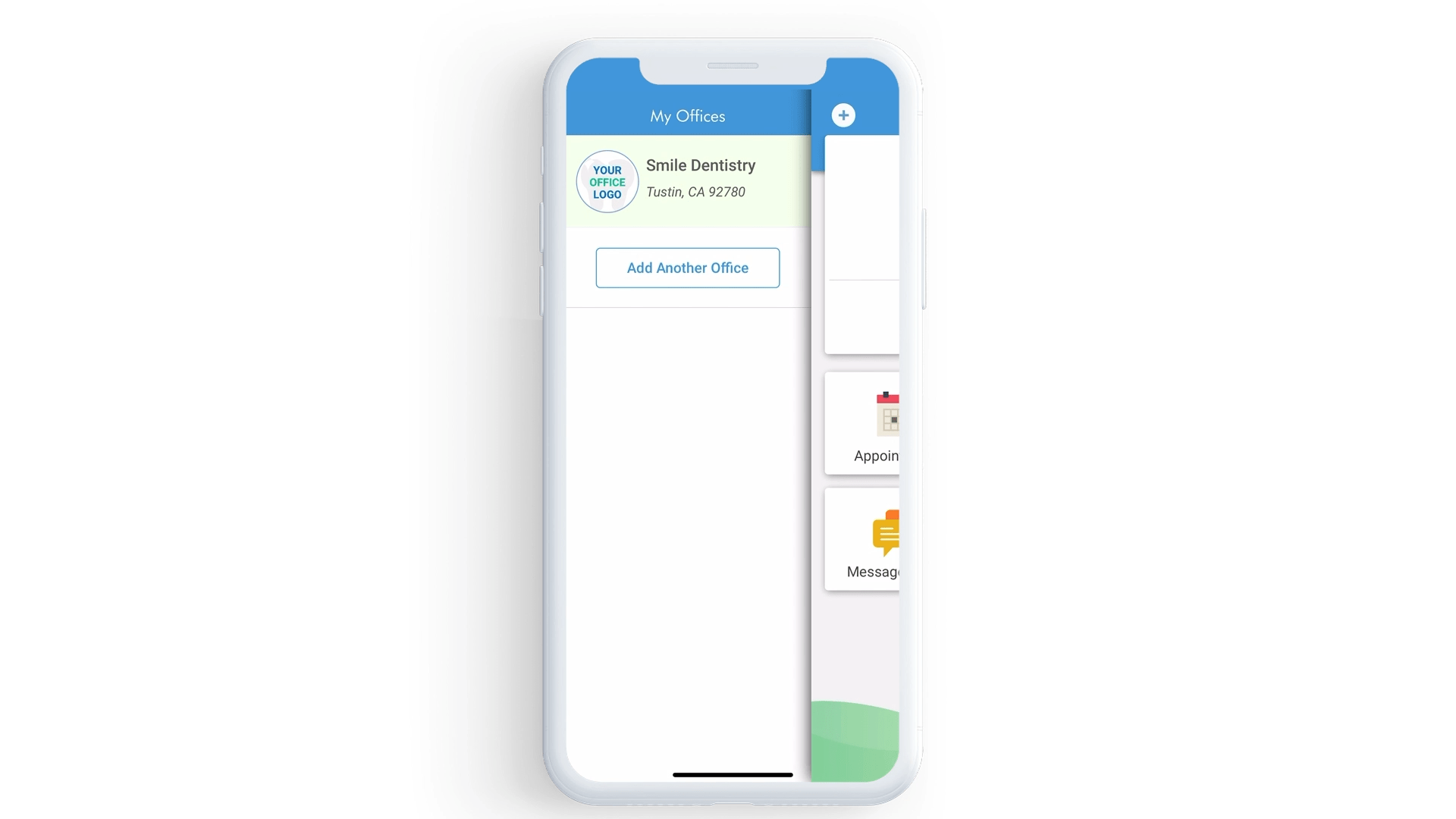
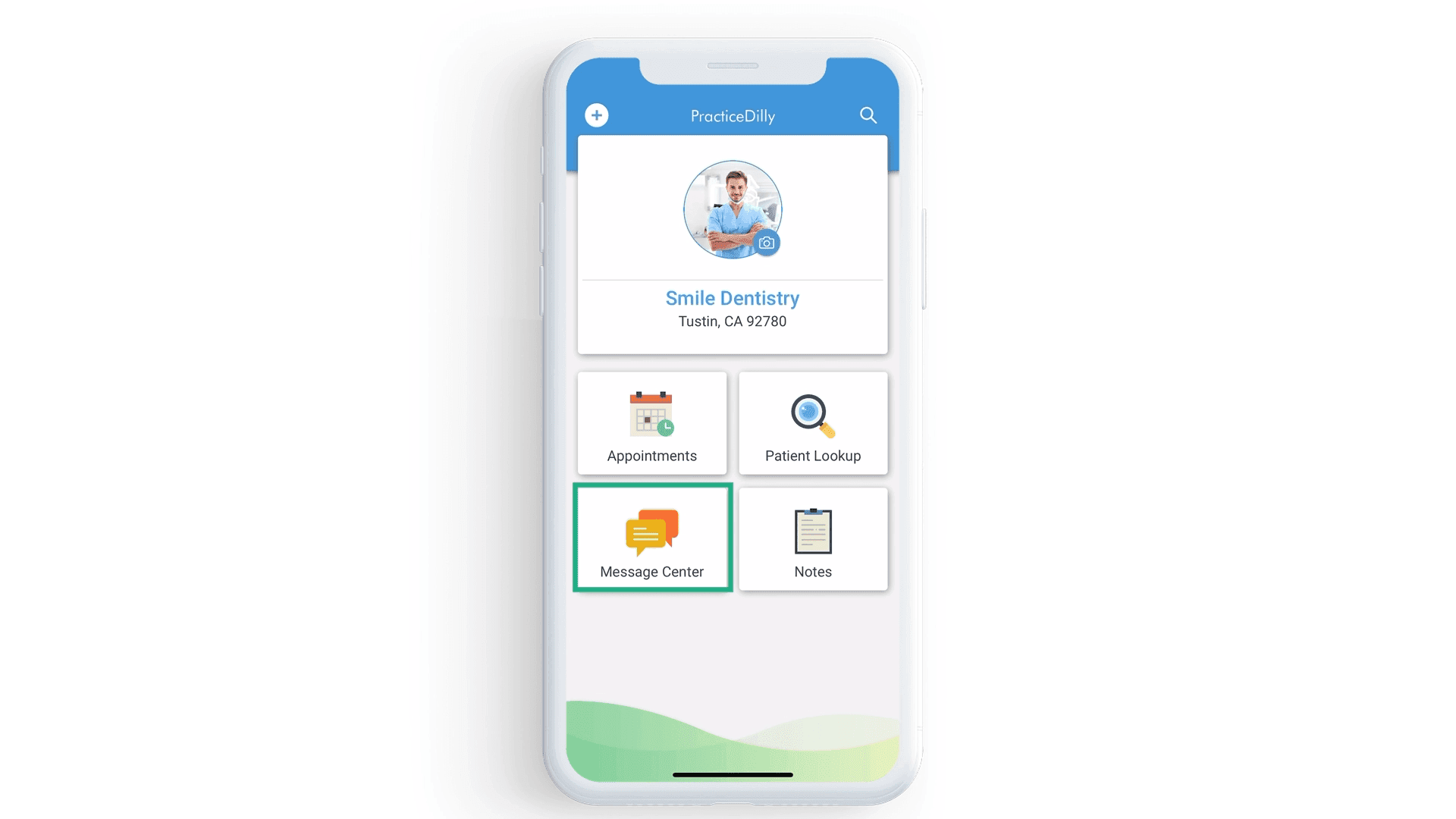
Review the main PracticeDilly dental mobile-app features for managing offices, appointments, patient information, messages, and review requests.
Click on Plus icon to add another office.
Click on the Camera icon to upload your picture.
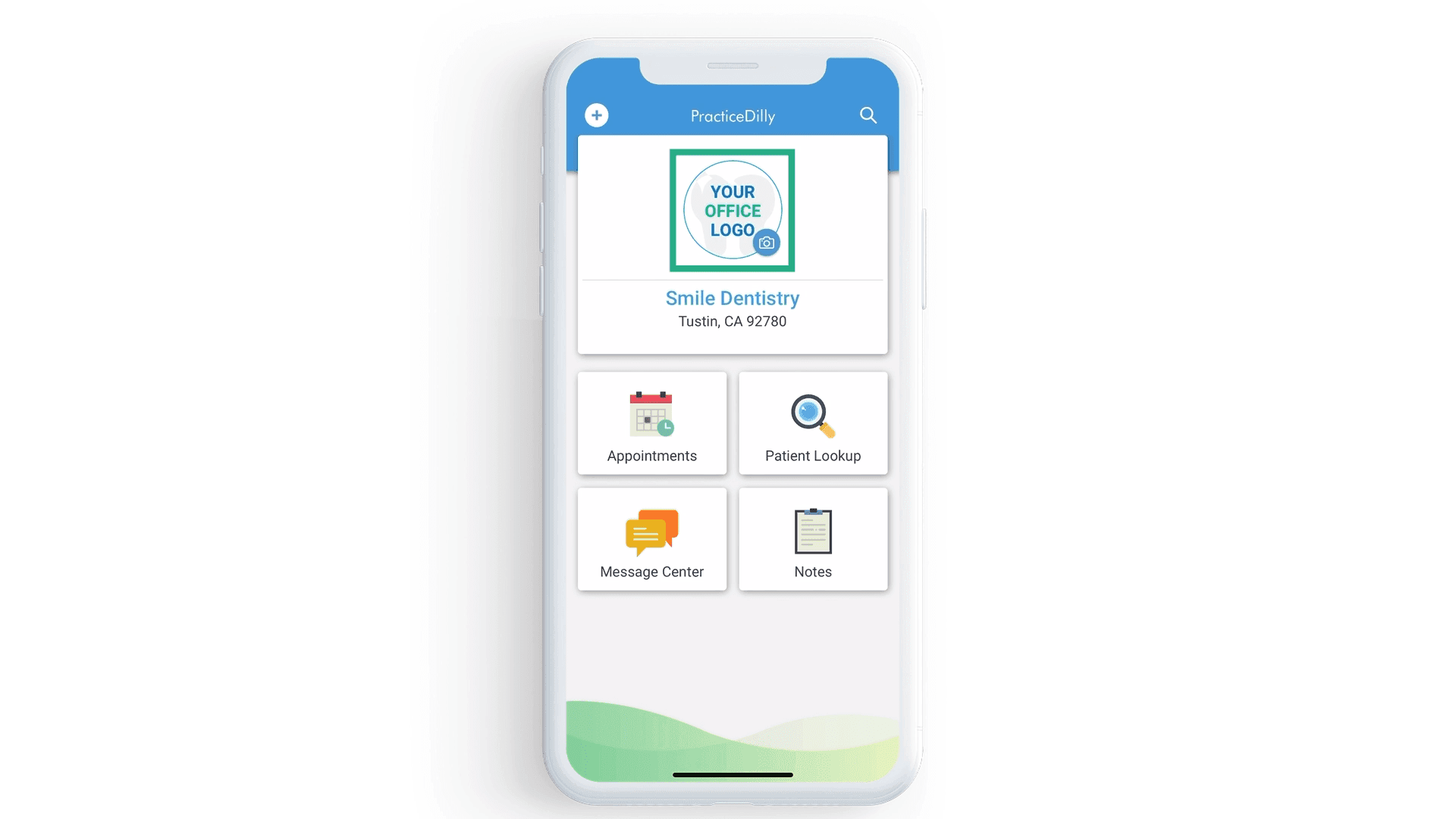
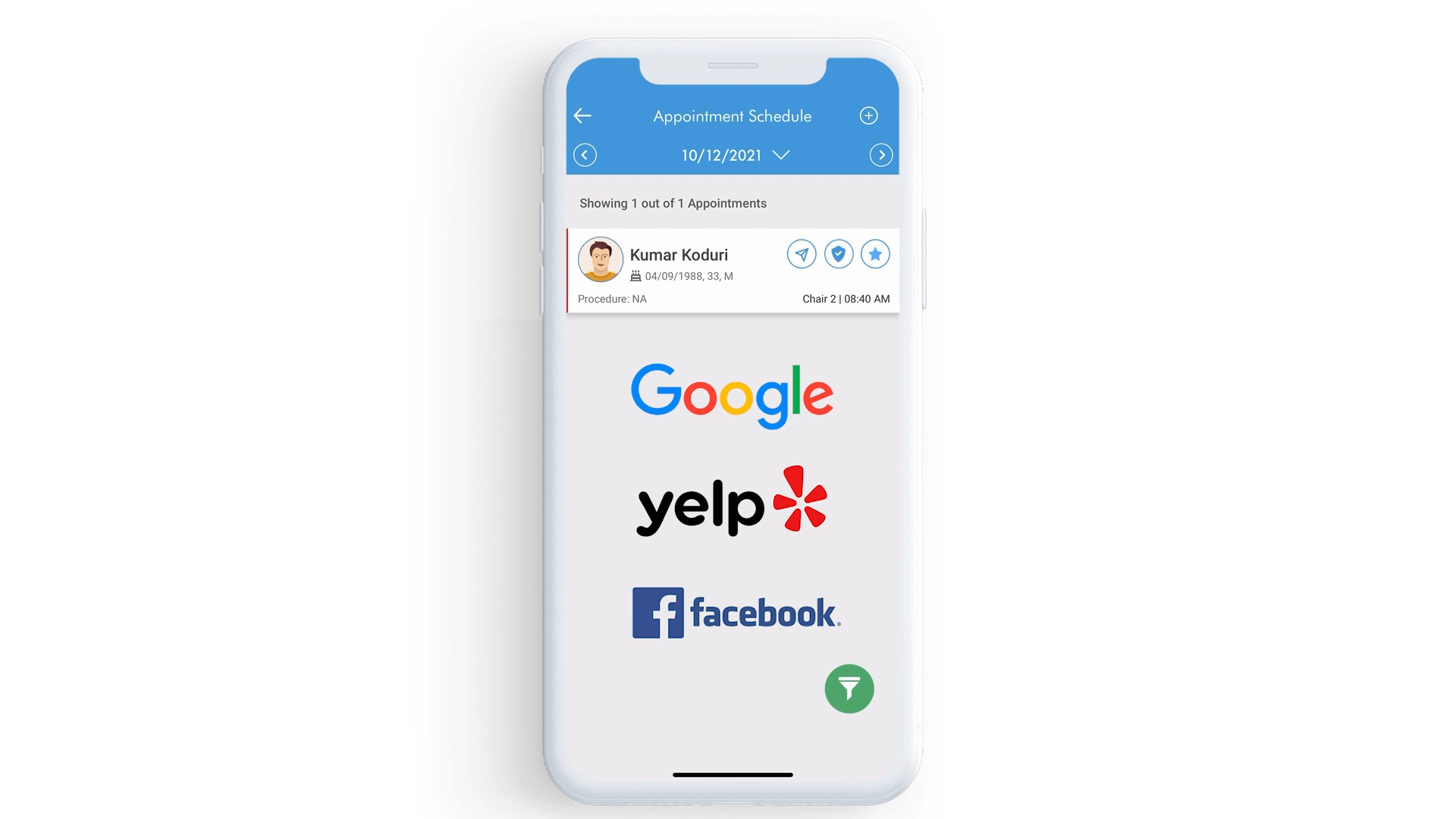
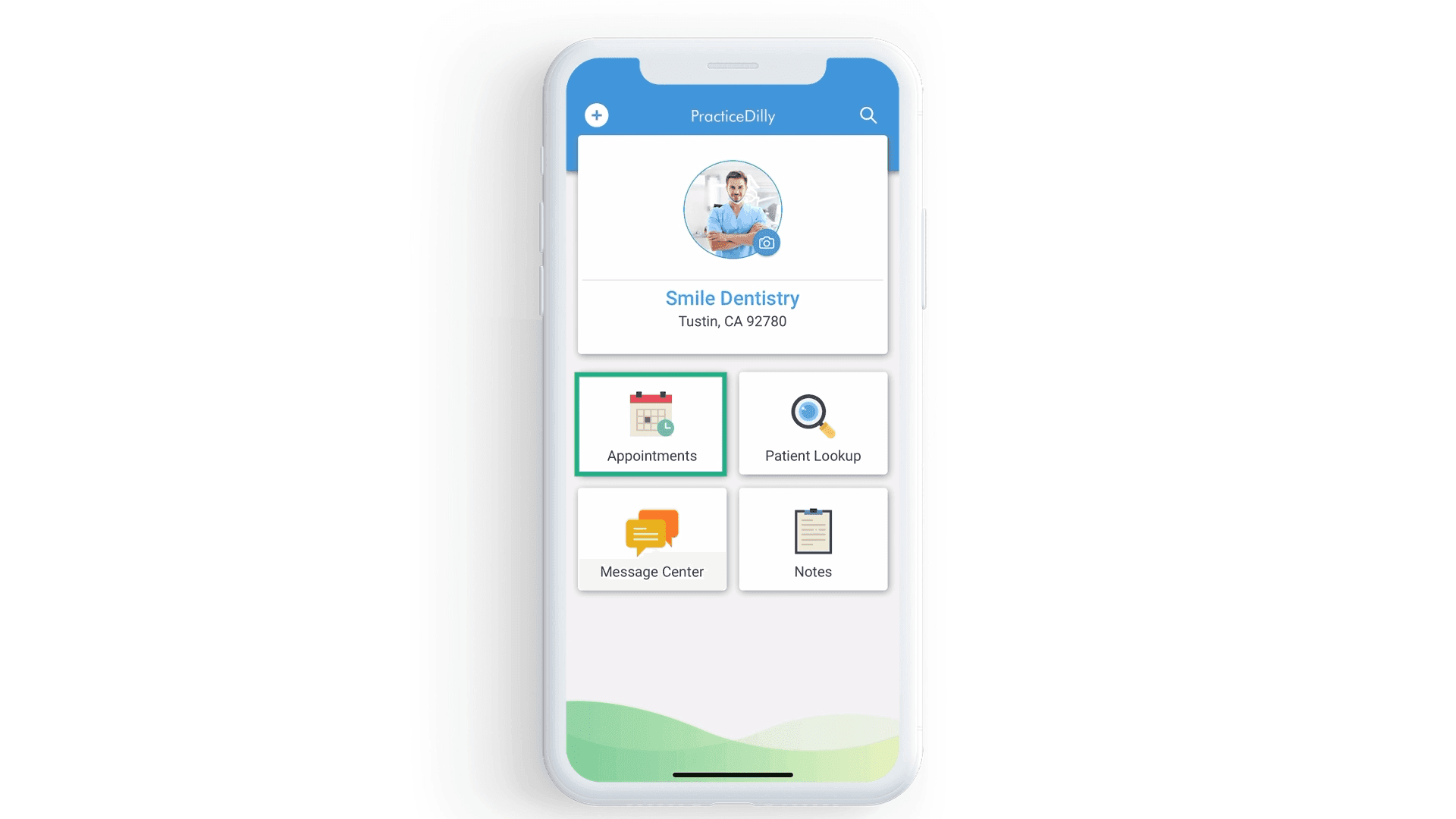
Click on Appointments to view your schedule.
Click on Patient Lookup to view patient information.
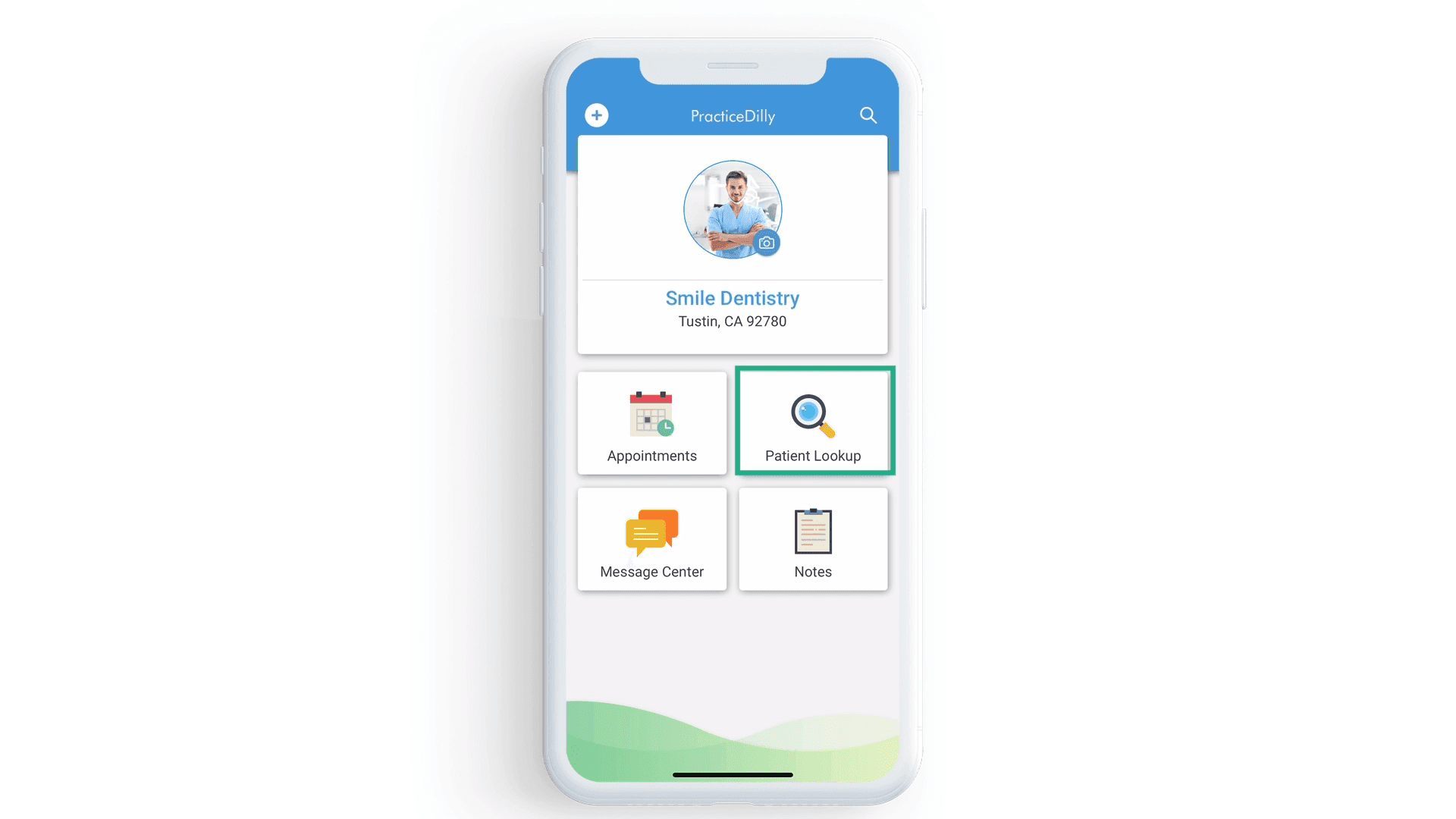
You can search your patients by their last name and view details.
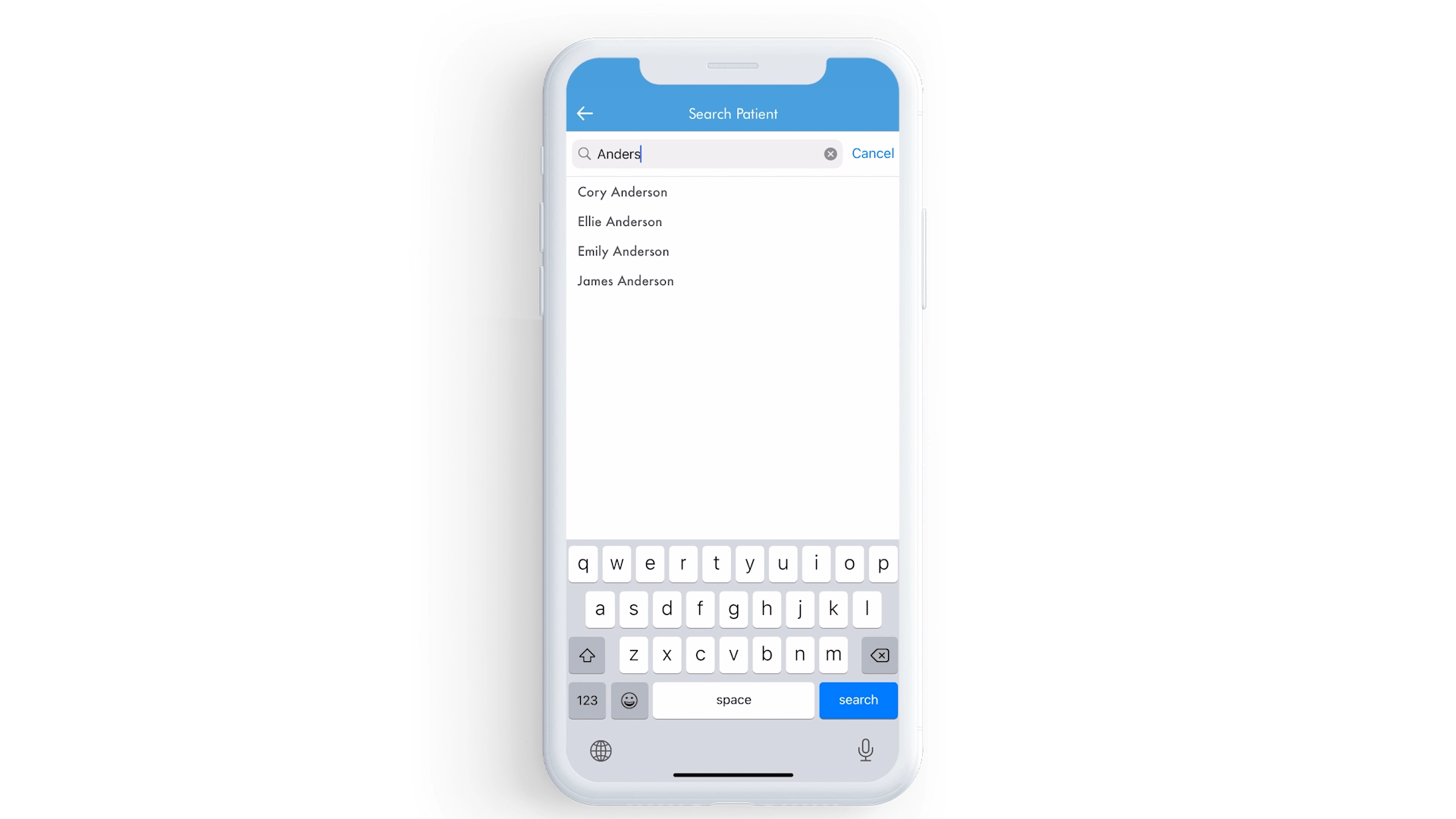
To send a message to your patients, click on Message Center. Search patients by their last name and send a message.
Click on Appointment to request an online review from your patient. Tap on the Star icon, that will send out a text message, and an email requesting a review on Google, Yelp, and Facebook.