1
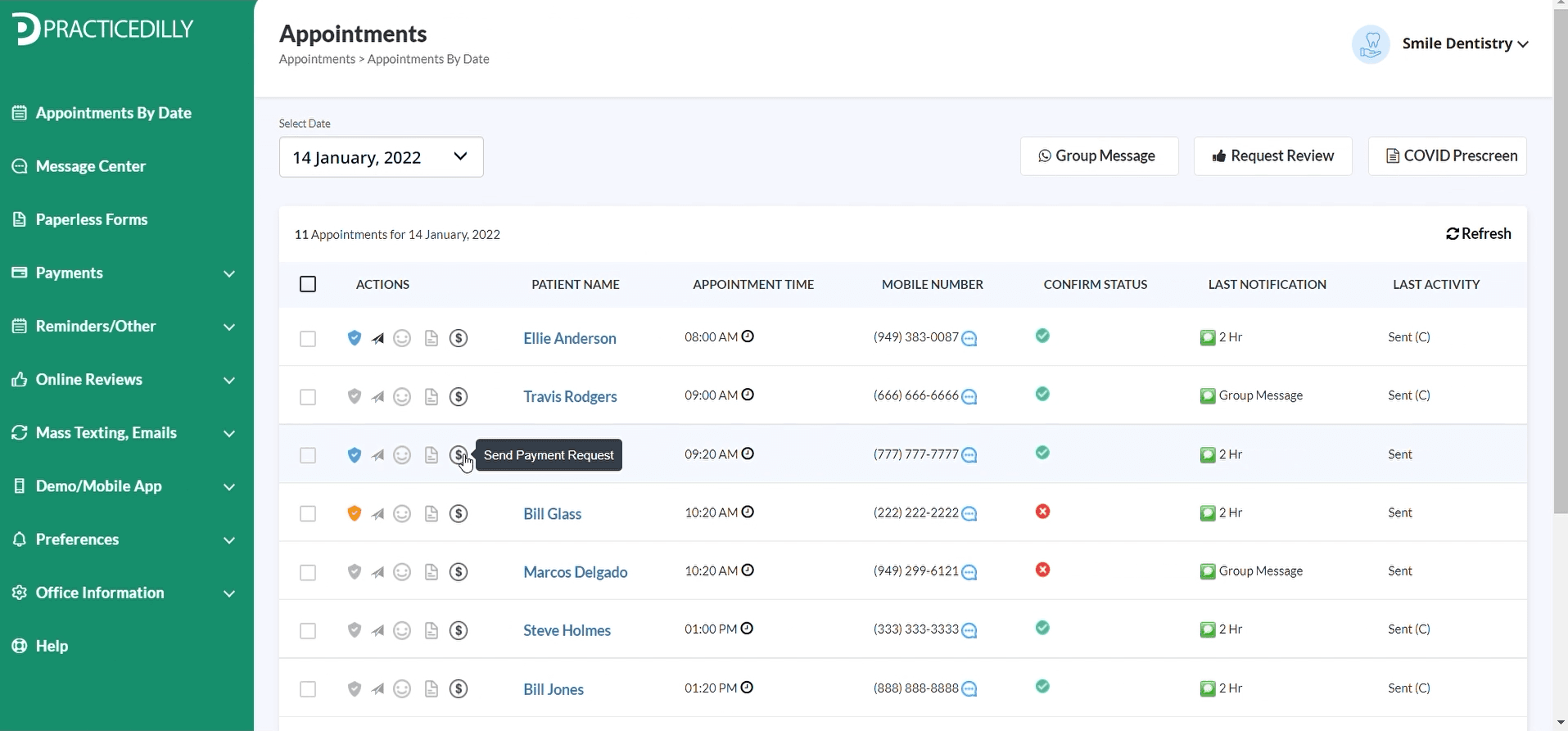
Once you log into PracticeDilly, click Appointments by Date in the left panel. To request a payment, click on the payment sign corresponding to the patient.
Send payment requests by text and email, track their status, and customize the message patients receive.
Once you log into PracticeDilly, click Appointments by Date in the left panel. To request a payment, click on the payment sign corresponding to the patient.
Enter the amount and the purpose of the payment. After entering the details, click on the Send button.
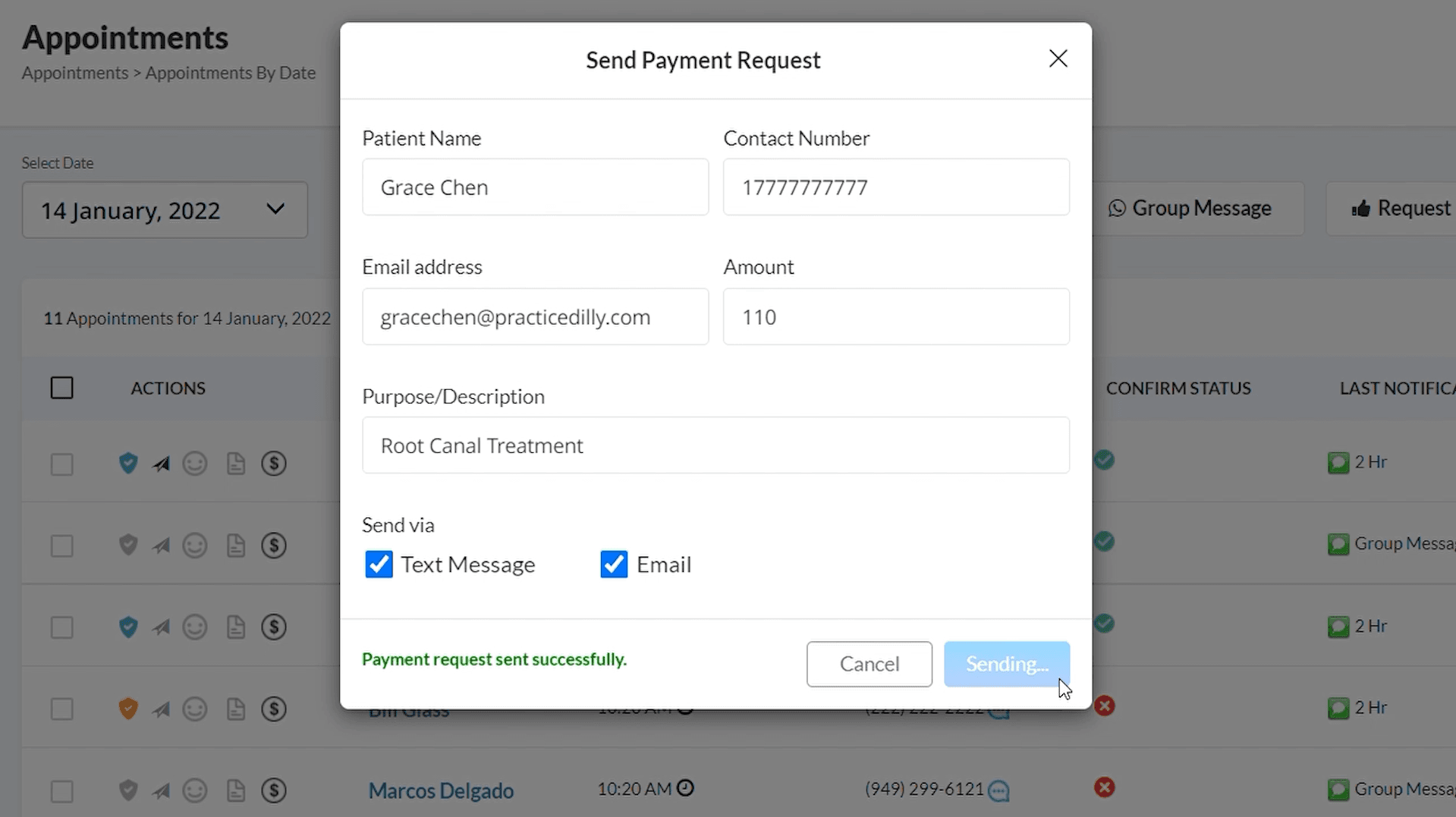
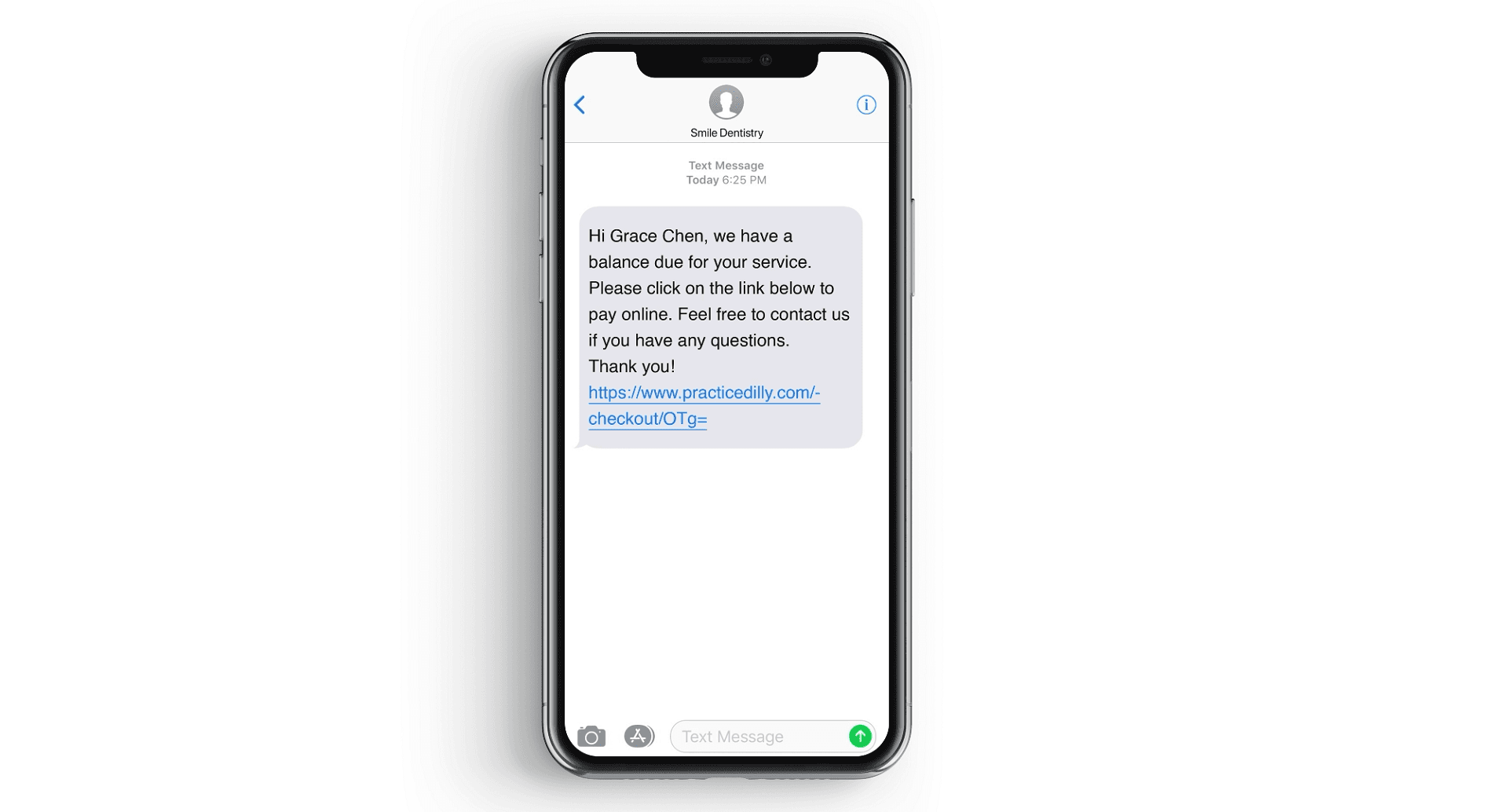
The patient receives a text message and an email with the payment link.
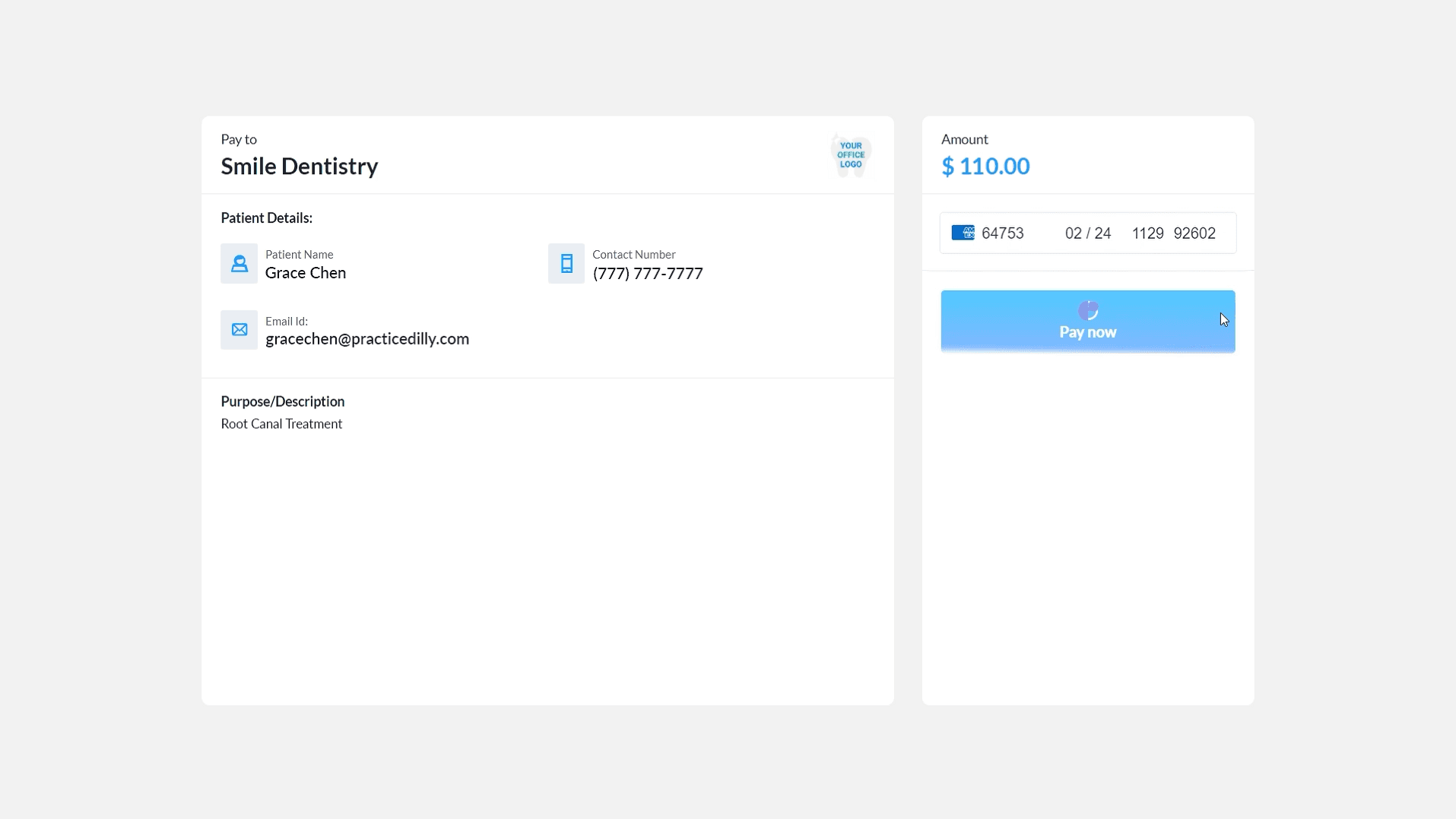
They can click on the link and enter credit card information to make the payment. The paid amount will be automatically credited to your business checking account.
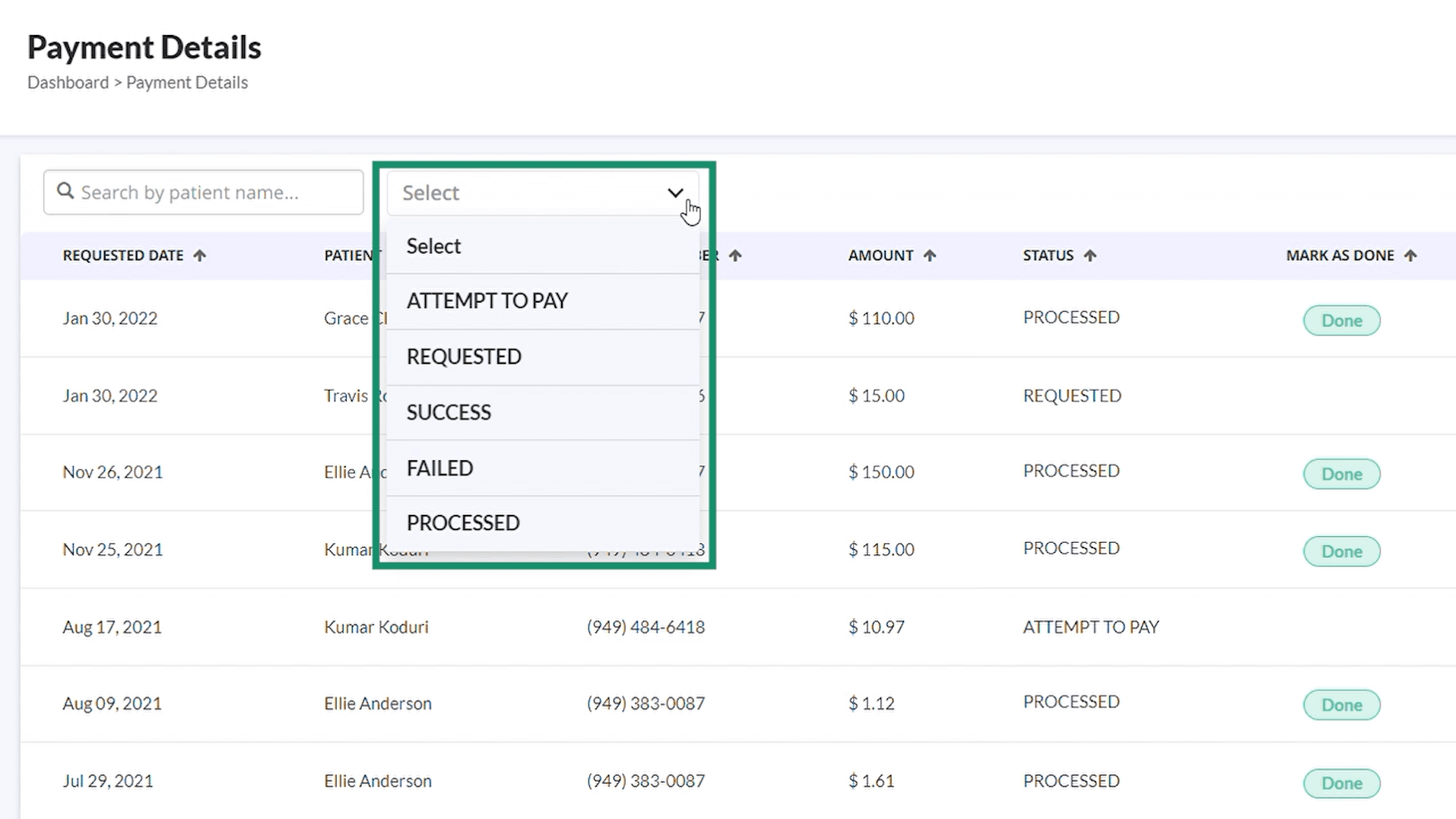
You can view all the payment statuses through the dashboard. Once you receive the payment, you can mark it as COMPLETE.
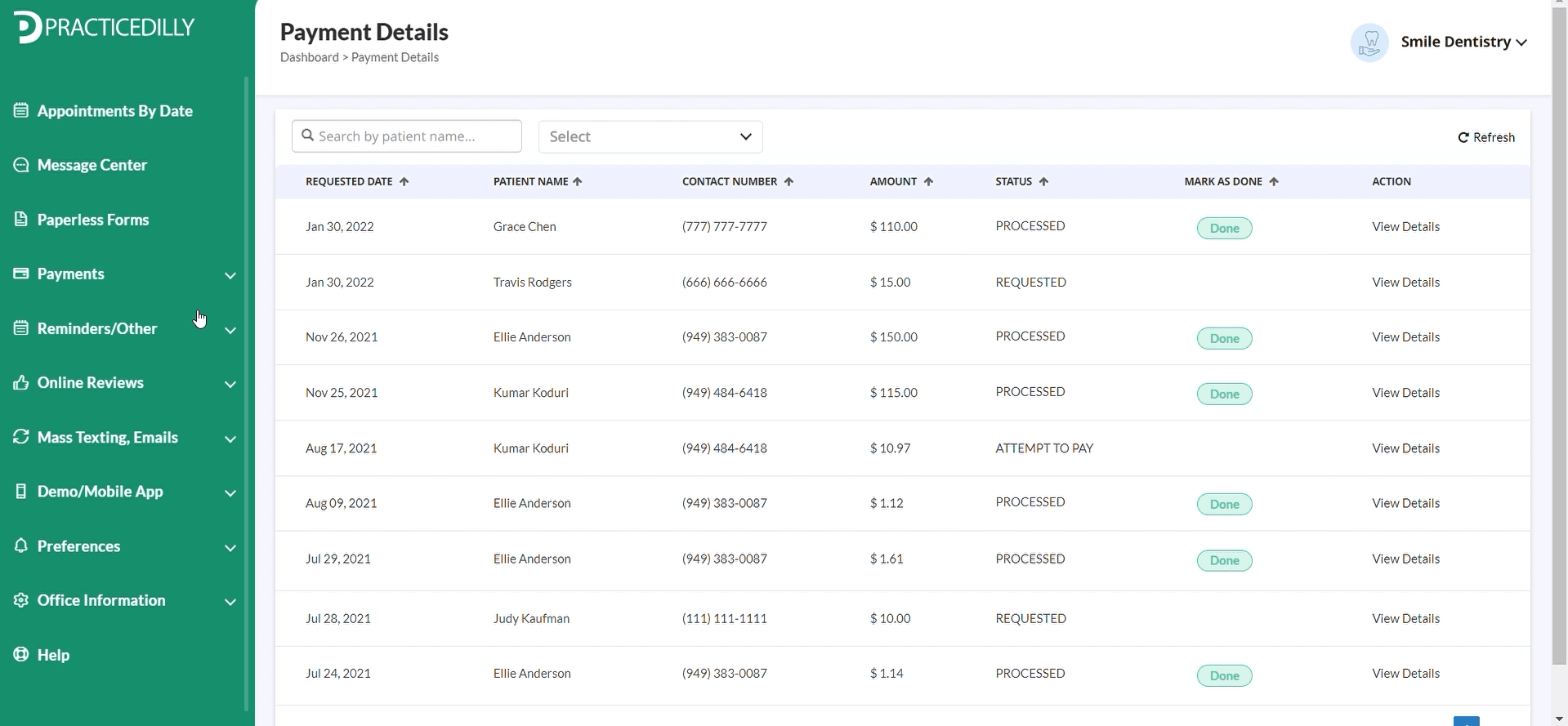
You can also filter the payment requests based on their status.
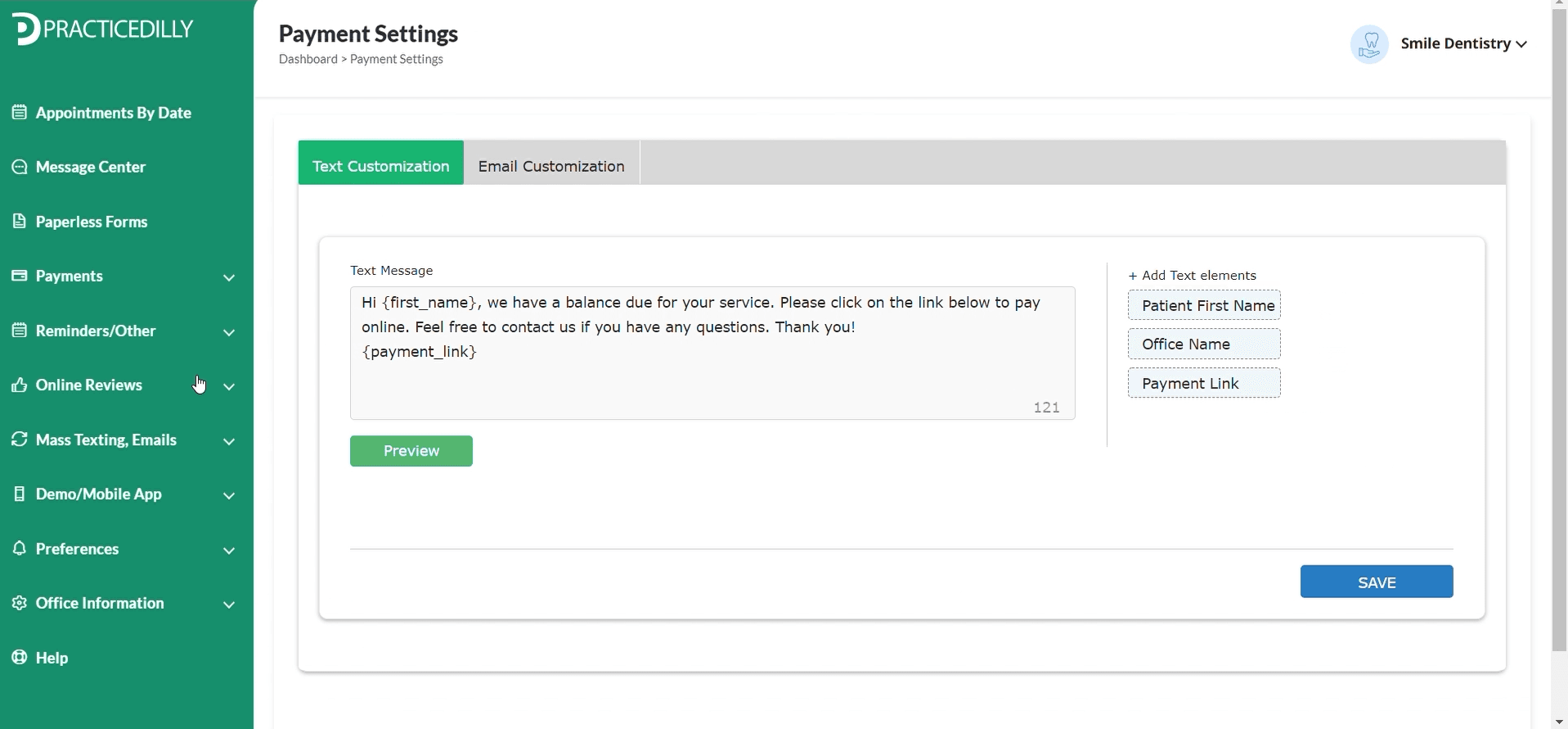
You can even customize the text message that goes to your patients. To do that, click on Payment, Settings, edit the message as necessary and Save.