1
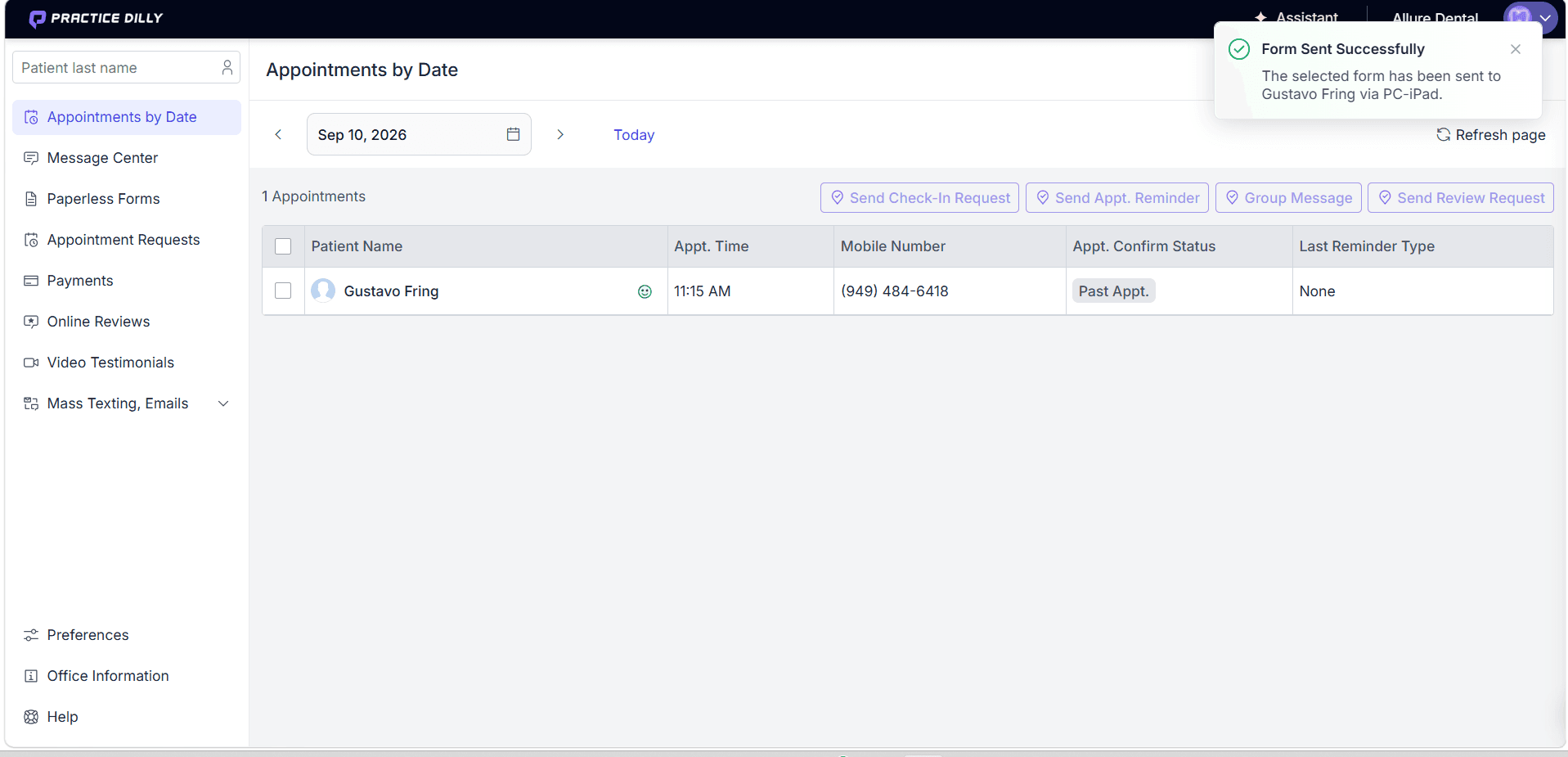
From Appointments by Date, find the patient and click the Send Form icon beside their name.
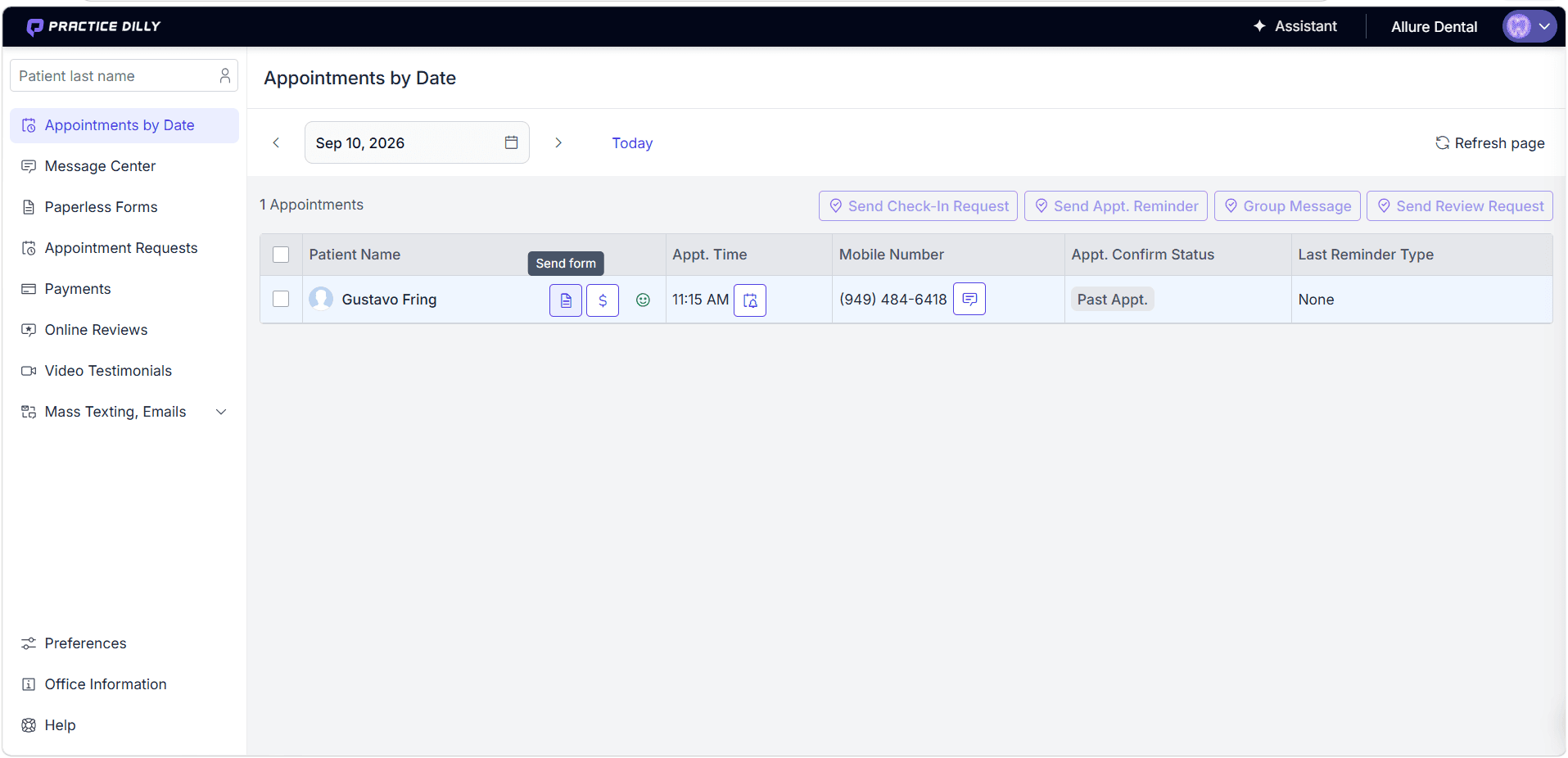
Send a patient form directly to a registered office iPad from the daily schedule or the patient’s profile, so it is ready to complete at check-in.
From Appointments by Date, find the patient and click the Send Form icon beside their name.
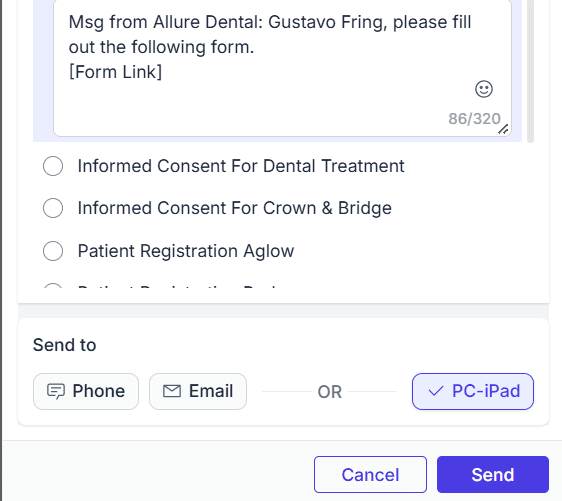
In the Send Form window, select the form the patient needs to complete.
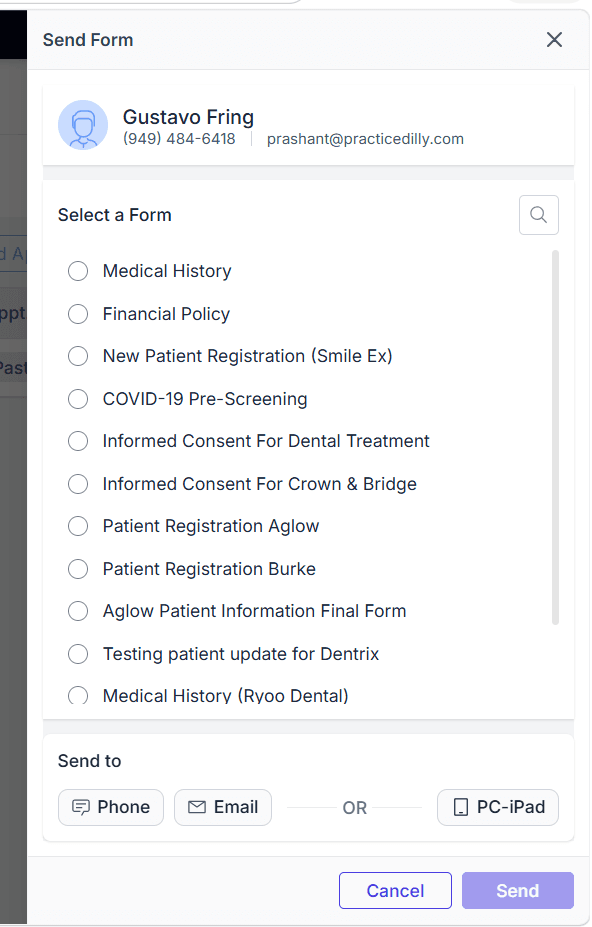
Choose the registered office iPad where the form should open.
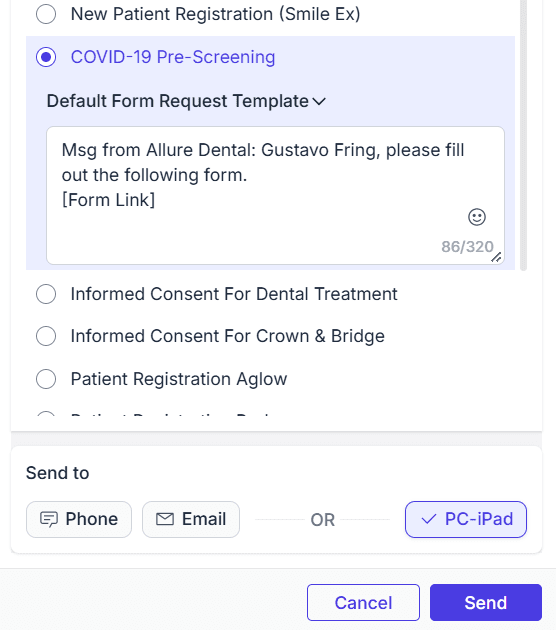
Click Send to open the selected form on the iPad.
A confirmation lets you know the form was sent successfully. The patient can now complete and sign it on the office iPad.
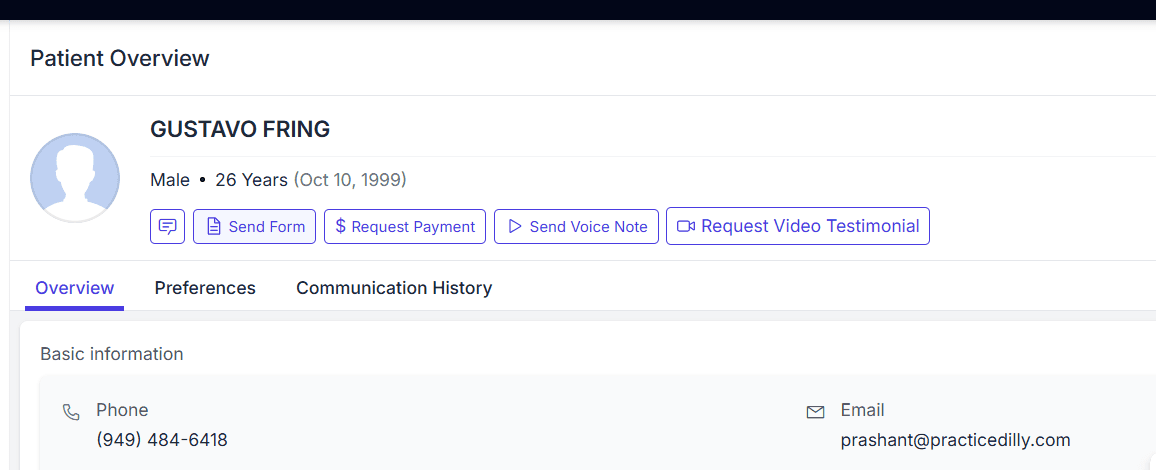
You can also start from the patient’s profile. Open the patient, then click Send Form in the Patient Overview.
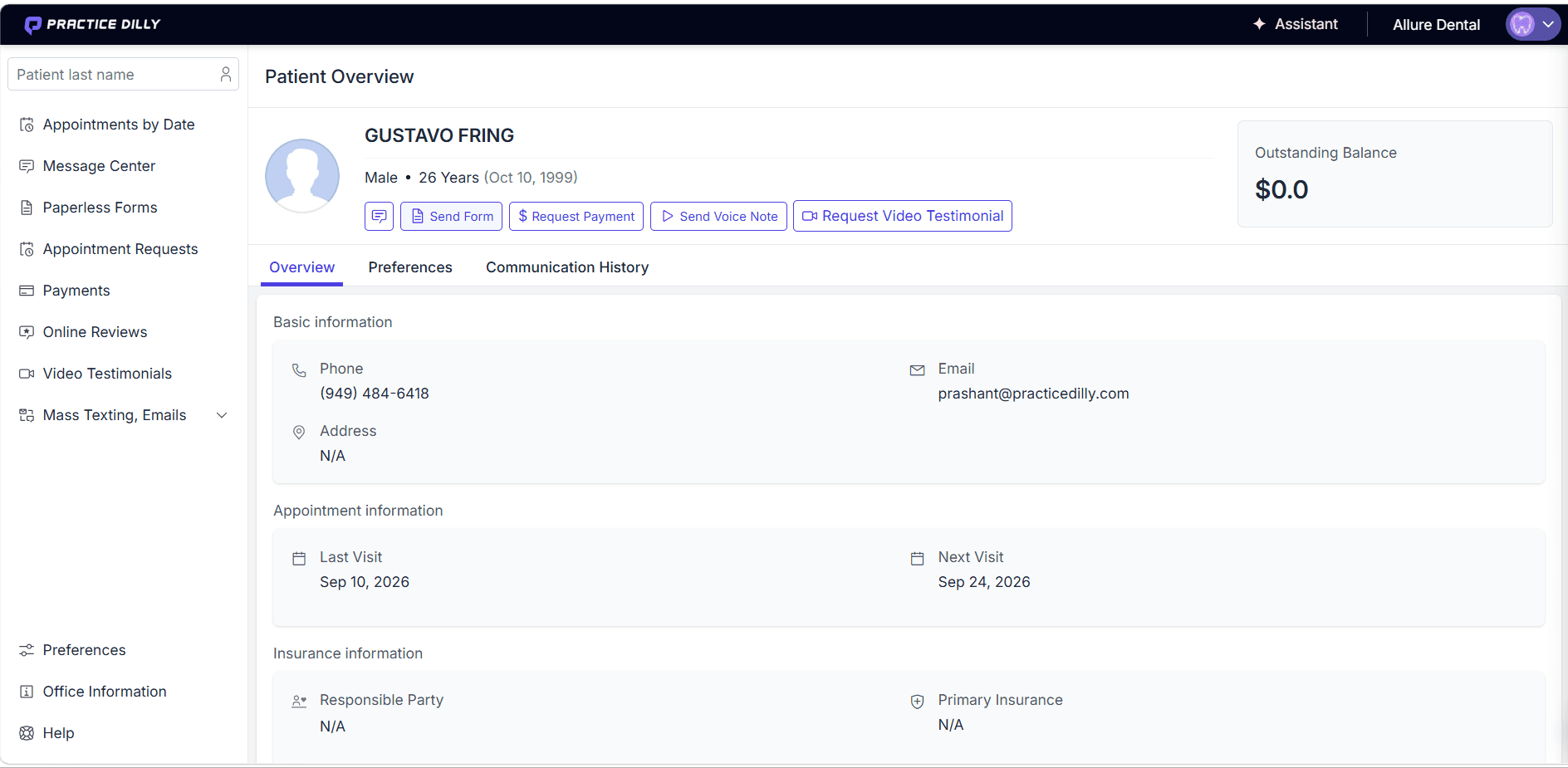
From there, follow the same steps: select the form, choose the registered iPad, and click Send.