1
Click on Mass Texting, Emails in the left control panel. Select Campaigns and Promotions.
0:19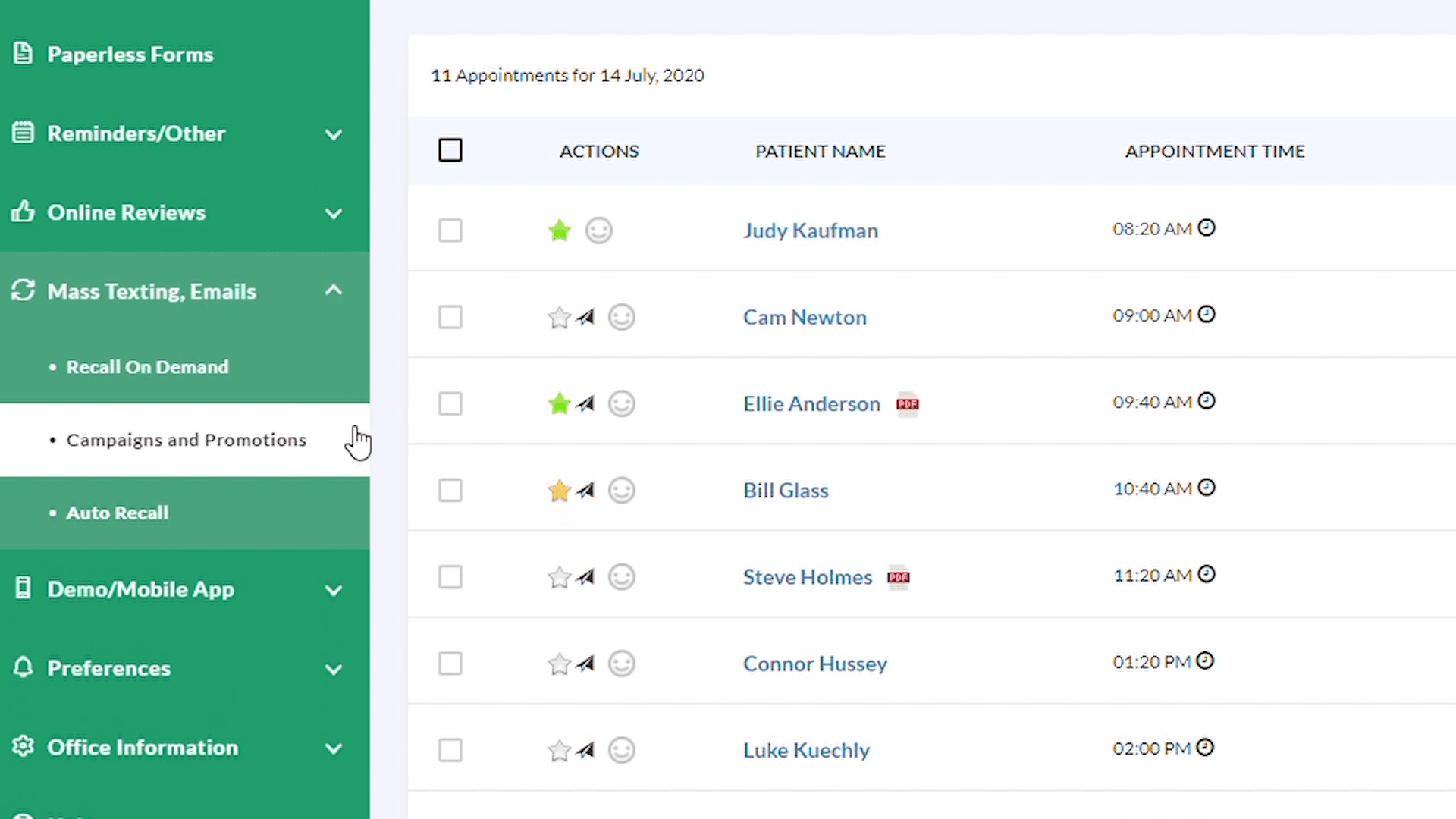
Create a mass text campaign, choose the patients who should receive it, personalize the message, and review the campaign after it is sent.
Click on Mass Texting, Emails in the left control panel. Select Campaigns and Promotions.
0:19To send a new message, click on Send New Campaign, on the top right corner of the page.
0:30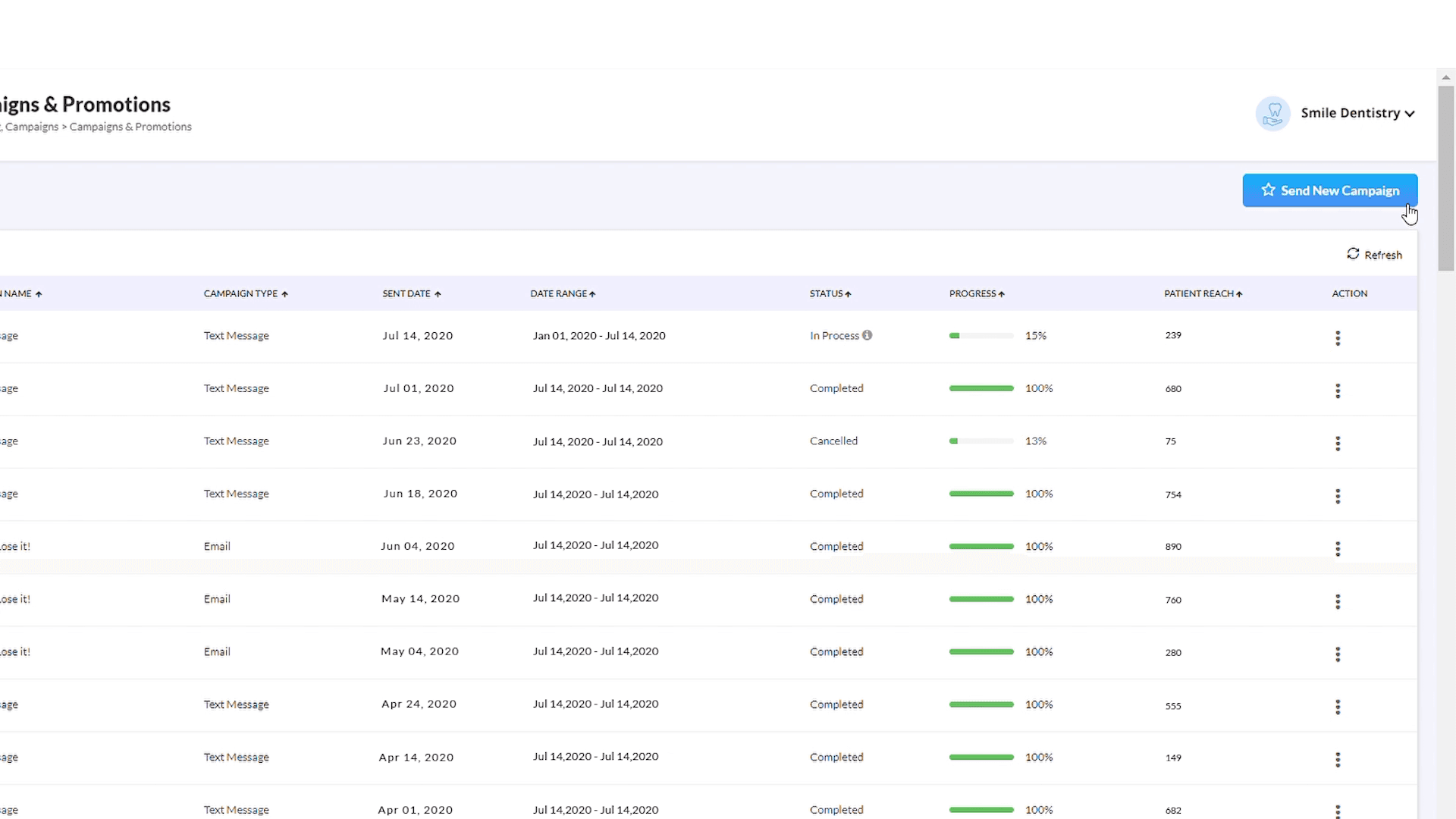
Choose between the two ways of sending the campaign: Text Message or Email.
0:35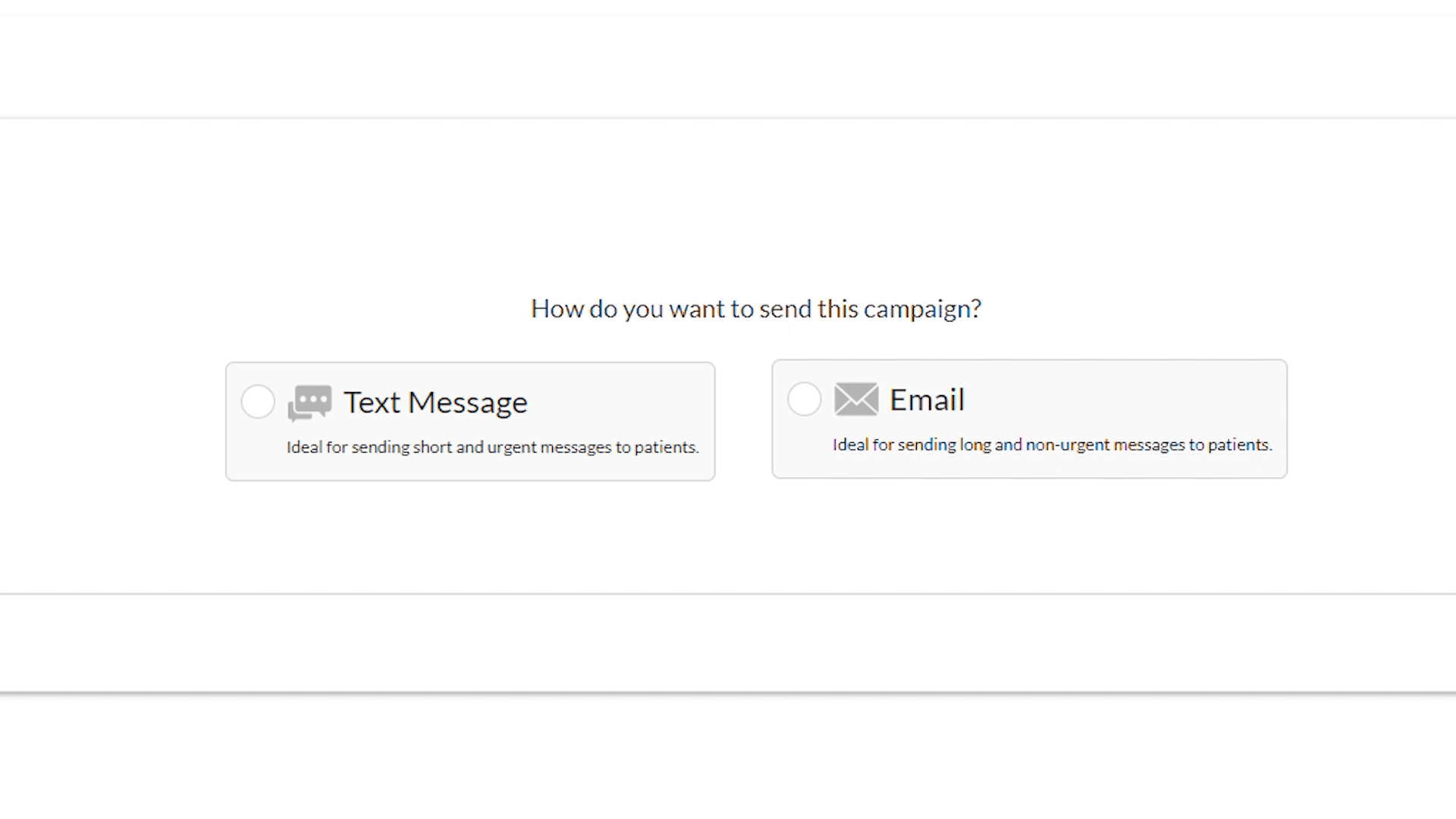
Select to whom you want to send the message to from the various options available.
0:44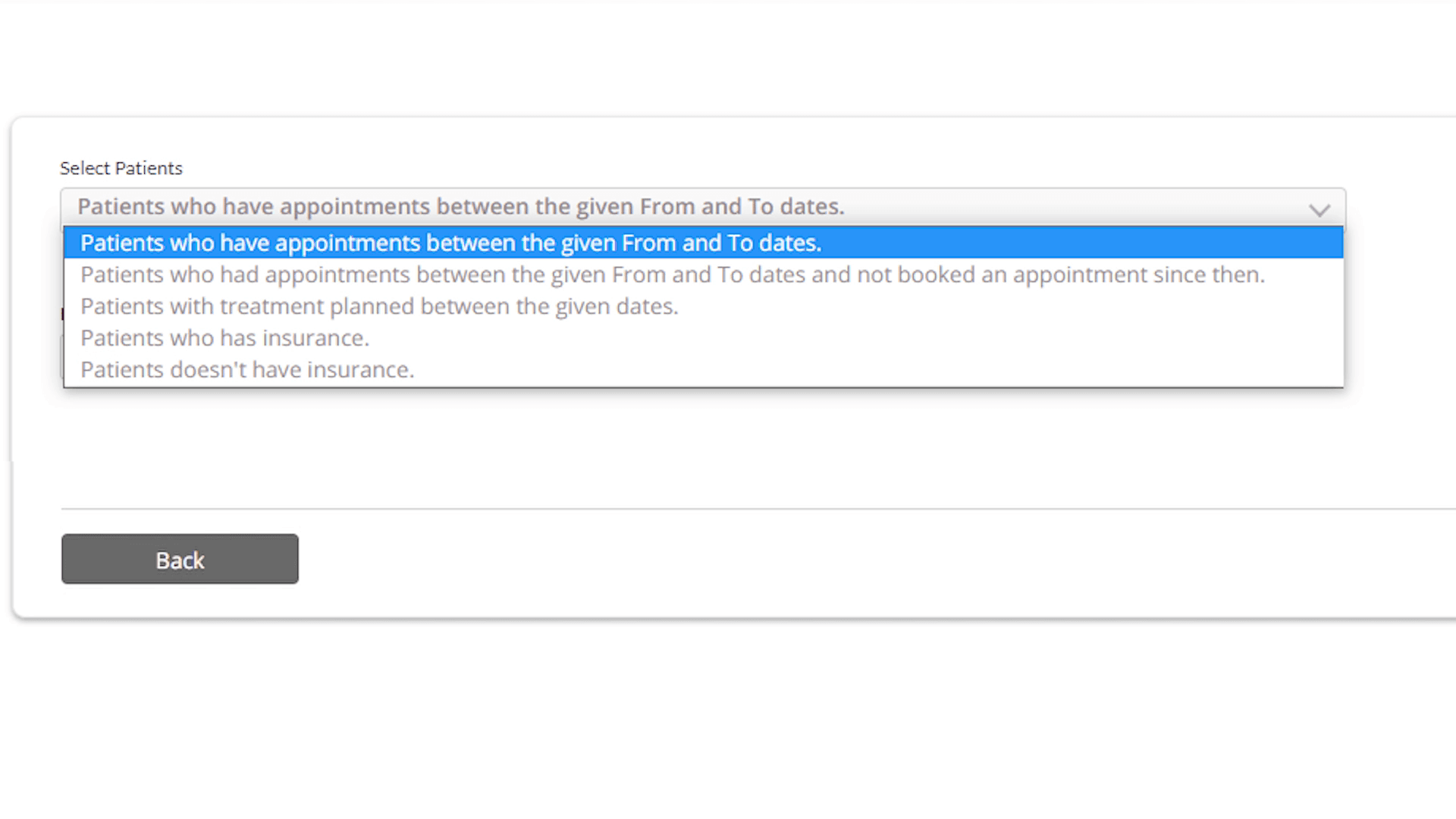
Select the start and end dates by selecting the From And To dates.
1:00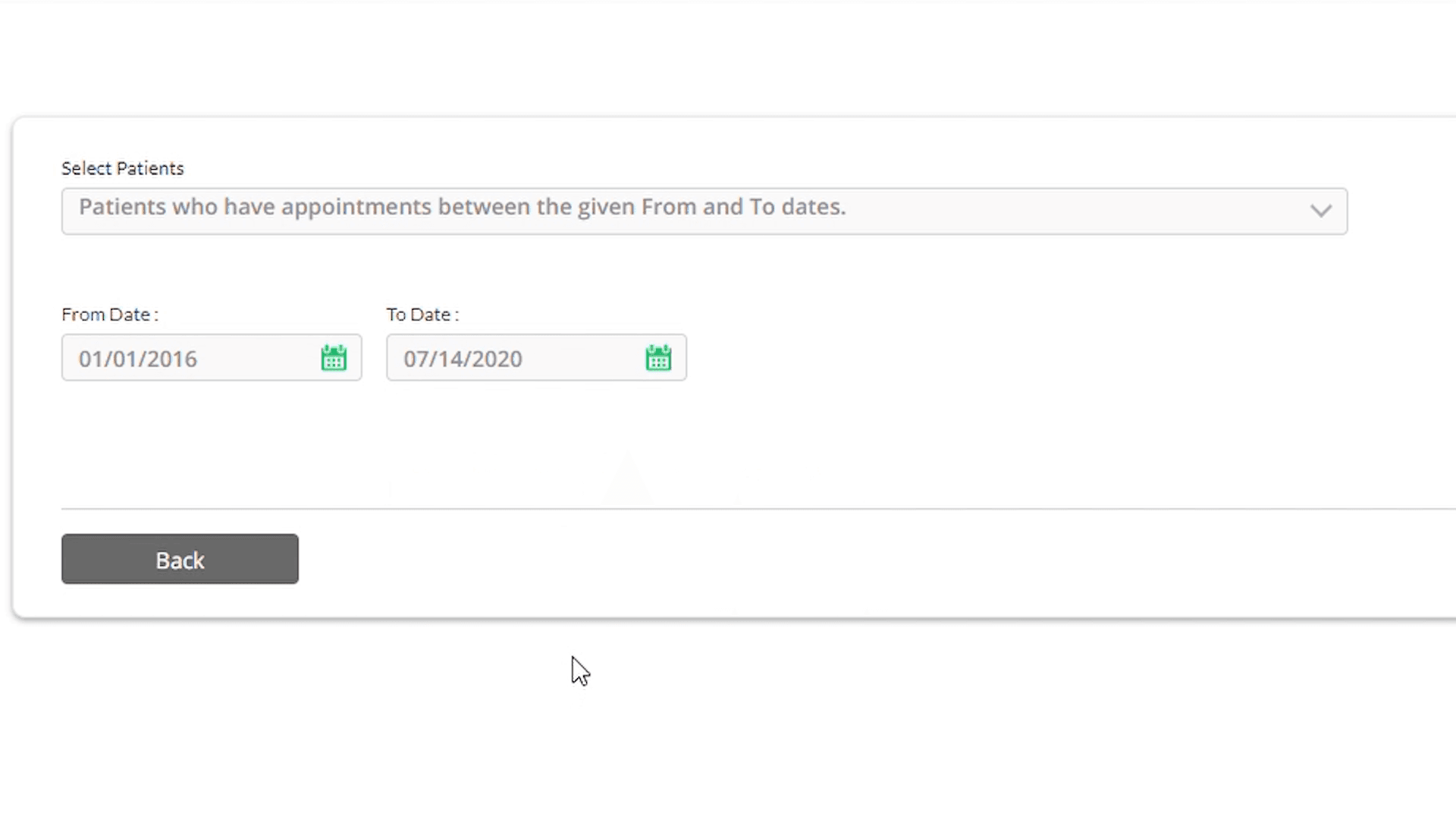
Type in the message you wish to send to the patients.
1:08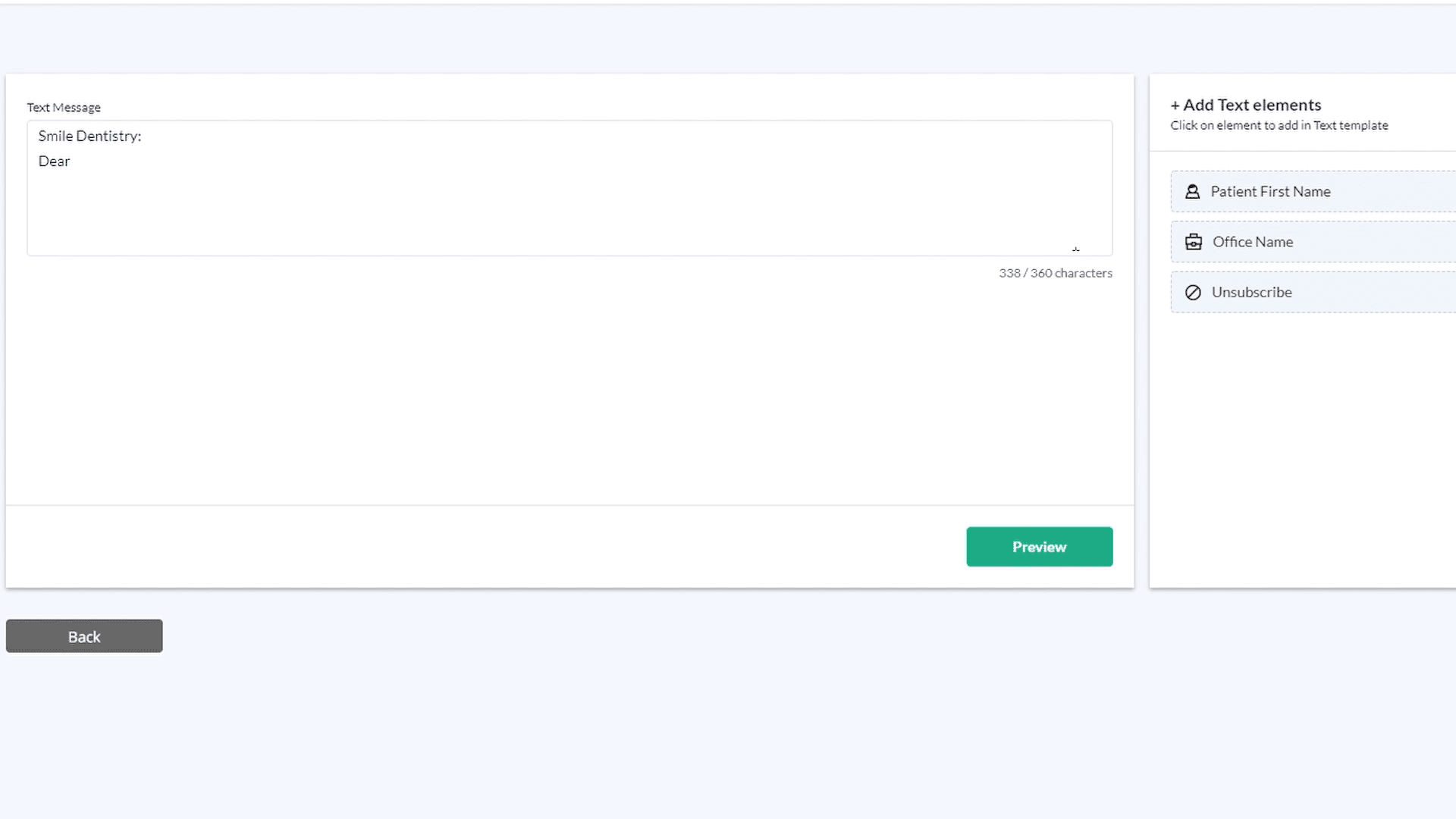
To Personalise the message add elements. PracticeDilly will automatically replace the element in the text area before sending the message.
1:14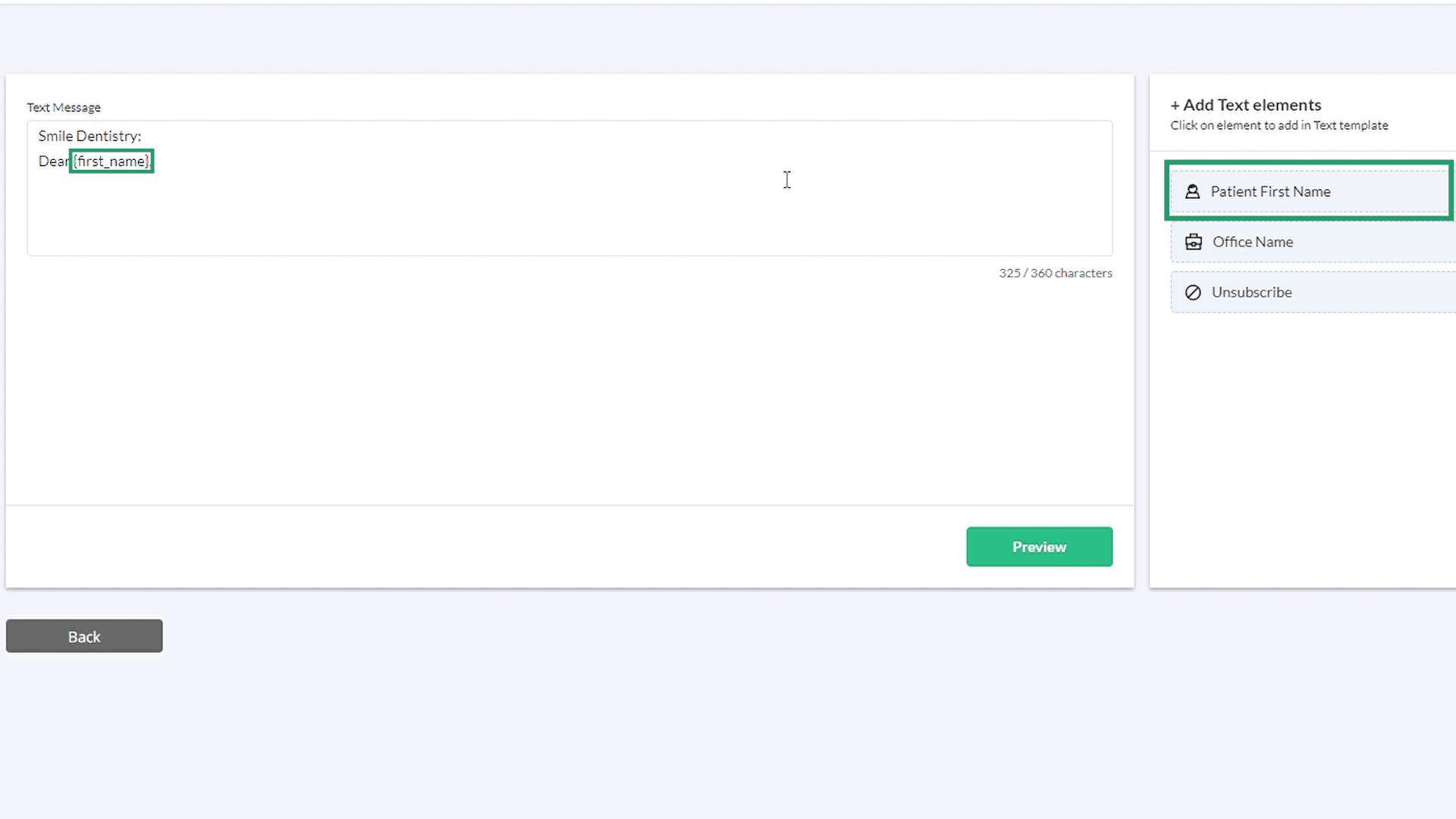
Here's How the Name placeholder element works: Lets say your message is being sent to three patients: Phillip, Maria and Suzanne. PracticeDilly replaces the placeholder with the patient's name. So, Phillip will see his name when he receives the message, Maria will see her name, and likewise Suzanne will see hers.
1:29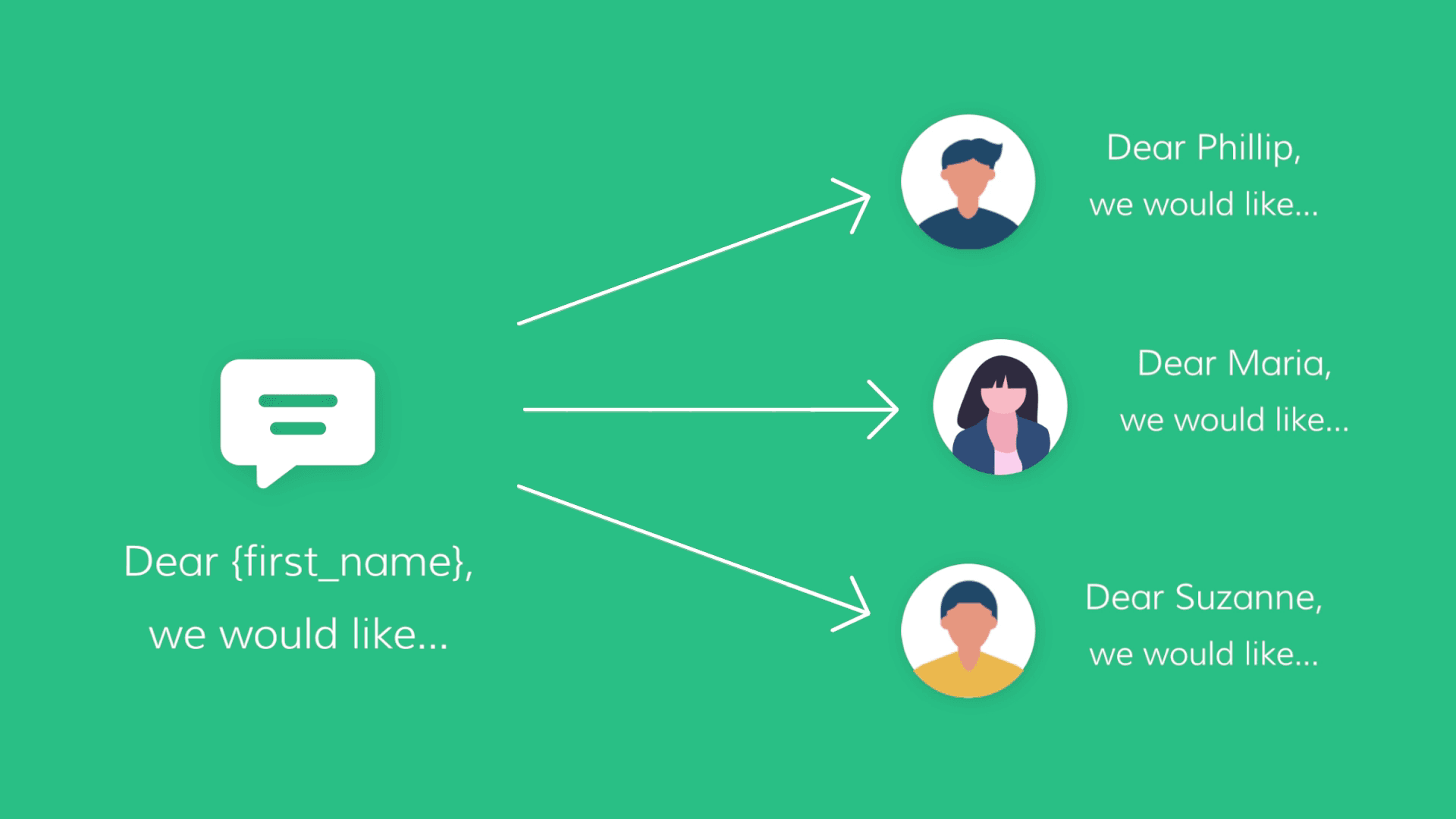
To Send a Test Message: Click on the preview button and type in your email and phone number.
2:03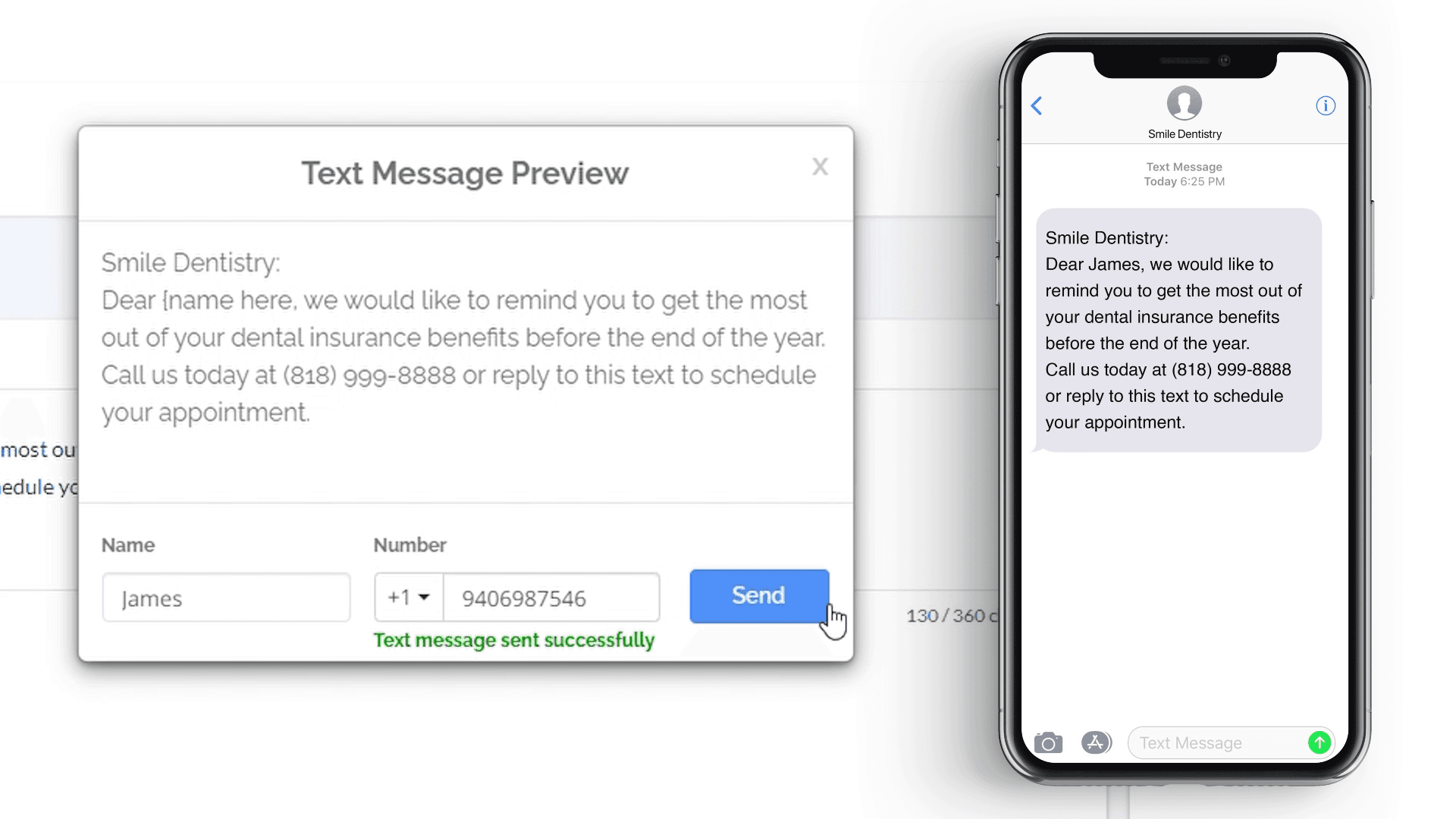
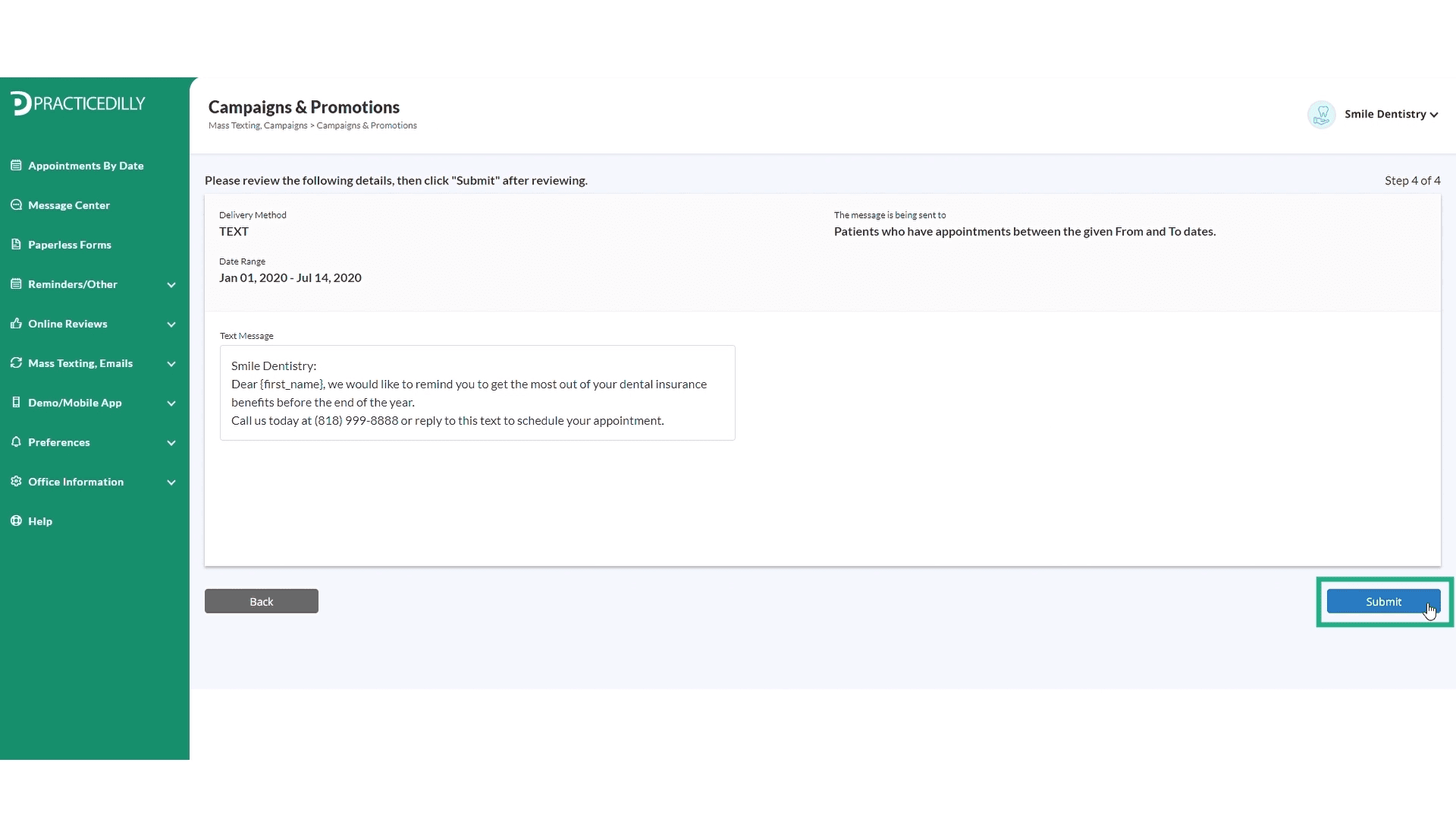
If everything looks fine, Click on the Submit button. You will see a successful campaign submission message.
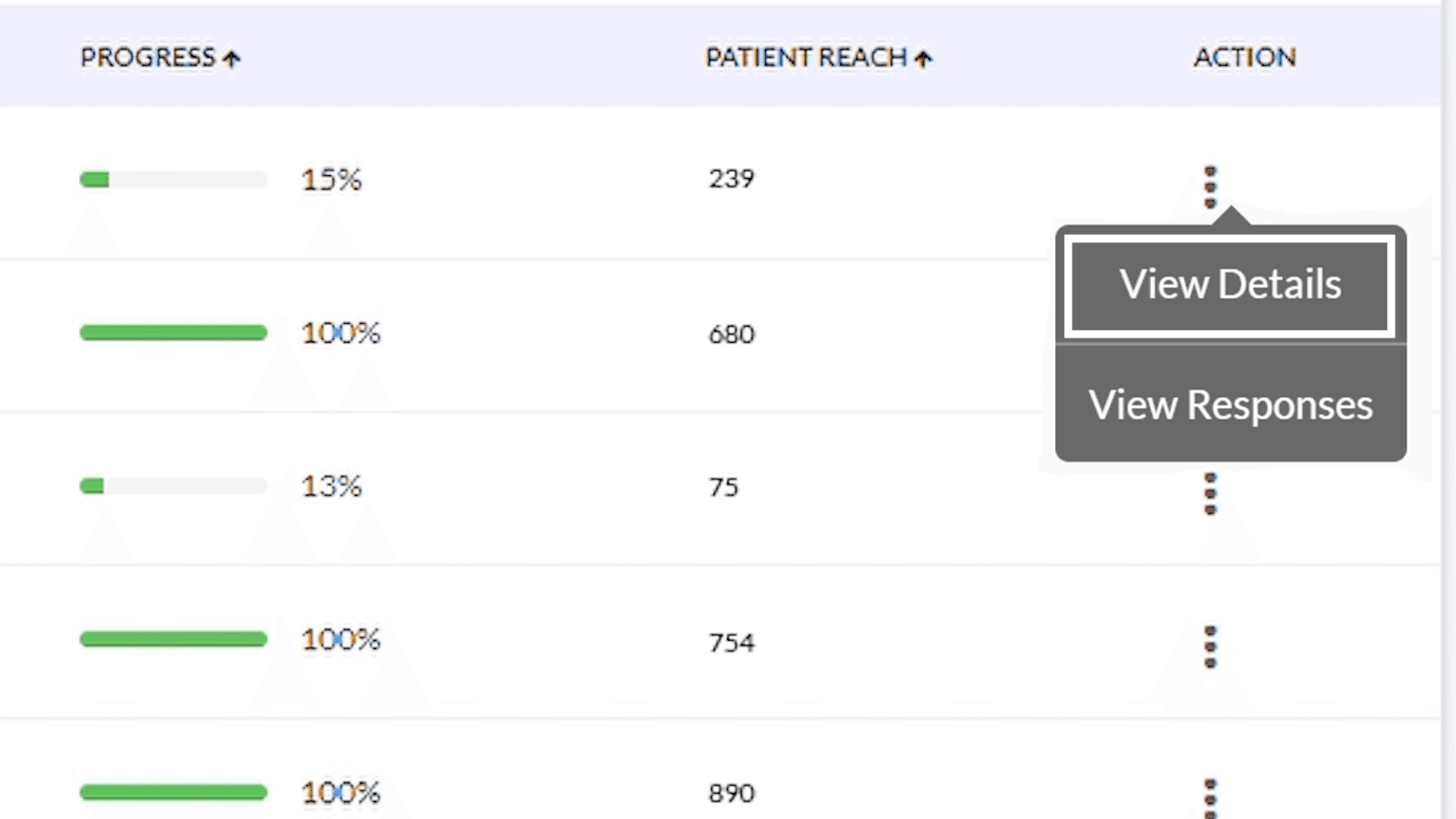
Return to the Campaigns page to see further details and View the list of patients to whom the message is sent by clicking the three dots in the Action column.
2:34