1
You can use this option to send a mass text to all your patients.
0:20
Review the patient-group filters available when creating a targeted mass-text campaign.
You can use this option to send a mass text to all your patients.
0:20For example, to send a message to all the patients who visited your office in the last five years, select this option, Choose the five-year date period. You can use this option to reconnect with patients who had appointments between the given from and to dates and have not booked any appointment since then.
0:32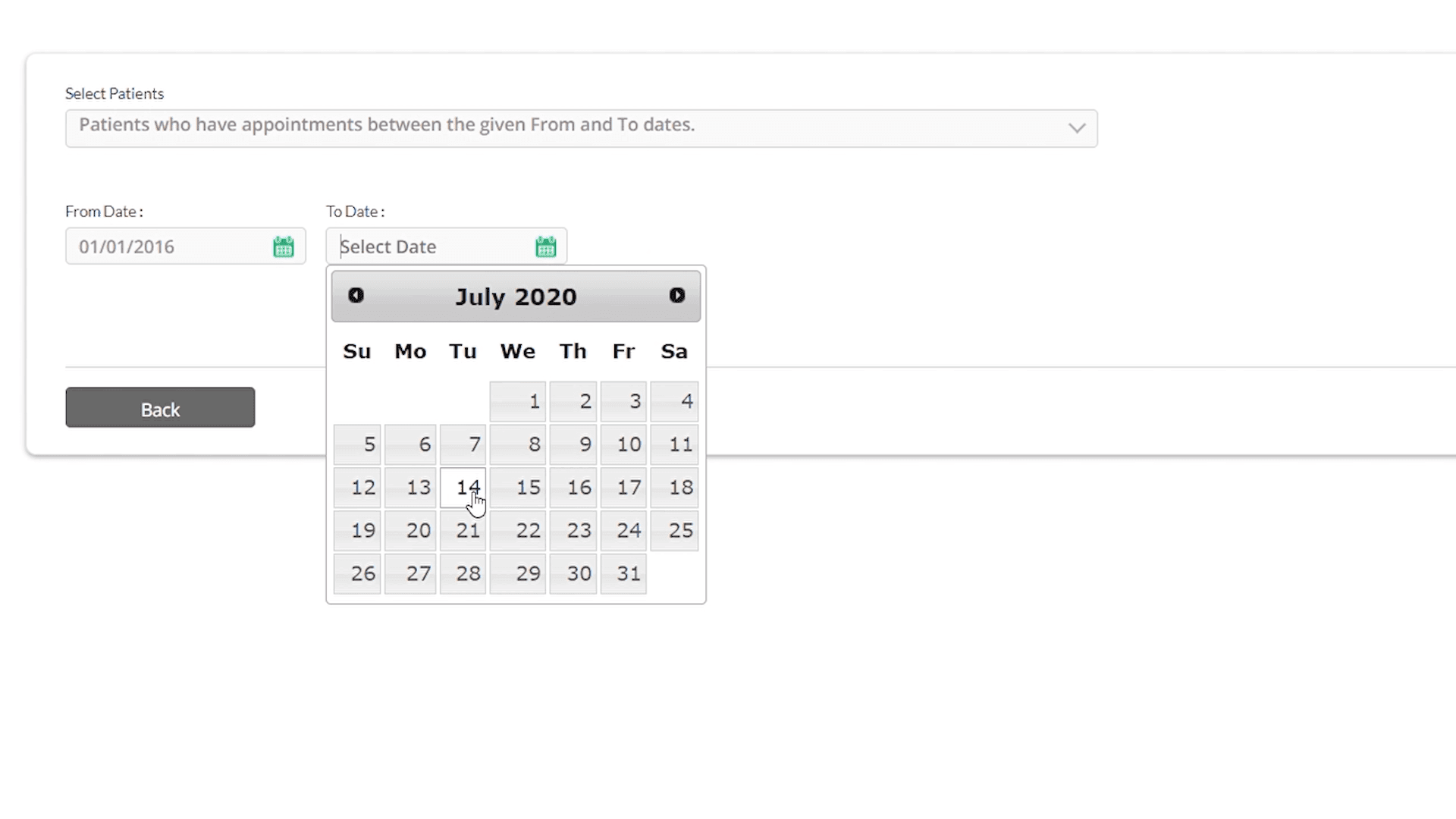
Choose this option for patients with treatment planned between the given dates you can use this option to send a message to patients who have been assigned a specific treatment plan but have not yet completed the treatment.
0:53
You can probably use this option to educate your patients about the treatment or to send out a promotional offer
1:07
If you want to send a message to all patients who have treatment plans for implant-related procedures, you can search here.
1:23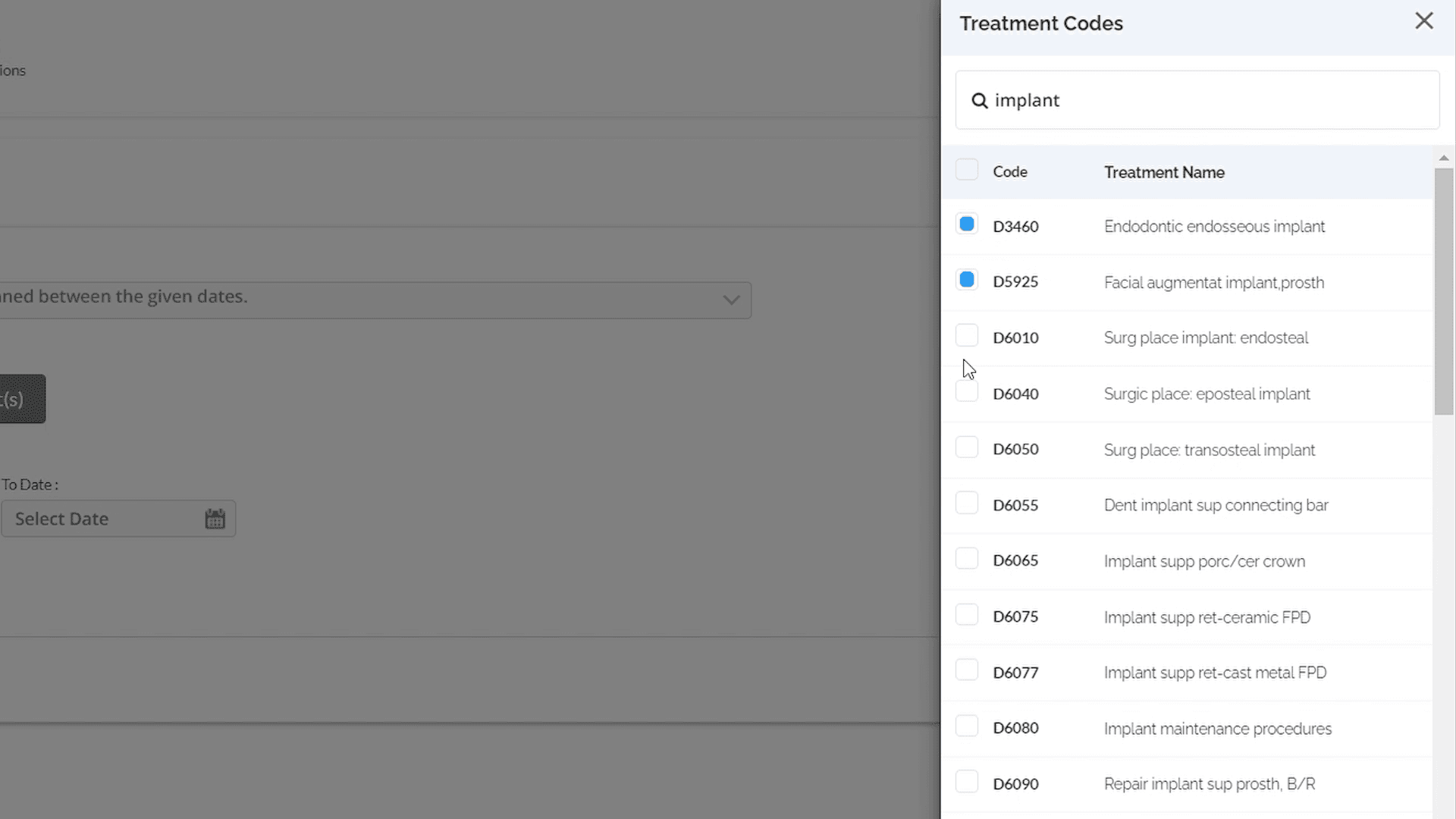
Select the designer procedural codes and click done. In this case, the message is sent to only those patients who are scheduled for this treatment.
1:25, 1:31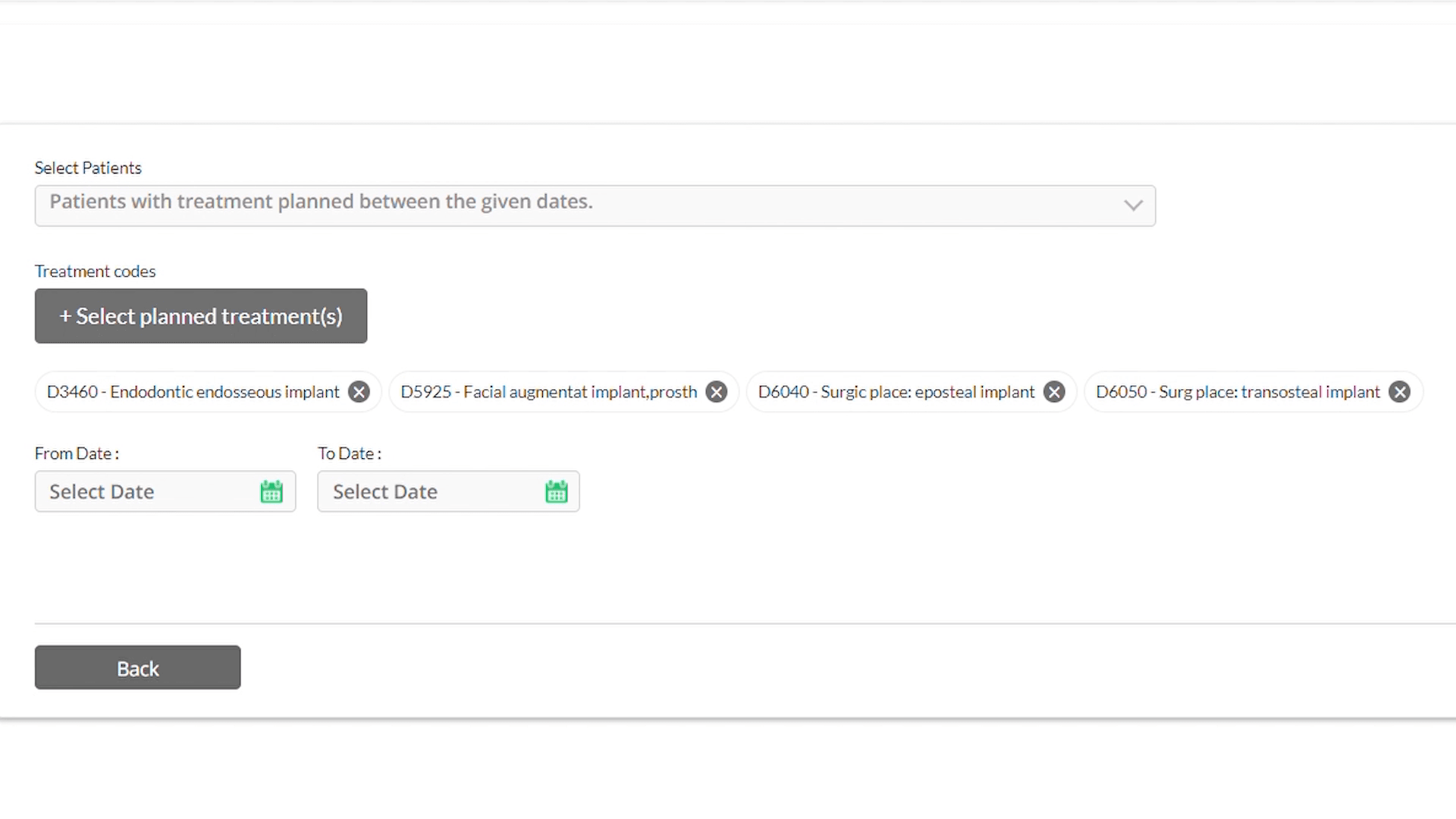
Select this option for patients with Insurance on file before expiration. You can use this option to contact patients to tell them to take advantage of their insurance on file benefits before they get expired at the end of the year.
1:36
Select this option for patients who don't have insurance.
1:52