1
Click Message Center in the left panel.
0:12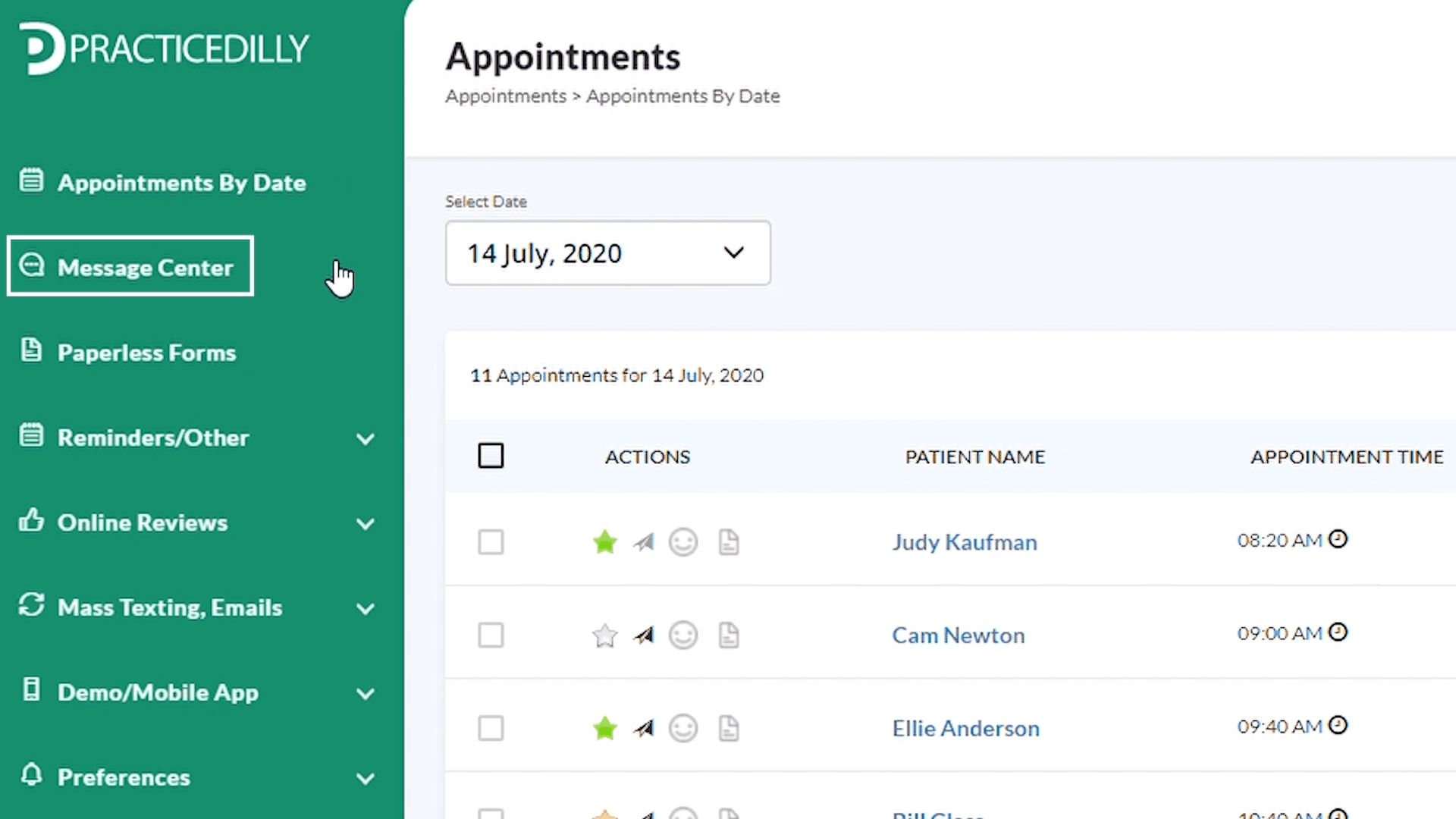
Use the Message Center to start patient conversations, review previous messages, and exchange text and image messages from your office number.
Click Message Center in the left panel.
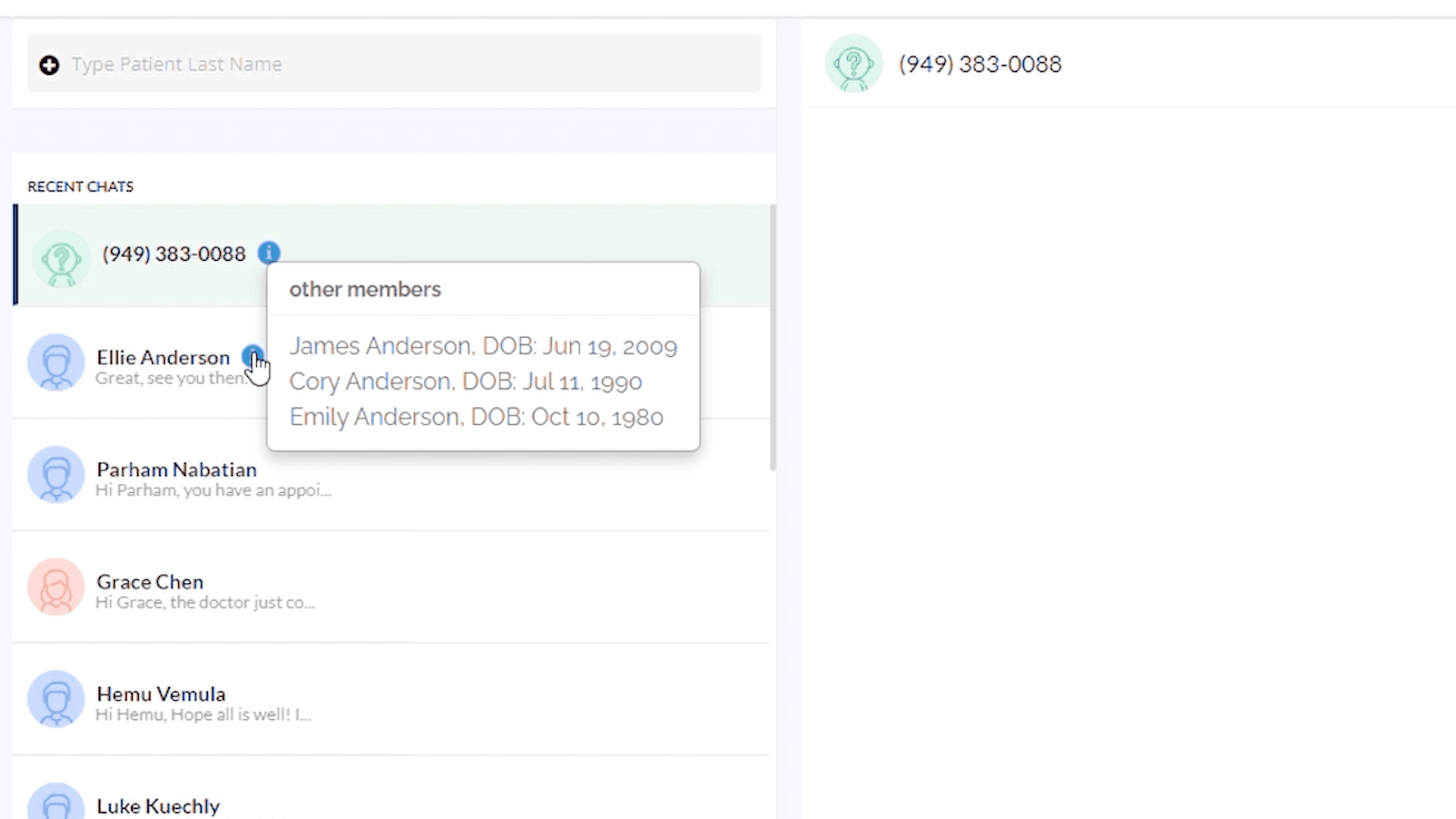
0:12On this page, you can view all the text messages exchanged with your patients in the past.
0:20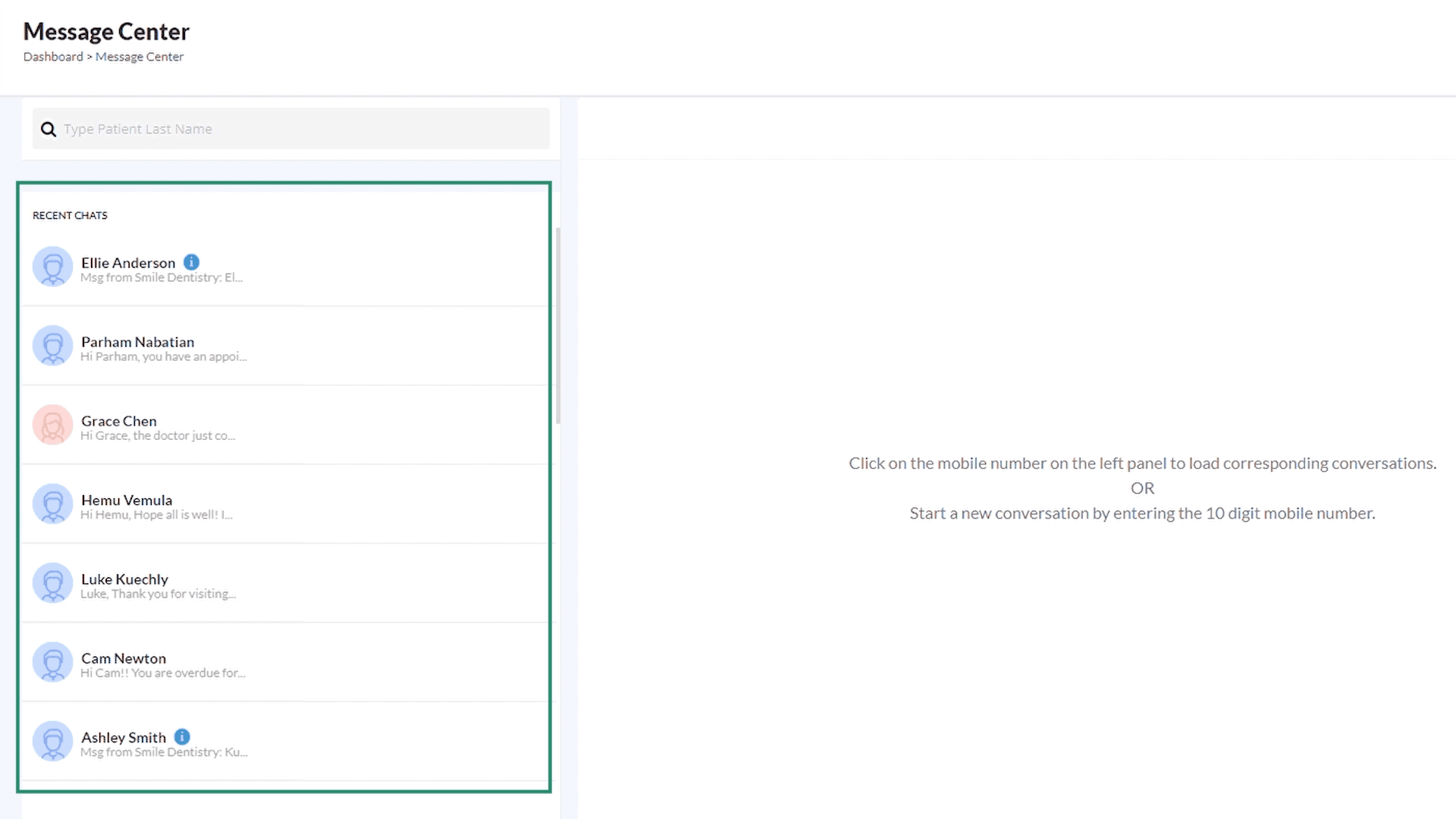
To send a new message, look up the patient by typing their last name. If you are using Dentrix, Eaglesoft, or Opendenatal software, then matched patients will be retrieved automatically.
0:30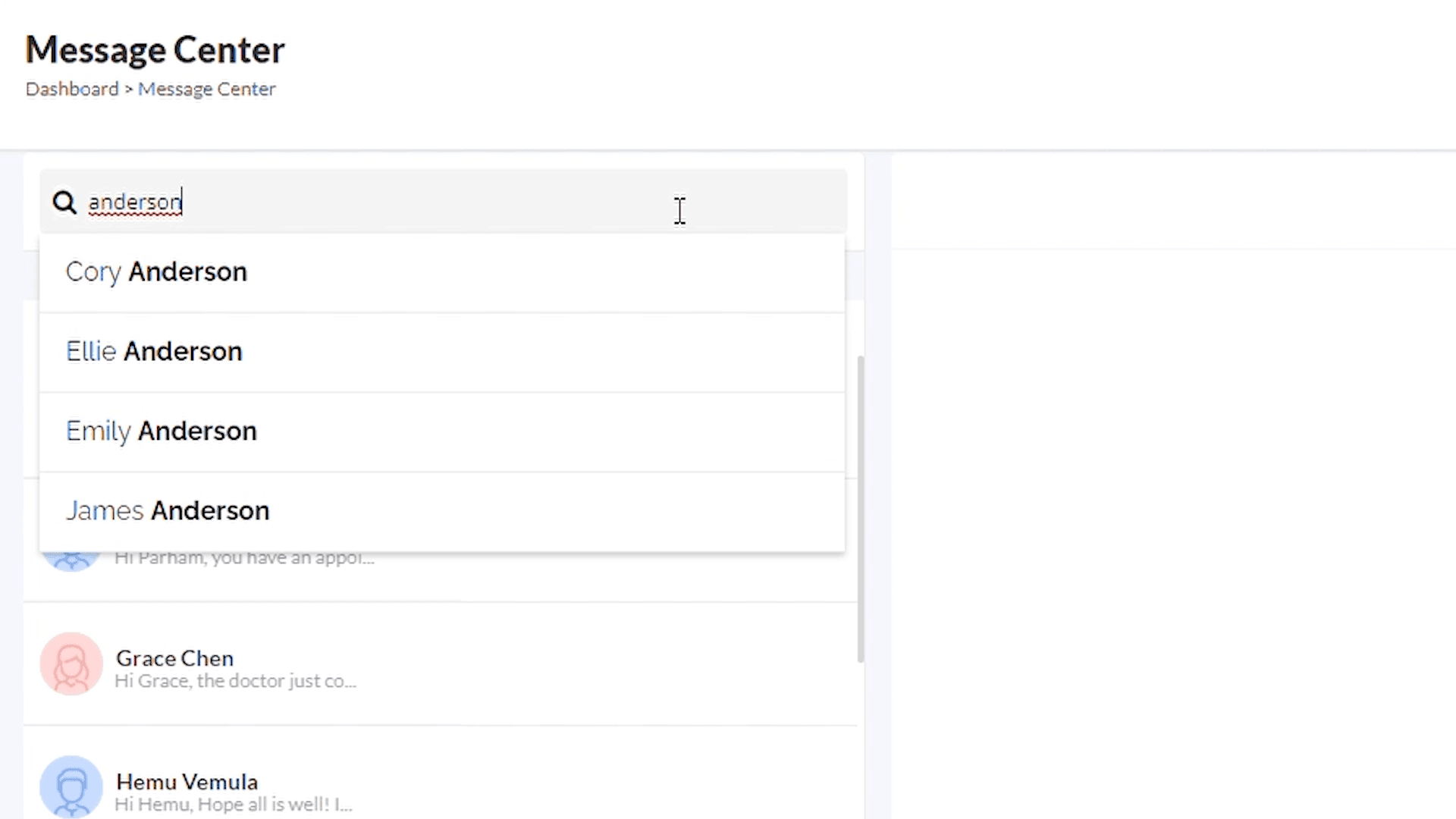
Select the patient name to whom you wish to send the message. Type the message and click on the Send button.
0:45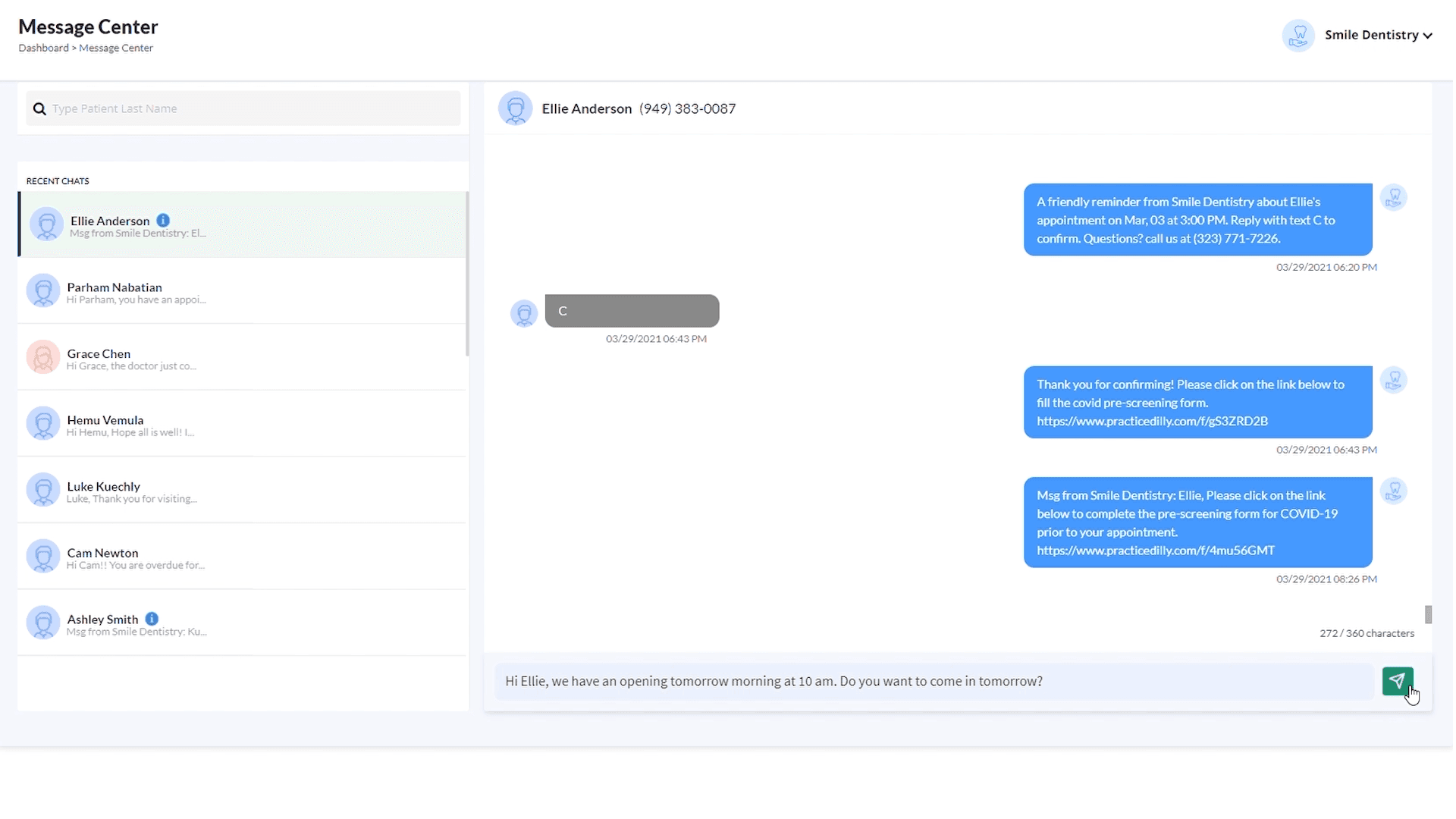
Patients receive text messages from your office number. The response from the patients will appear in the same chat window.
0:55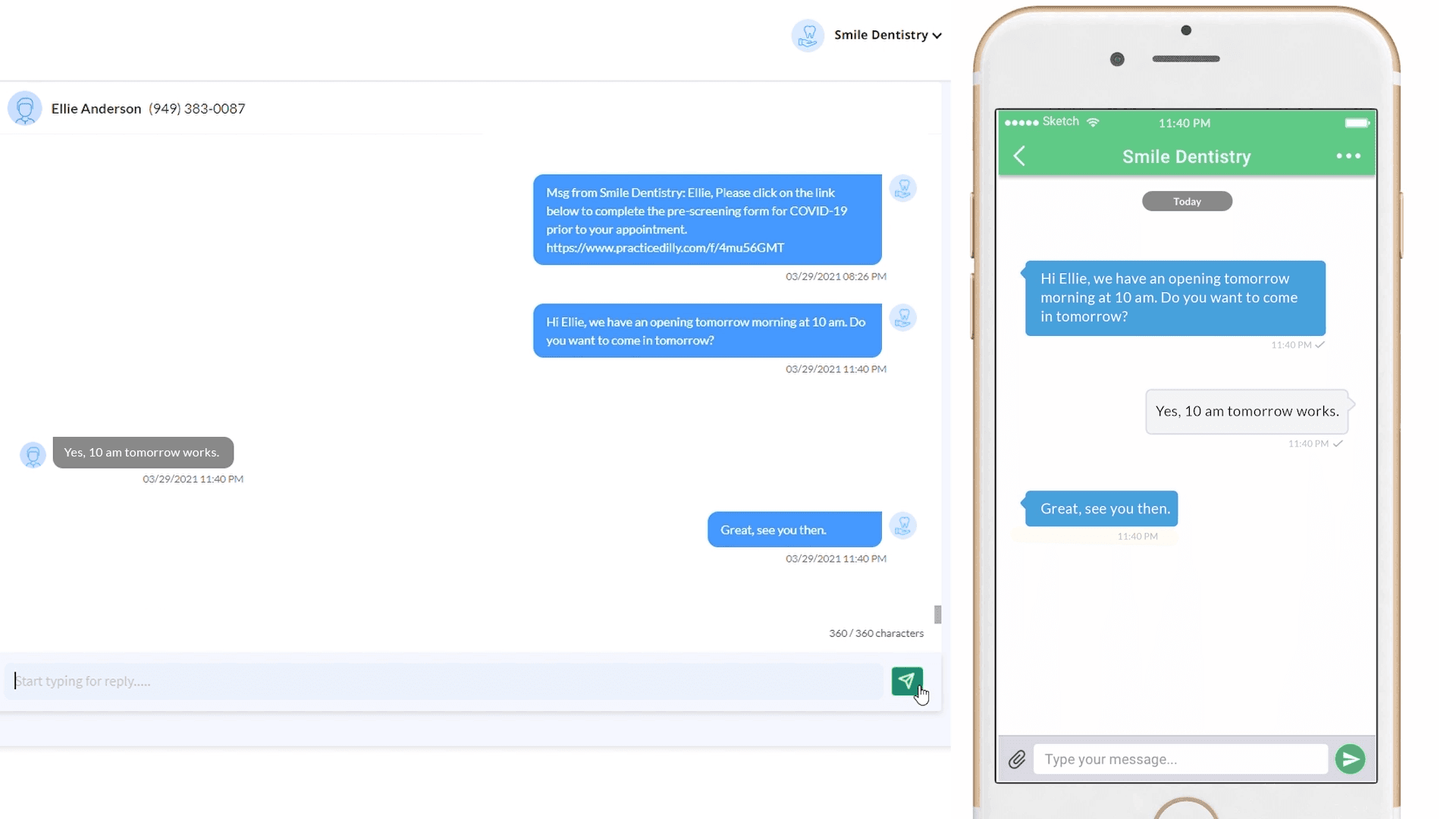
Alternatively you can enter the mobile number and send the message.
1:05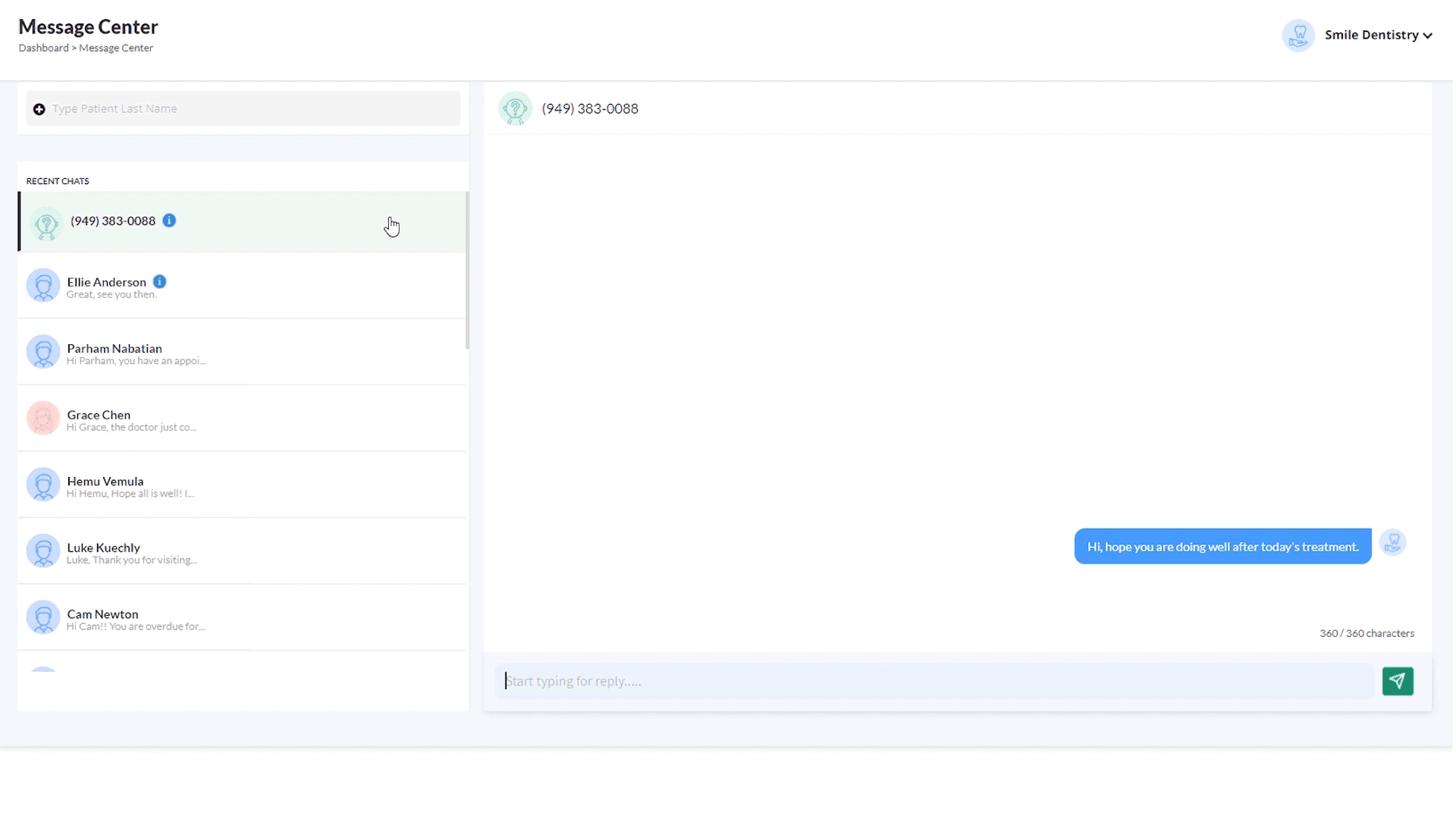
Some core features: The information icon in blue beside the patient's name indicates the patient and other family member's info associated with the mobile number. You can send and receive images from your patients especially important in case of insurance card info from patients.
1:22, 1:33