1
Click on Appointments by Date in the left control panel.
0:15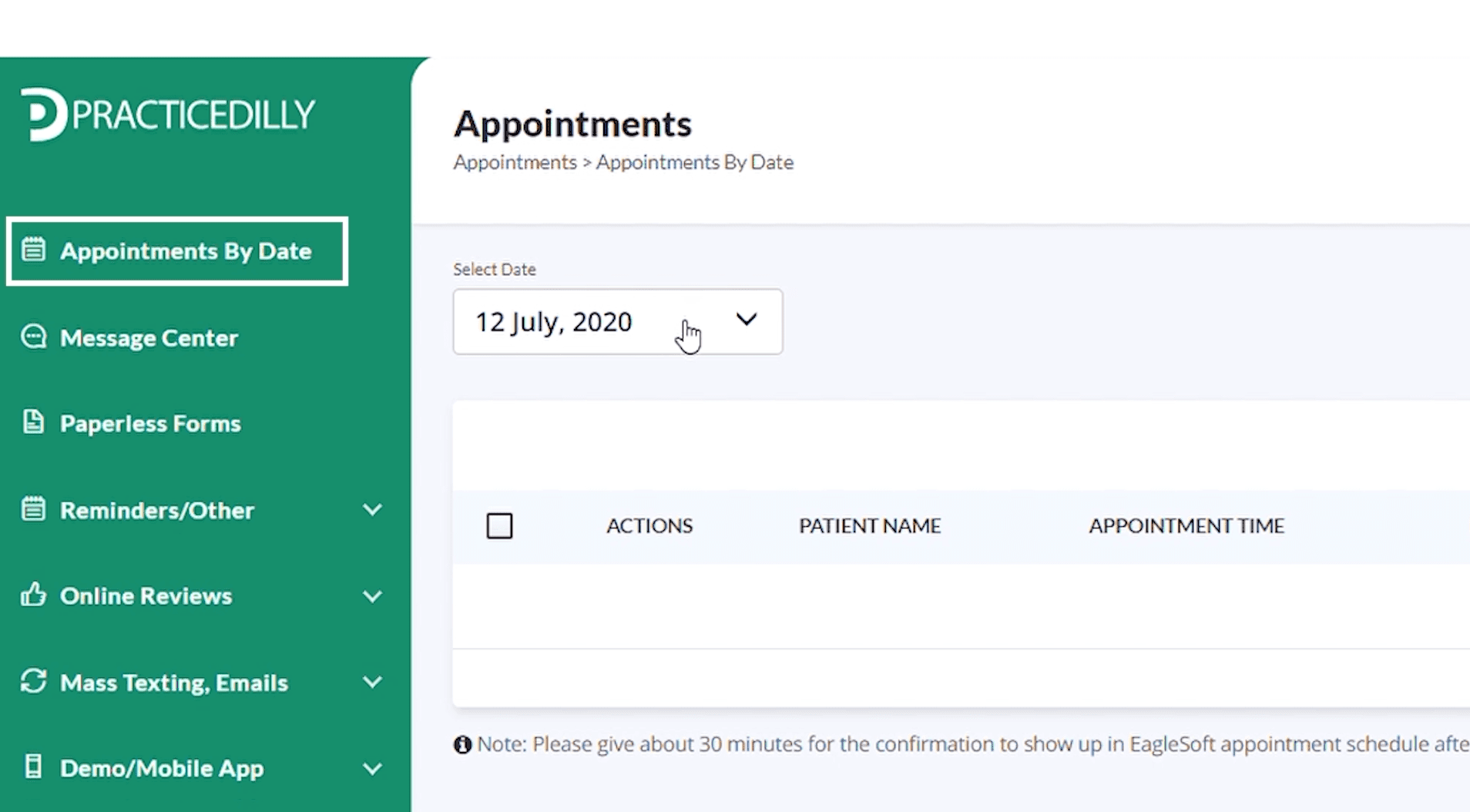
Select the patients scheduled on a particular date and send them a group text message directly from the appointment list.
Click on Appointments by Date in the left control panel.
0:15Select the desired date.
0:22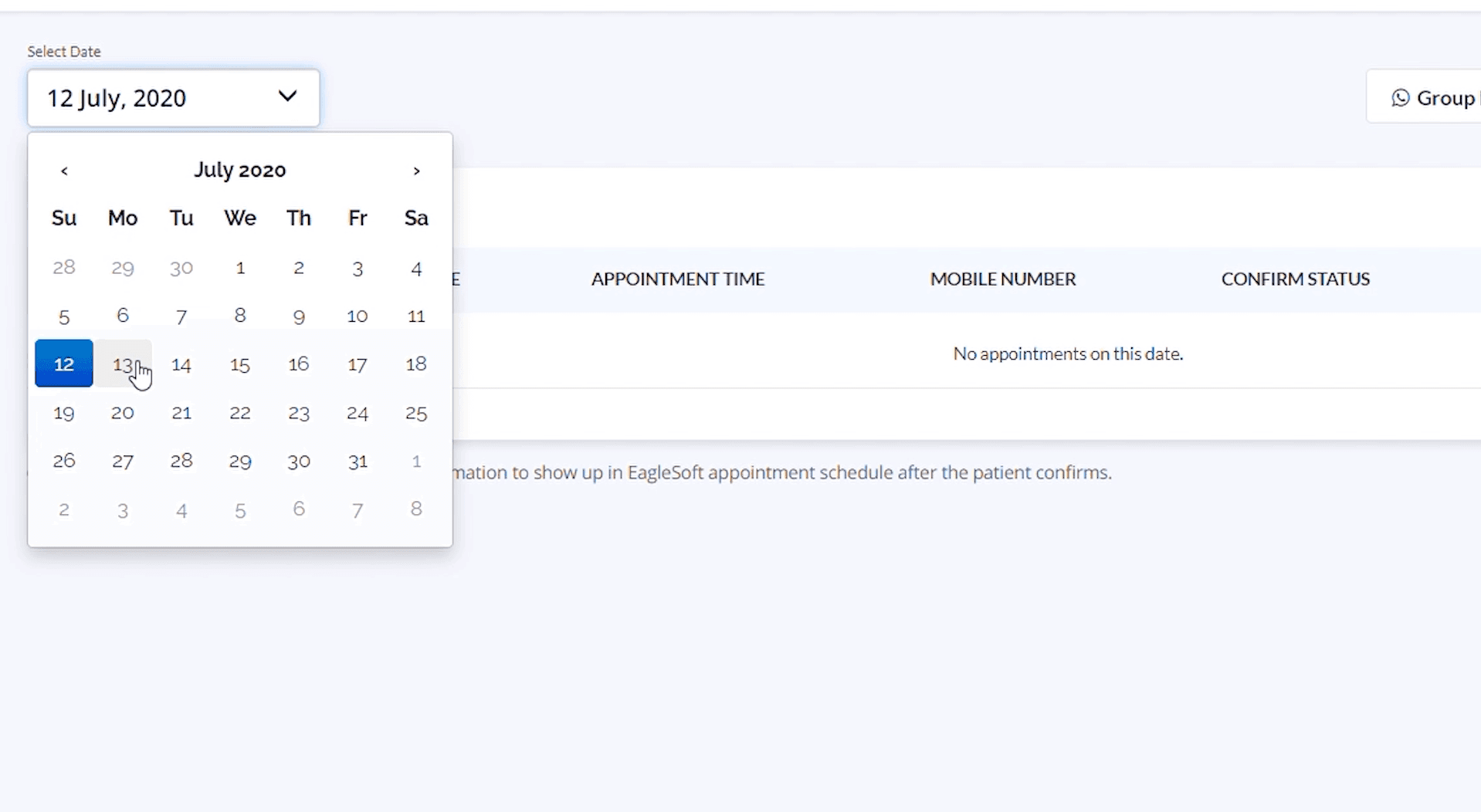
Select all the checkboxes if you wish to request a review from all the patients. However, if you don't wish to request a review from some patients, you can uncheck their boxes.
0:36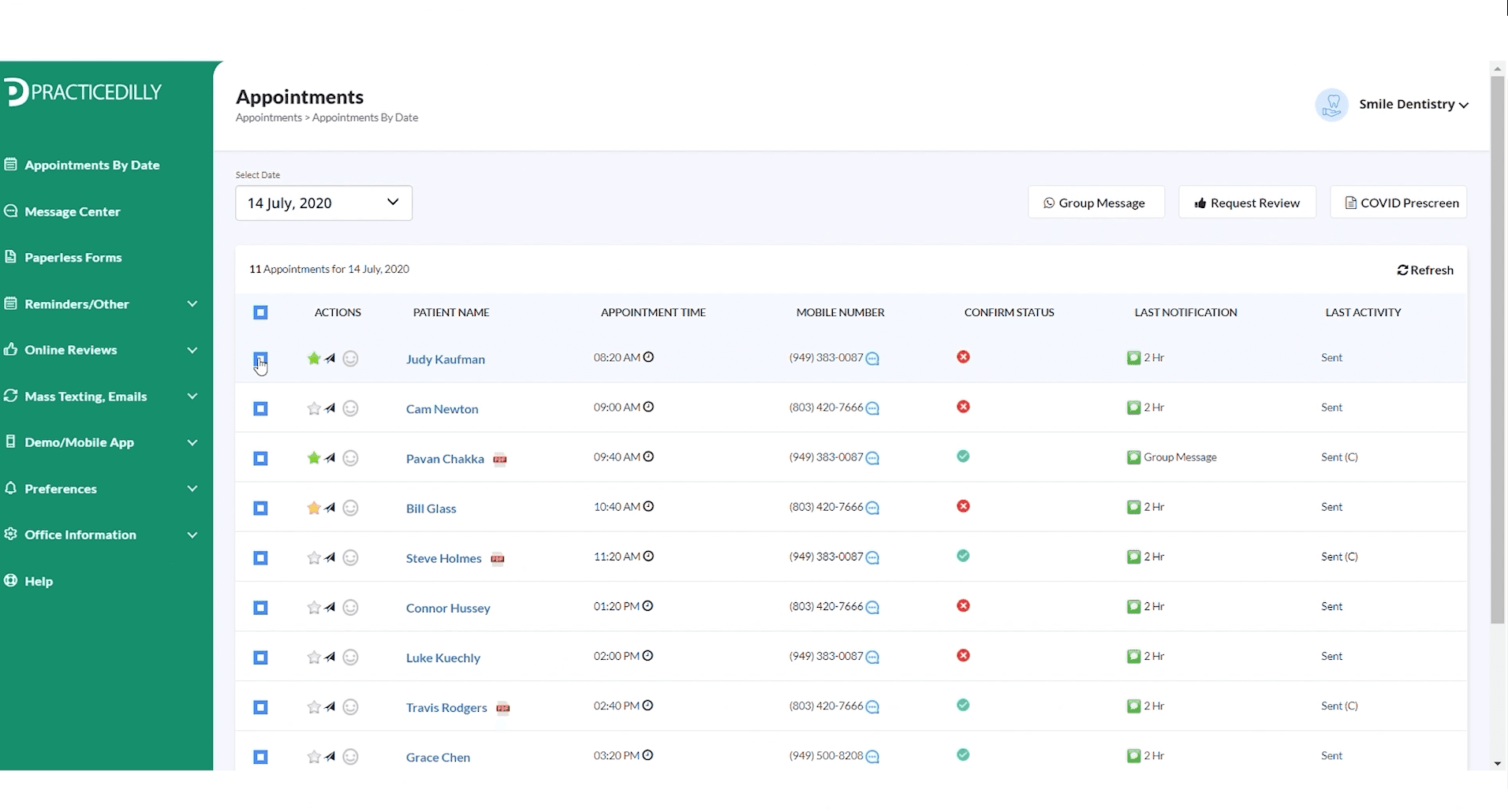
Click on the Group Message button on the top panel.
0:38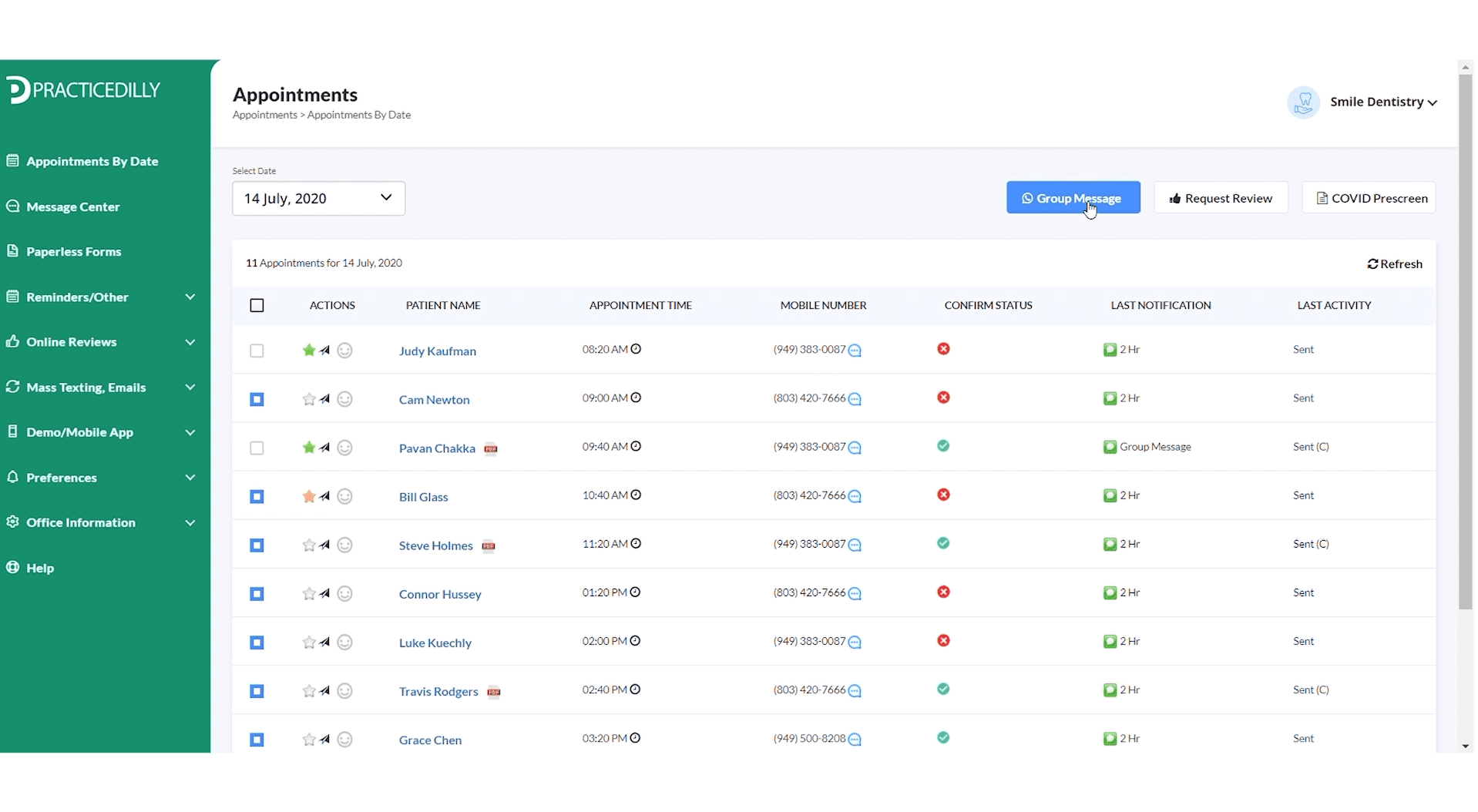
Type in the message and click on the send button.
0:49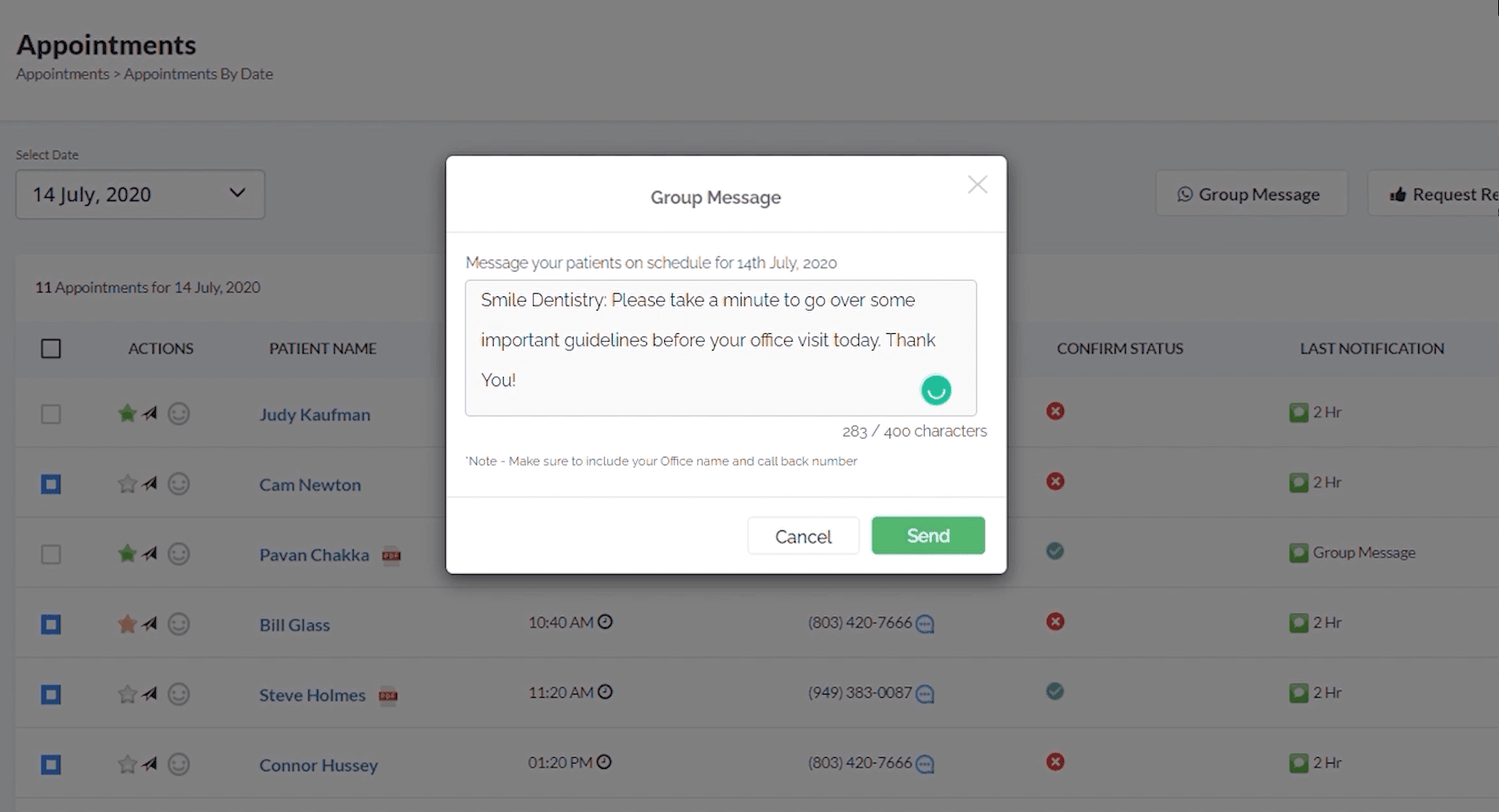
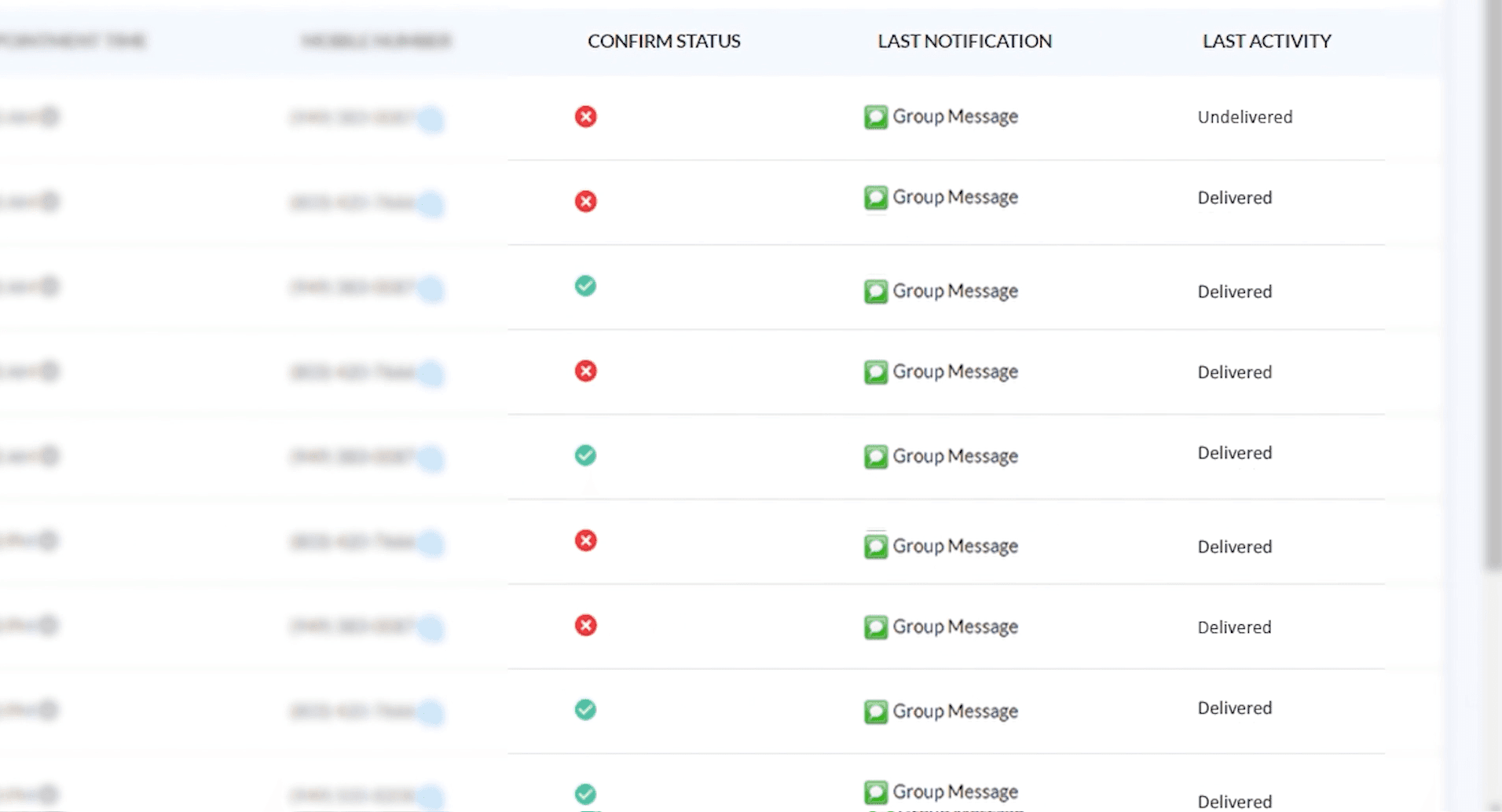
On the appointments page you can check if your message is sent successfully or failed due to any reason under the Last Activity column.
0:55