1
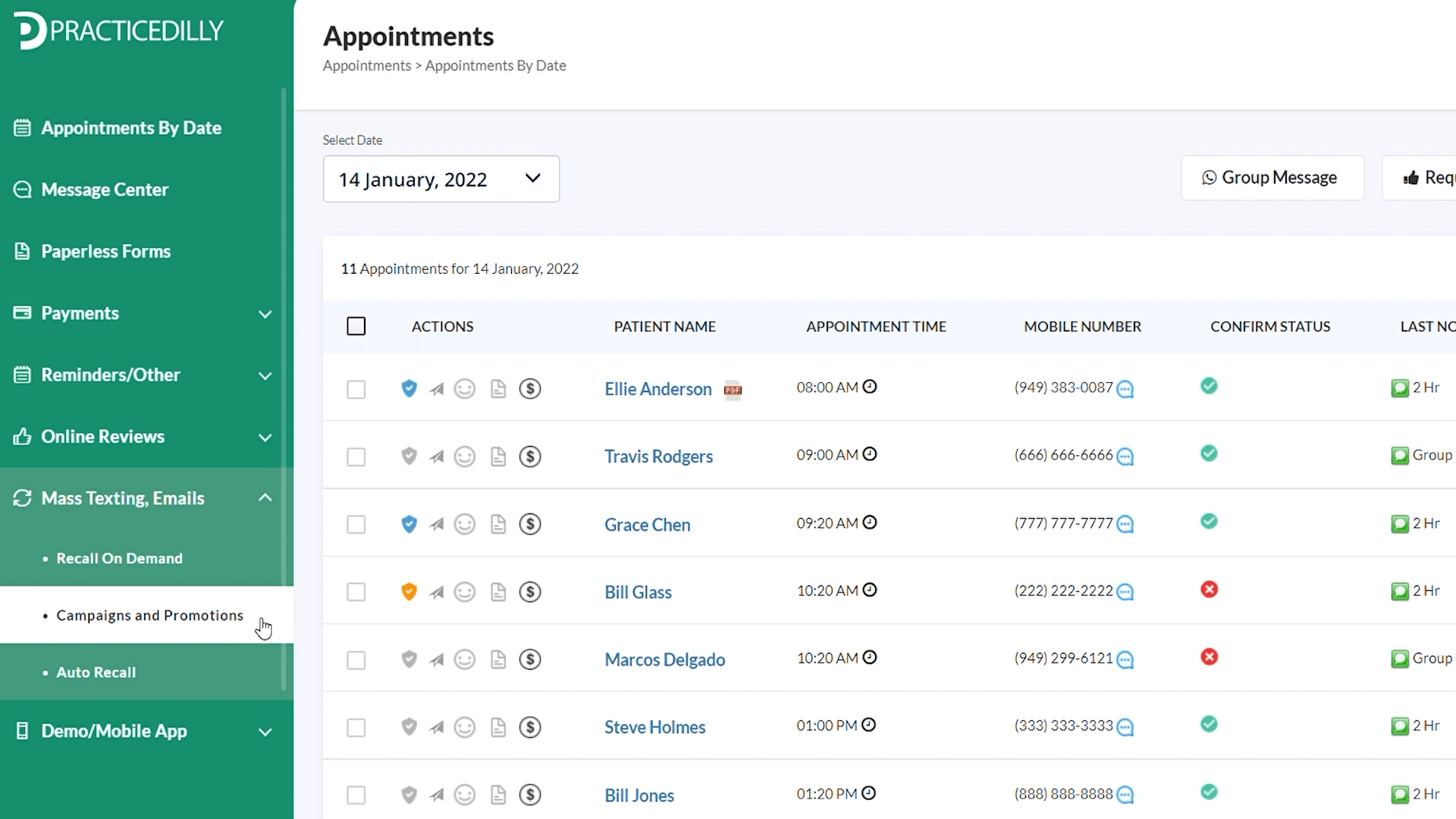
Once you log into PracticeDilly, click Mass Texting in the left panel, and select Campaigns & Promotions.
Create a targeted campaign for patients who missed appointments during a selected date range.
Once you log into PracticeDilly, click Mass Texting in the left panel, and select Campaigns & Promotions.
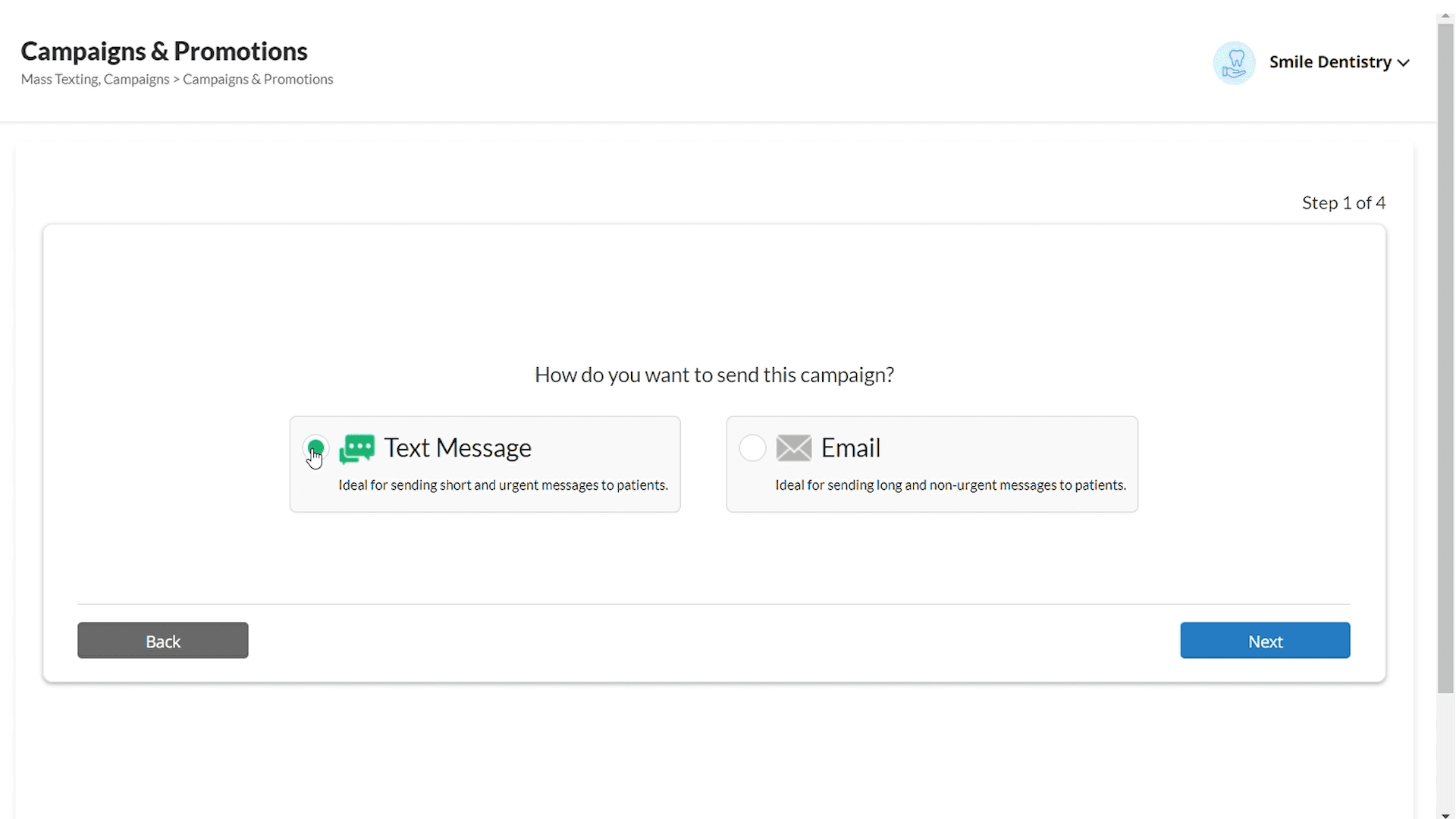
Click on Send New Campaign. Here, you'll be asked to choose if you want to send a Text Message or an Email. Let's choose Text Message for this demo.
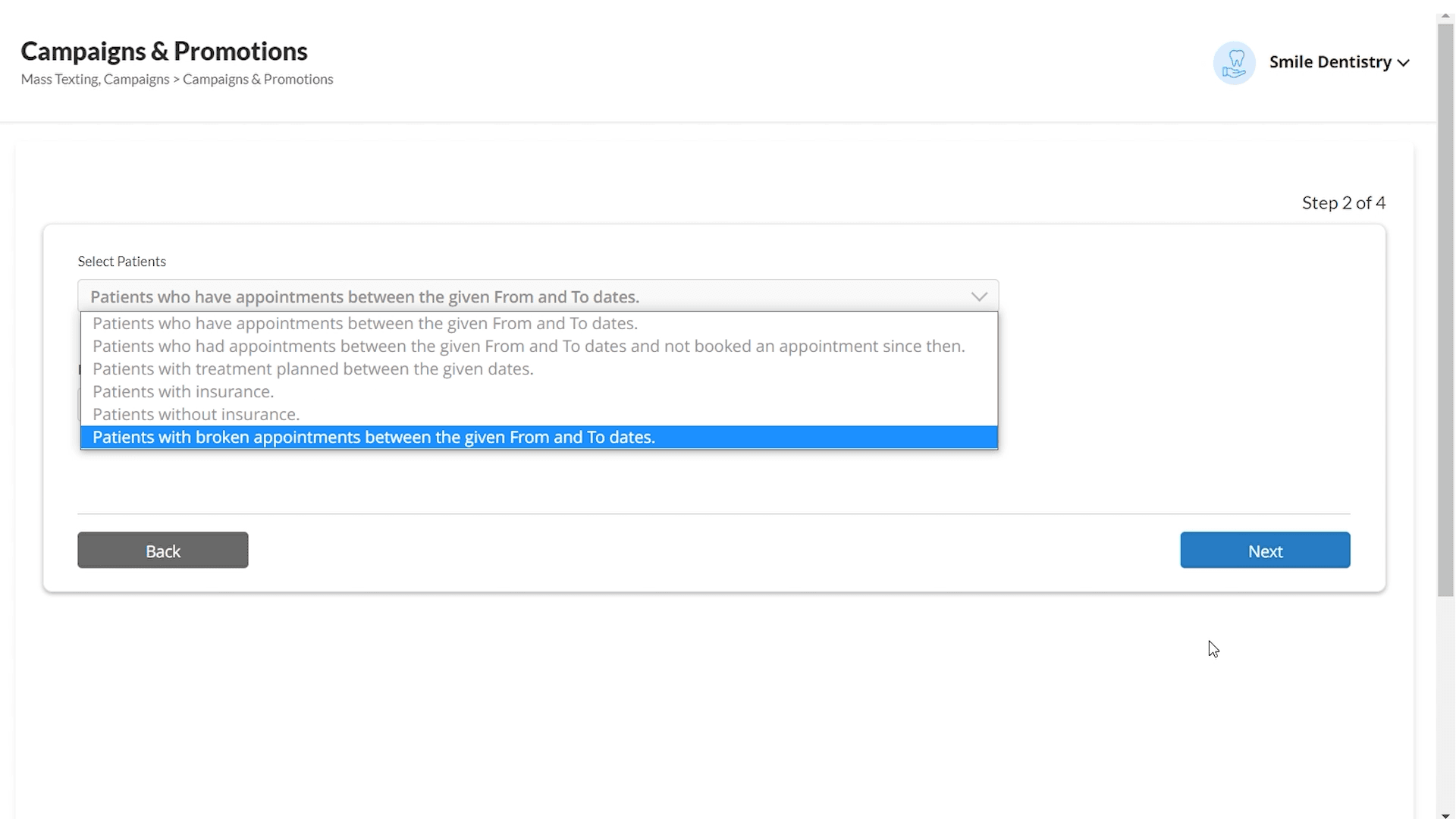
Choose the option, “Patients with broken appointments between the given From and To dates.”
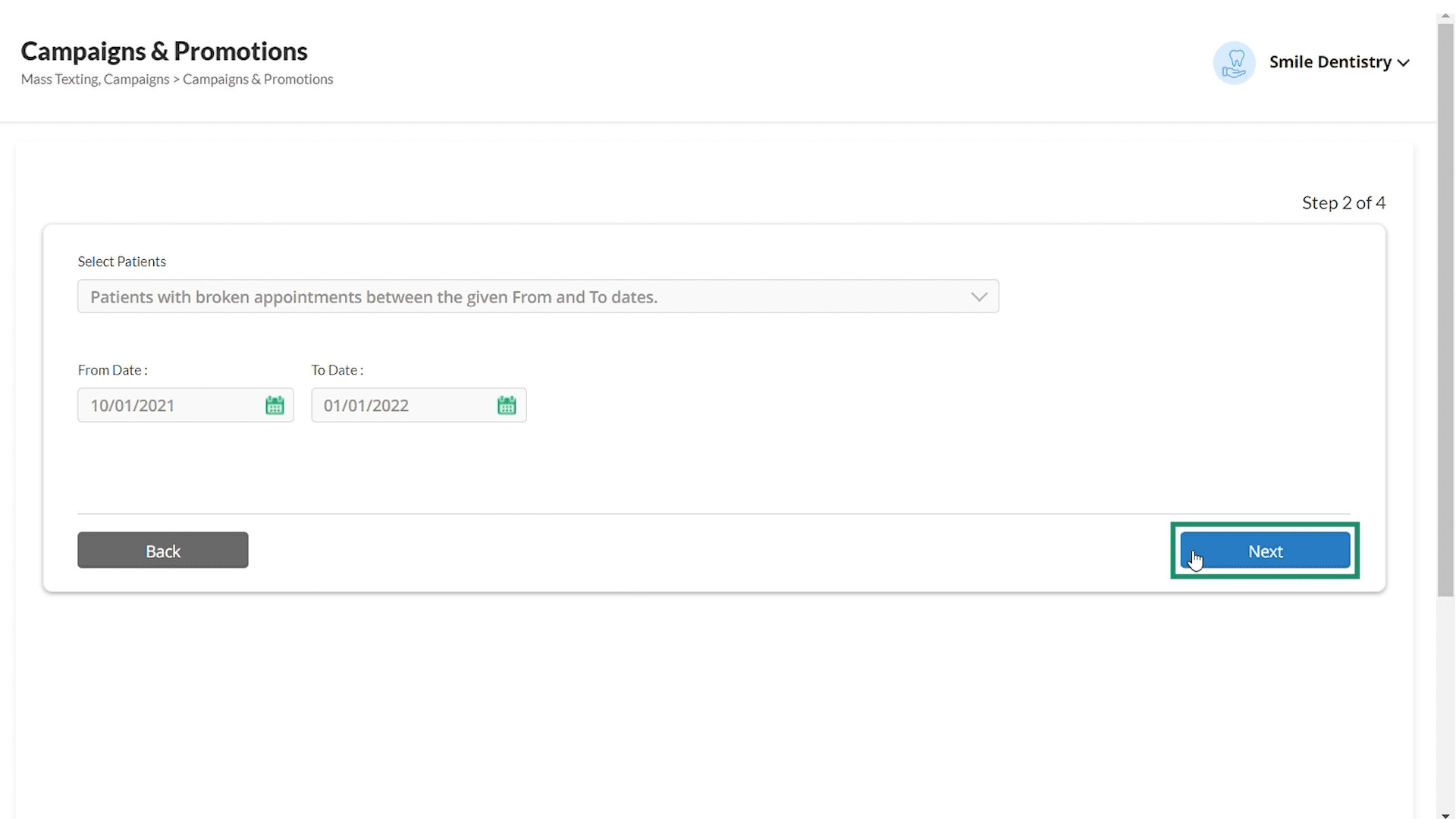
Let's say you want to send the message to all your patients who have missed their appointments in the last 3 months. Select this option and specify the start and end dates. Click on the “Next” button.
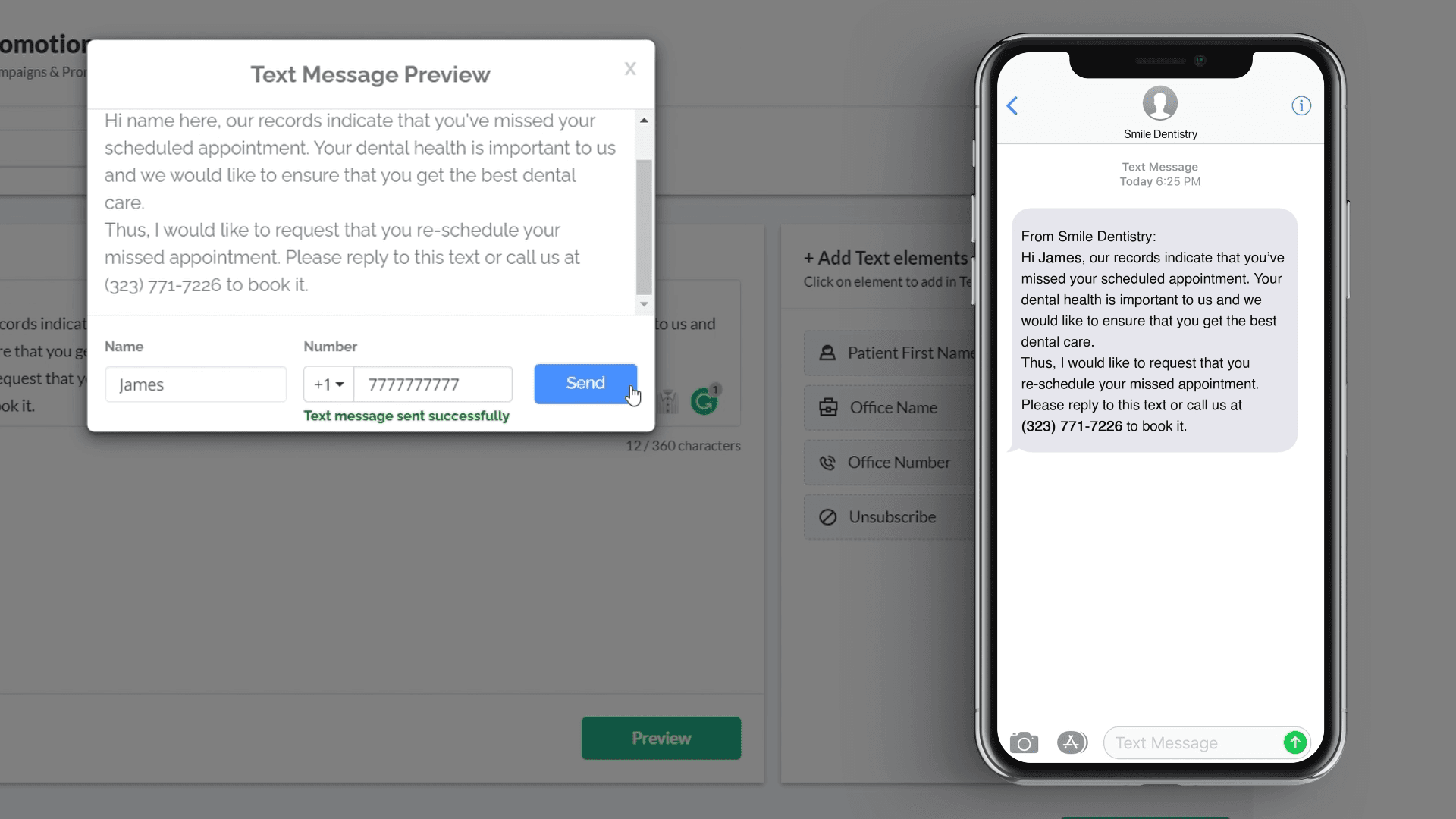
On this page, type in the message you wish to send to your patients. Add the patient's name to personalize the message. The program will automatically replace the placeholder with the patient's name before sending the message to the patient.
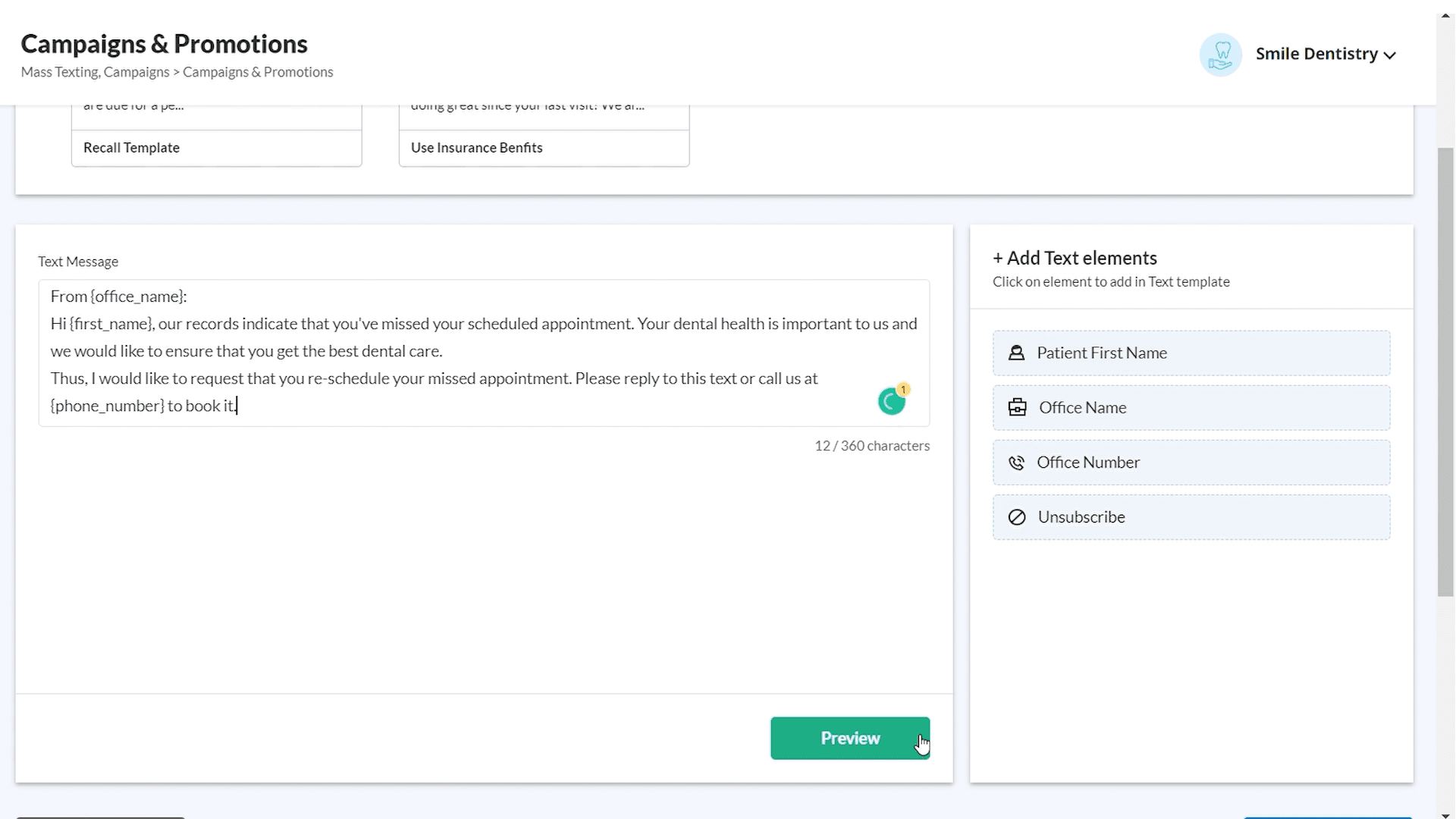
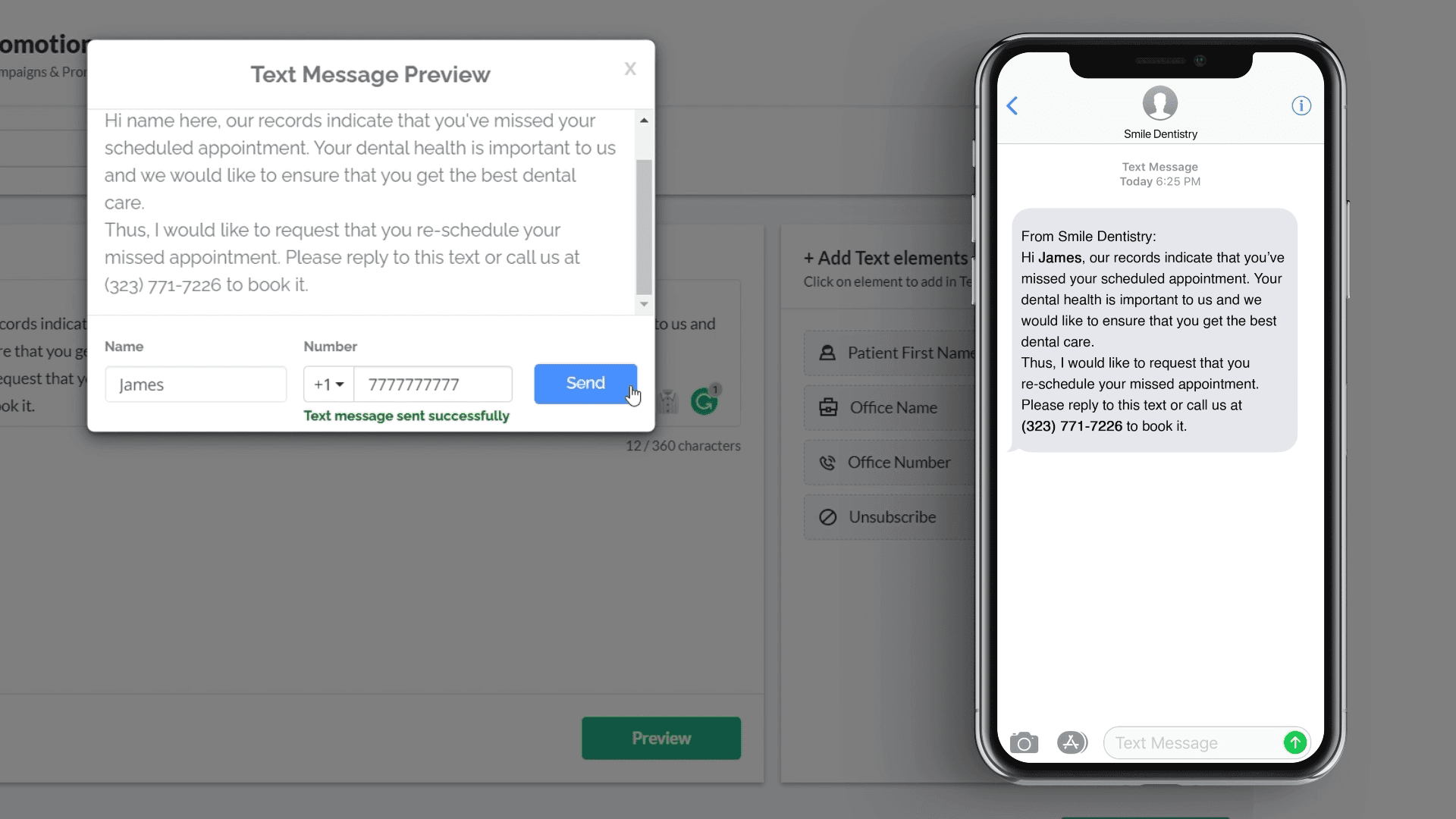
You will be able to preview it and even send a test message to your mobile phone. If the message looks good, click “Next” to proceed.
On this page, you can review all the information that was entered in the previous screens. If you need to make any changes, you can always go back by clicking on the “Back” button. If everything looks fine, click on the “Send Now” button.