1
Click Online Reviews in the left control panel and Select Settings.
0:18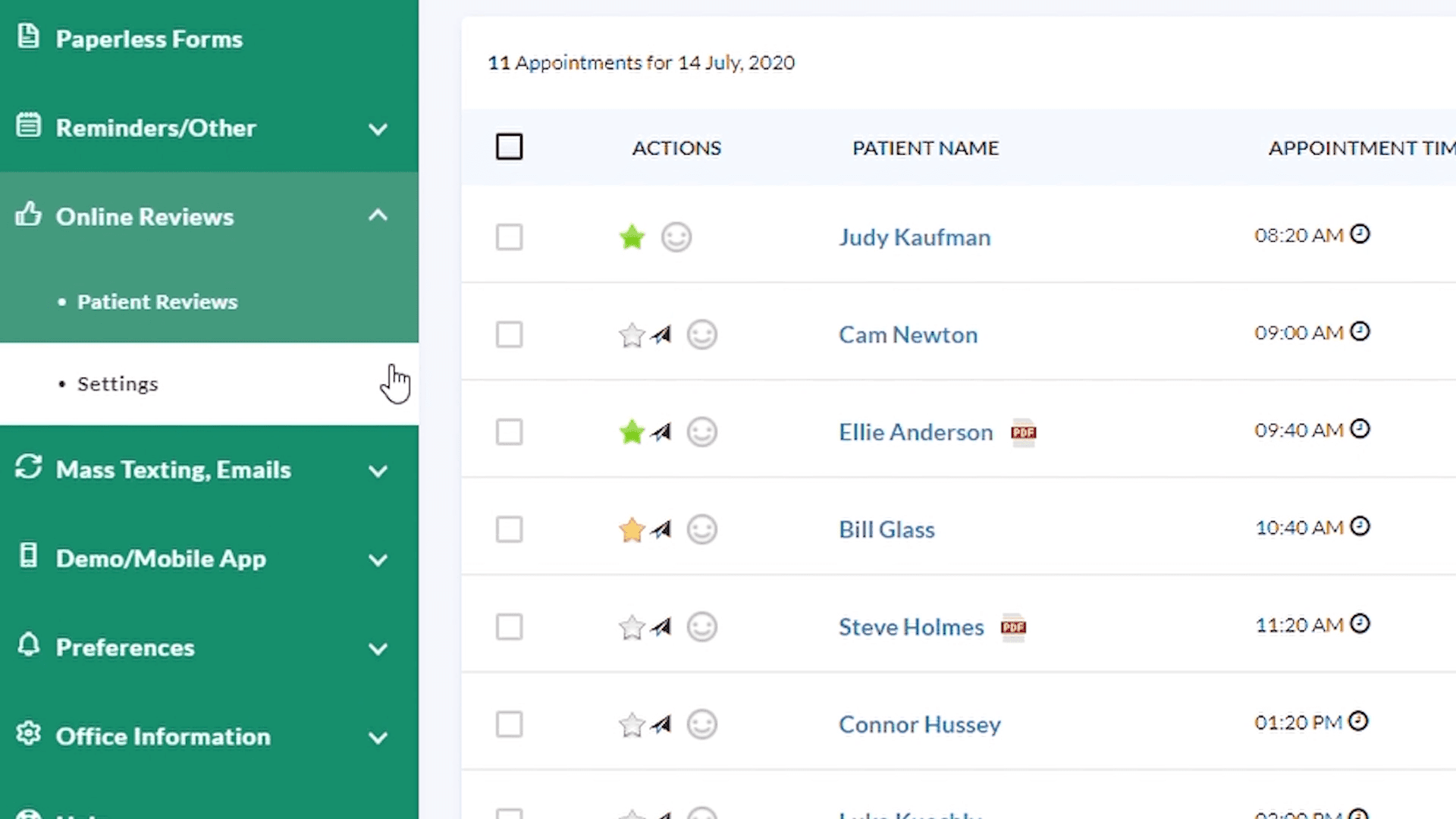
Personalize the text and email messages patients receive when your office asks them to leave an online review.
Click Online Reviews in the left control panel and Select Settings.
0:18Click Text Customization tab. If you like the default message leave it as it.
0:28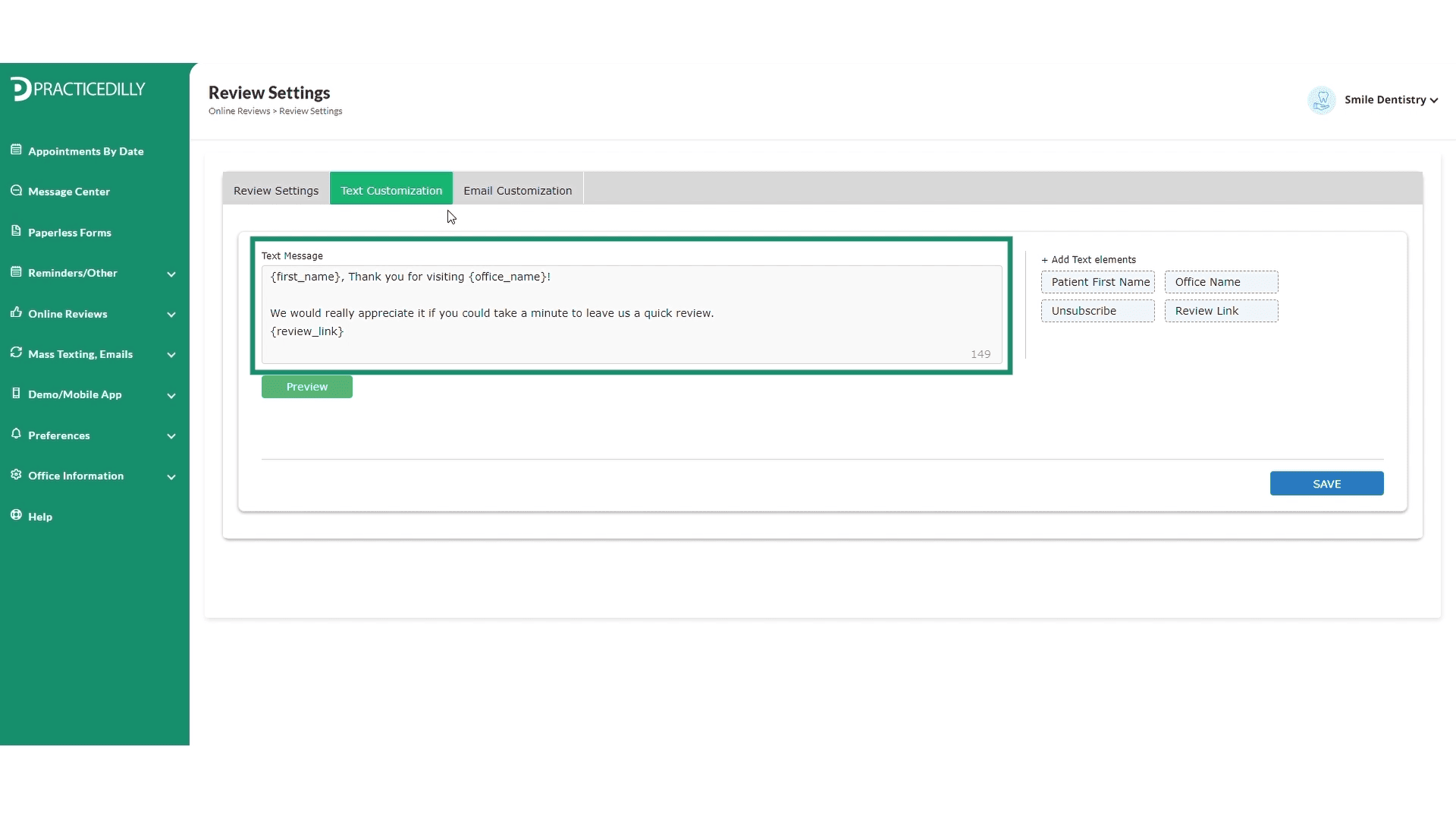
You can personalize the message by adding the doctor's name or any of the staff's names. Make sure to leave the patient's name and review link as it is.
0:35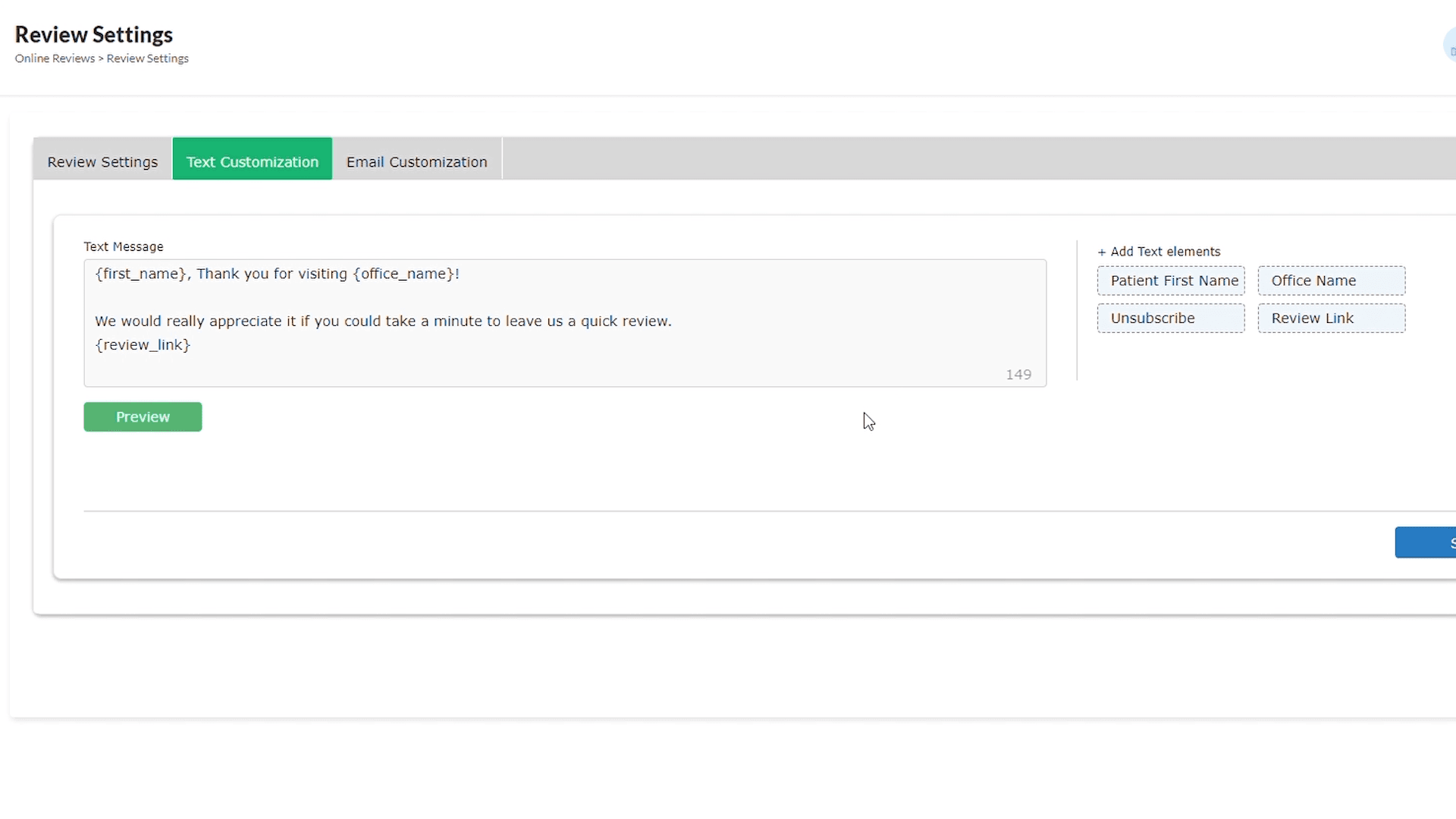
Click on Preview before sending the message.
0:55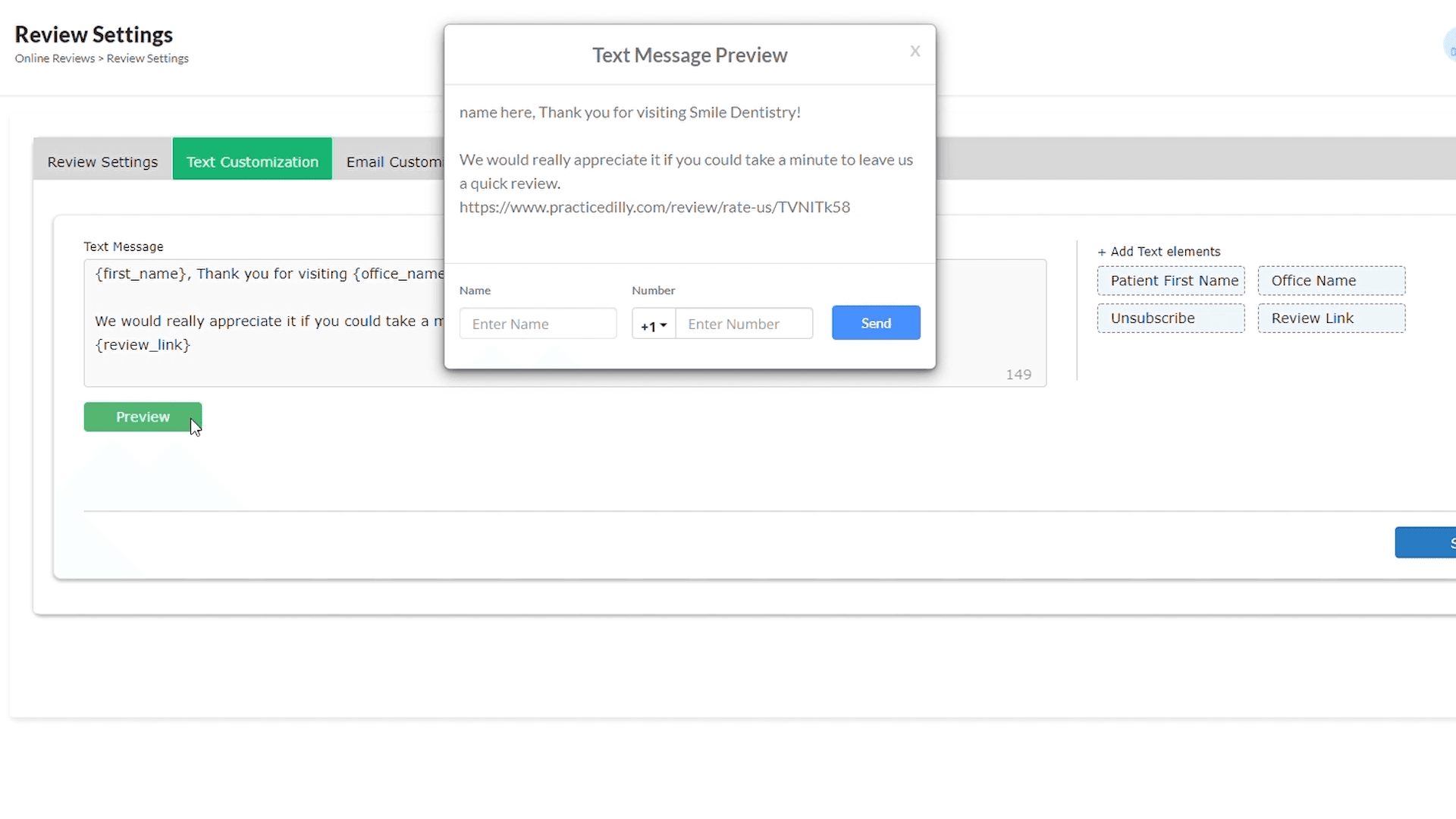
You can even send a text preview message to your phone.
1:06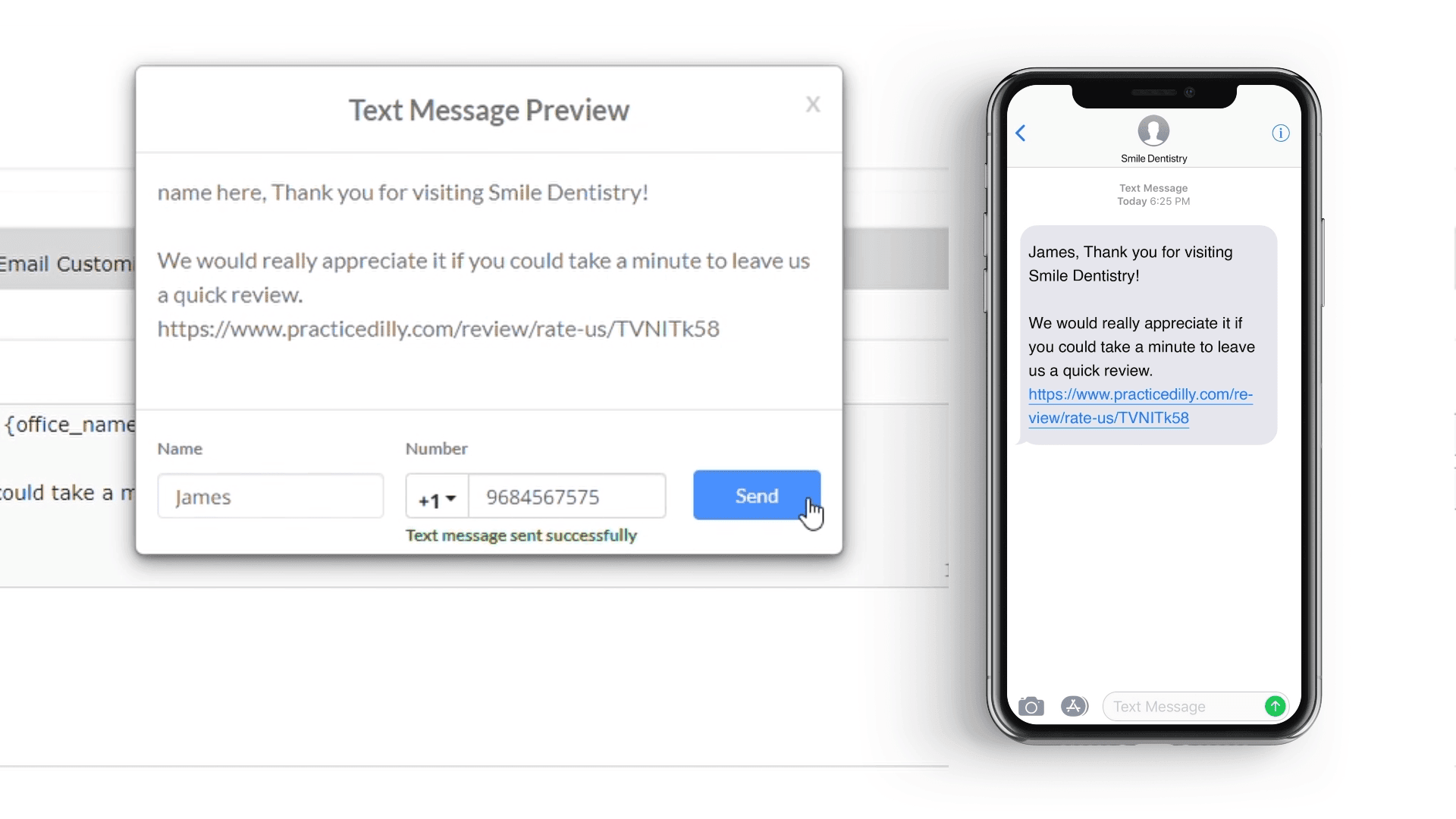
Click the Save button
1:15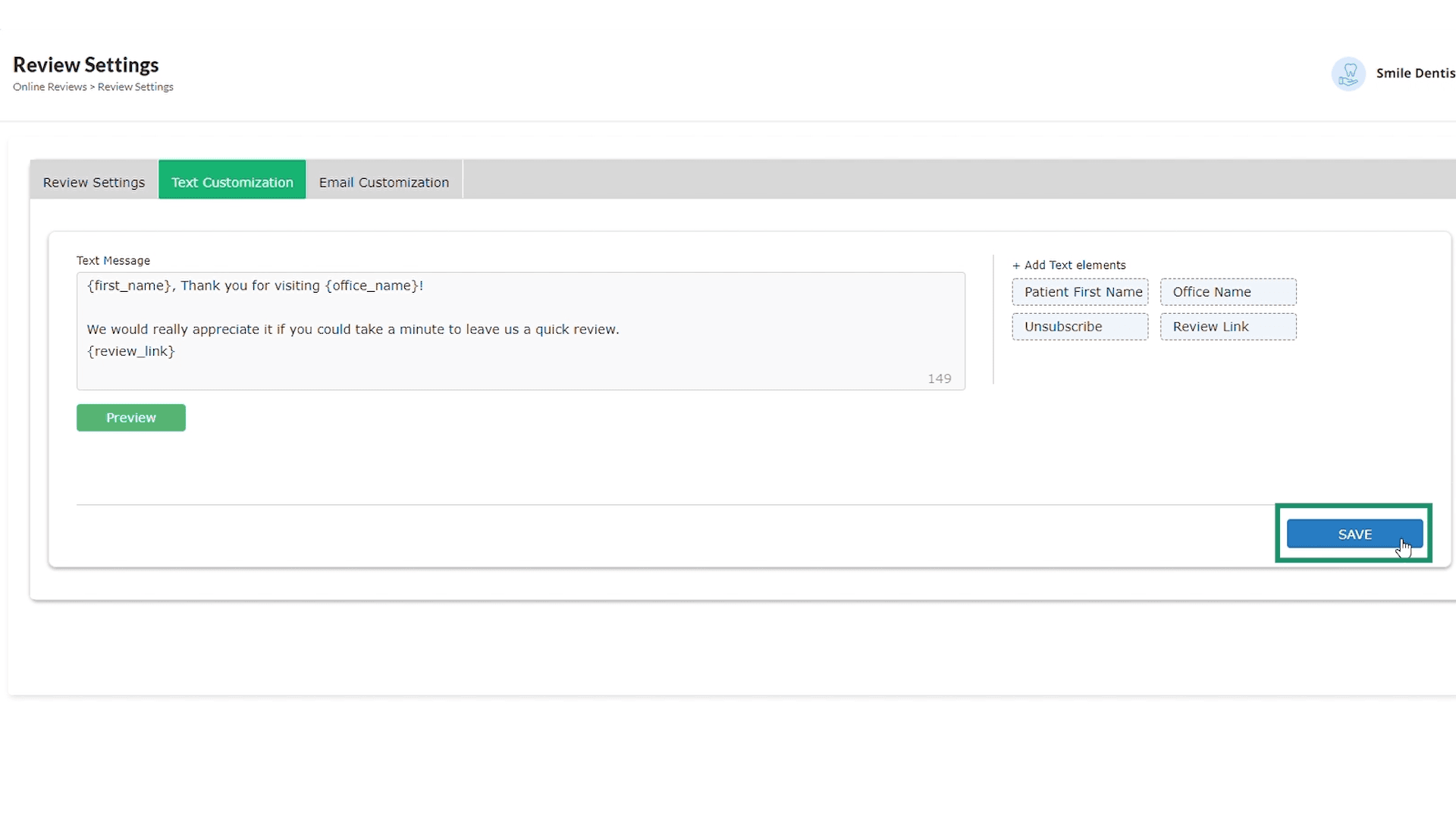
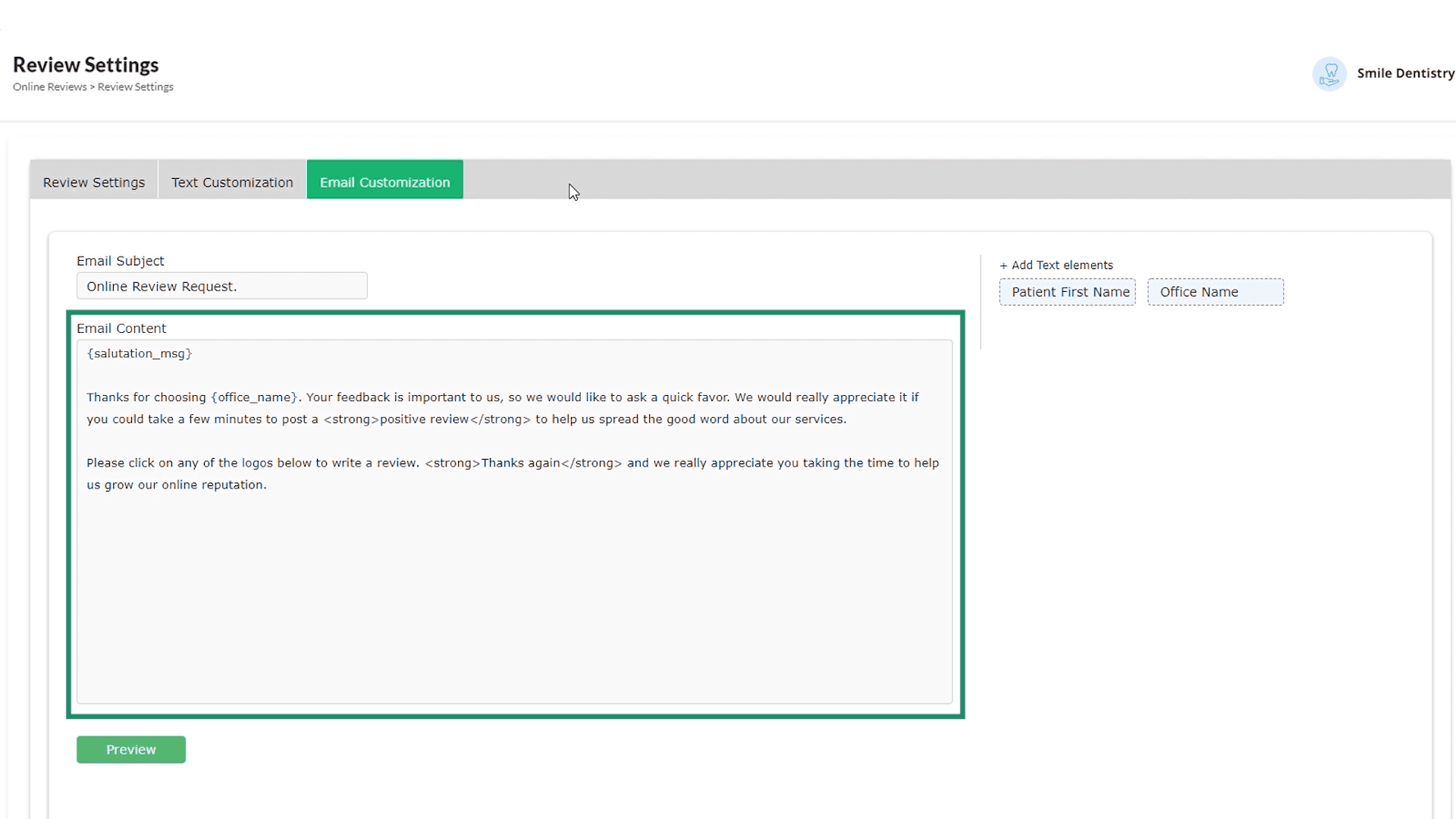
Similarly you can modify the content in the Email customization tab.
1:23