1
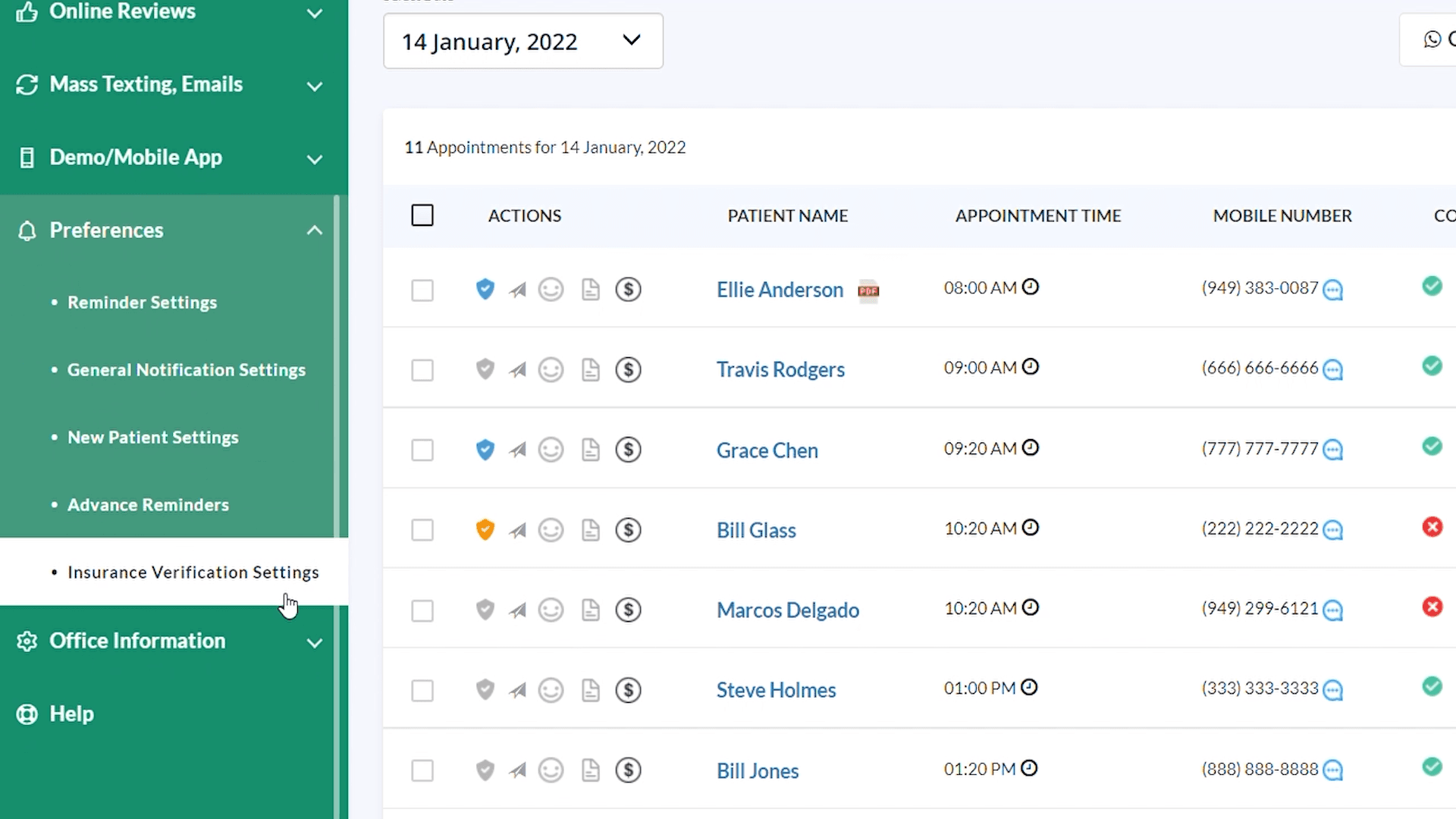
Once you log in, select Preferences in the left panel, click on Insurance Verification Settings.
Set up recurring insurance-verification messages so patients can review and update their insurance information before their appointments.
Once you log in, select Preferences in the left panel, click on Insurance Verification Settings.
Turn ON Enable Verification
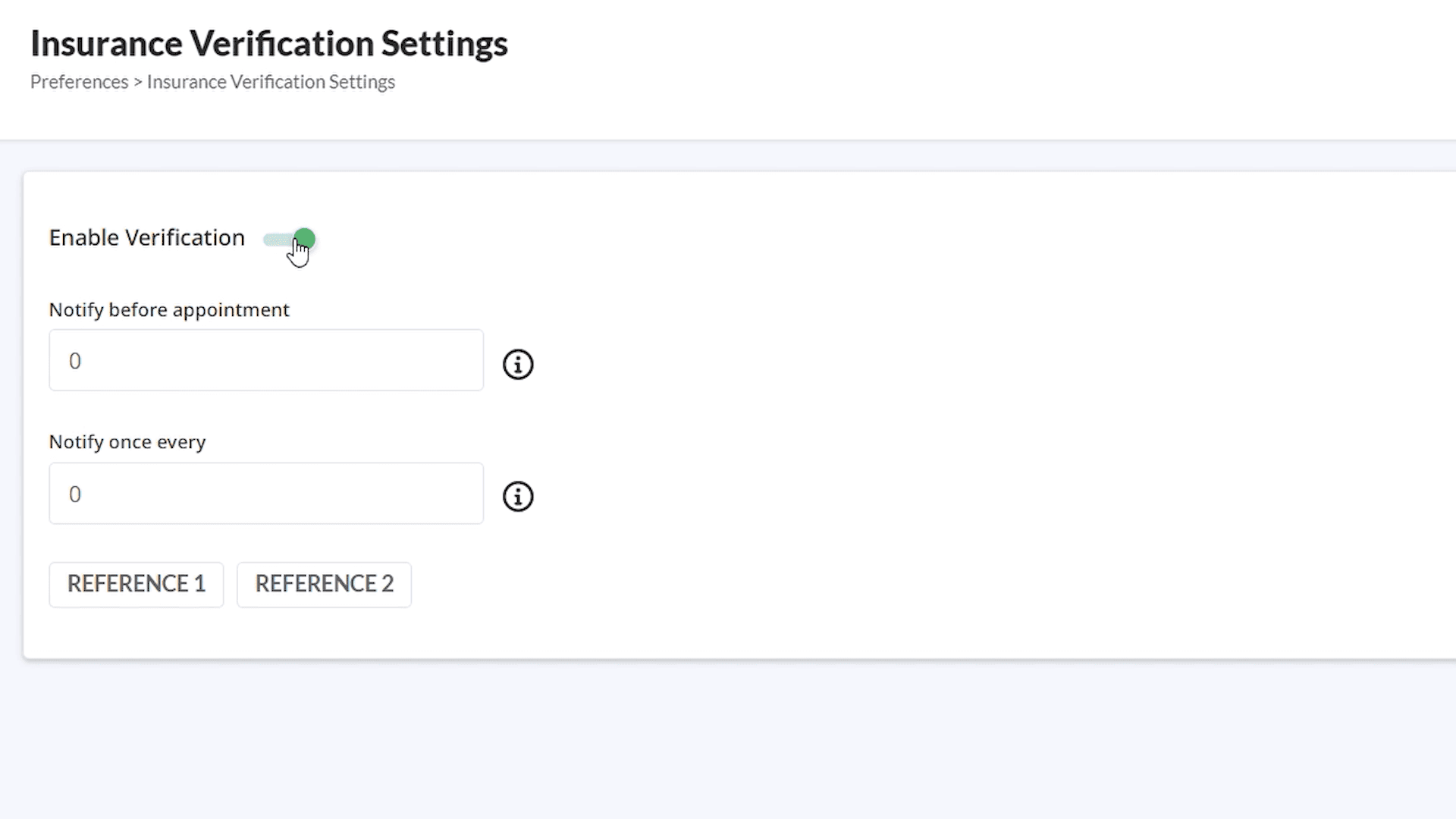
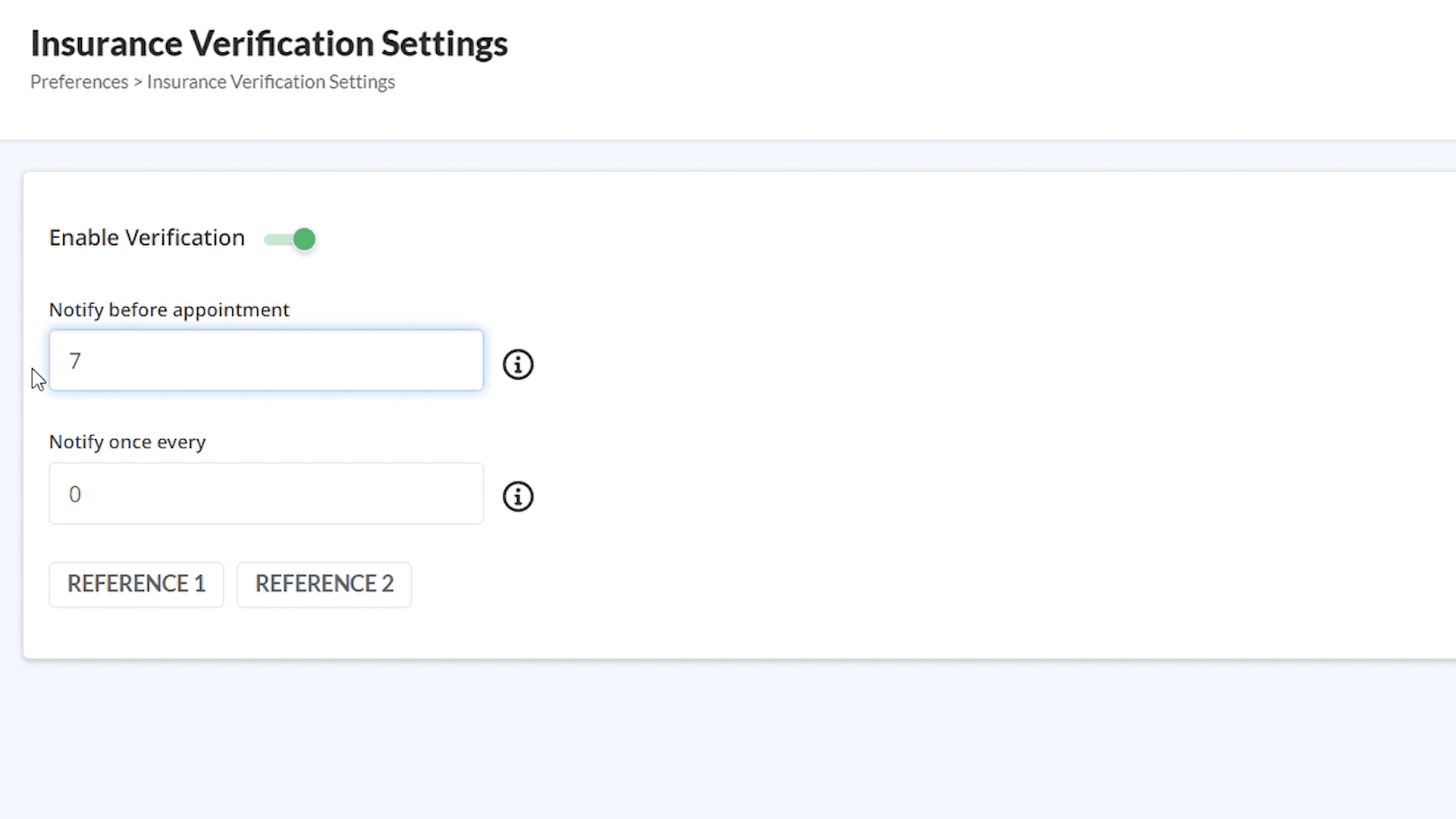
And then customize when you would like to send the insurance verification message to your patients. Let's say you want to send the verification message 7 days prior to their appointment. Enter 7 here.
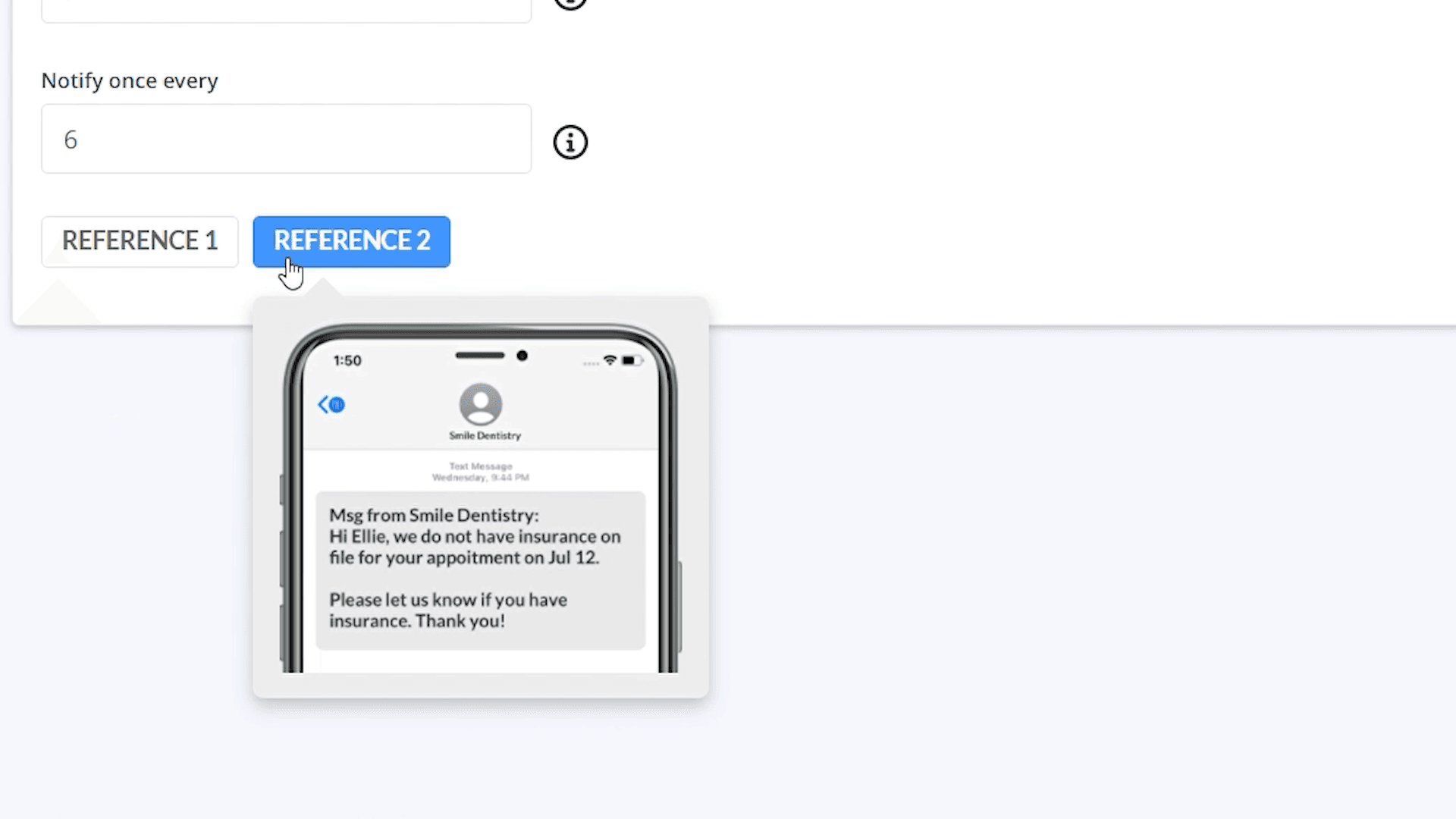
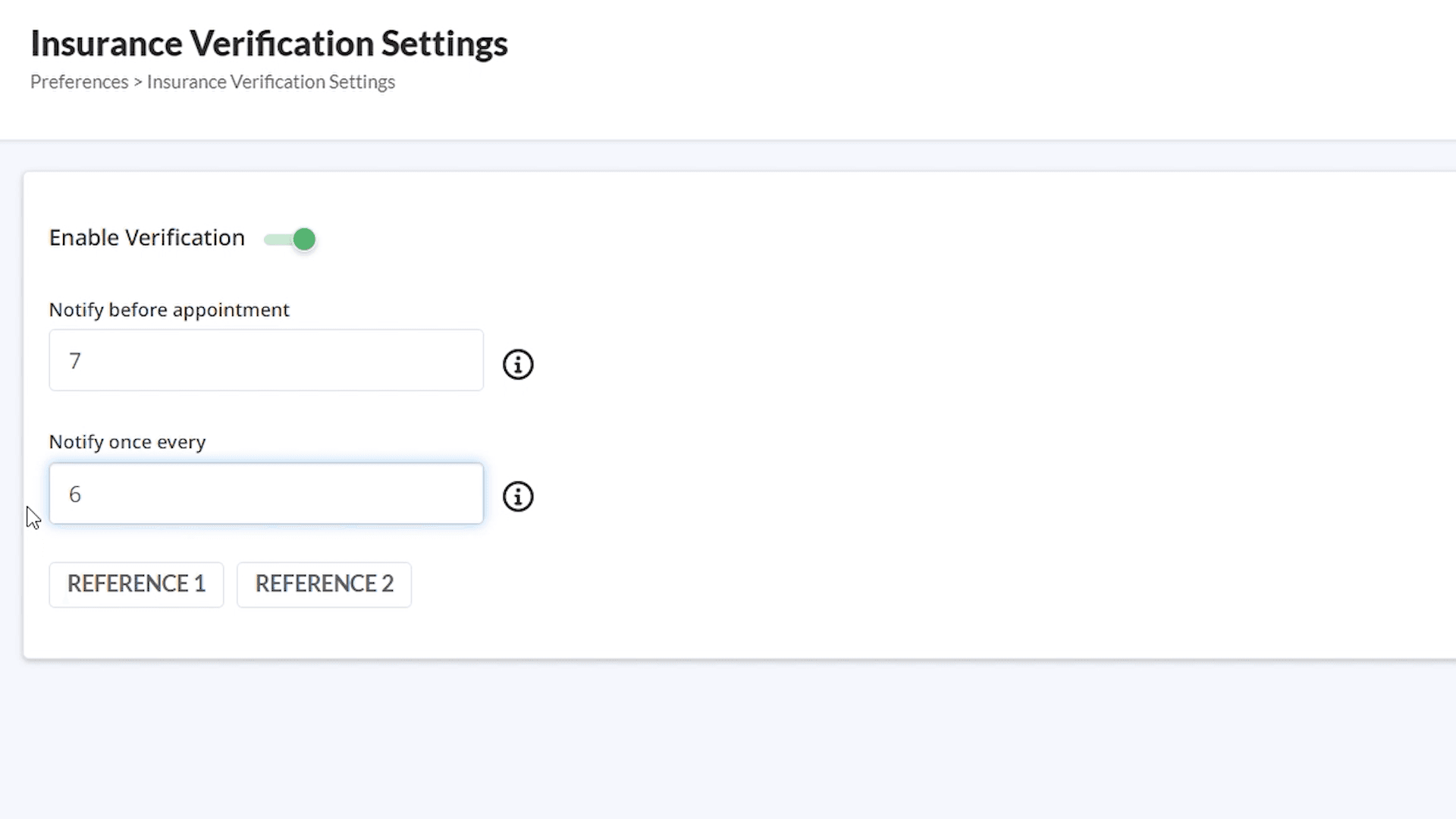
Additionally, you can choose how often you want to send this message. If you would like to send the message once every 6 months, enter 6 here.
To see what the message to the patient is going to look like, click on Reference 1. This is the case when you have a patient's insurance on file.
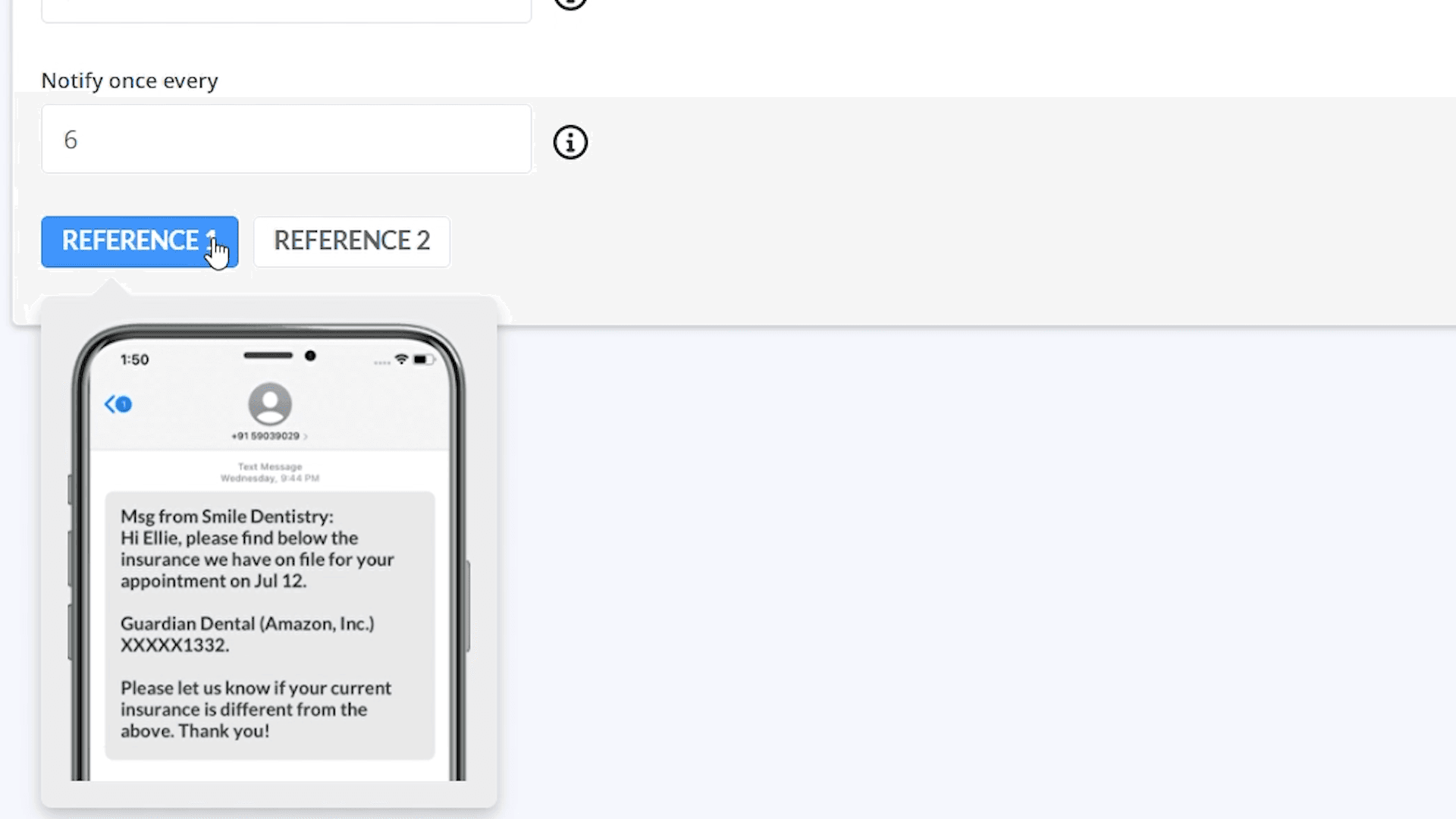
Reference 2 shows the message when there is no insurance on file.