1
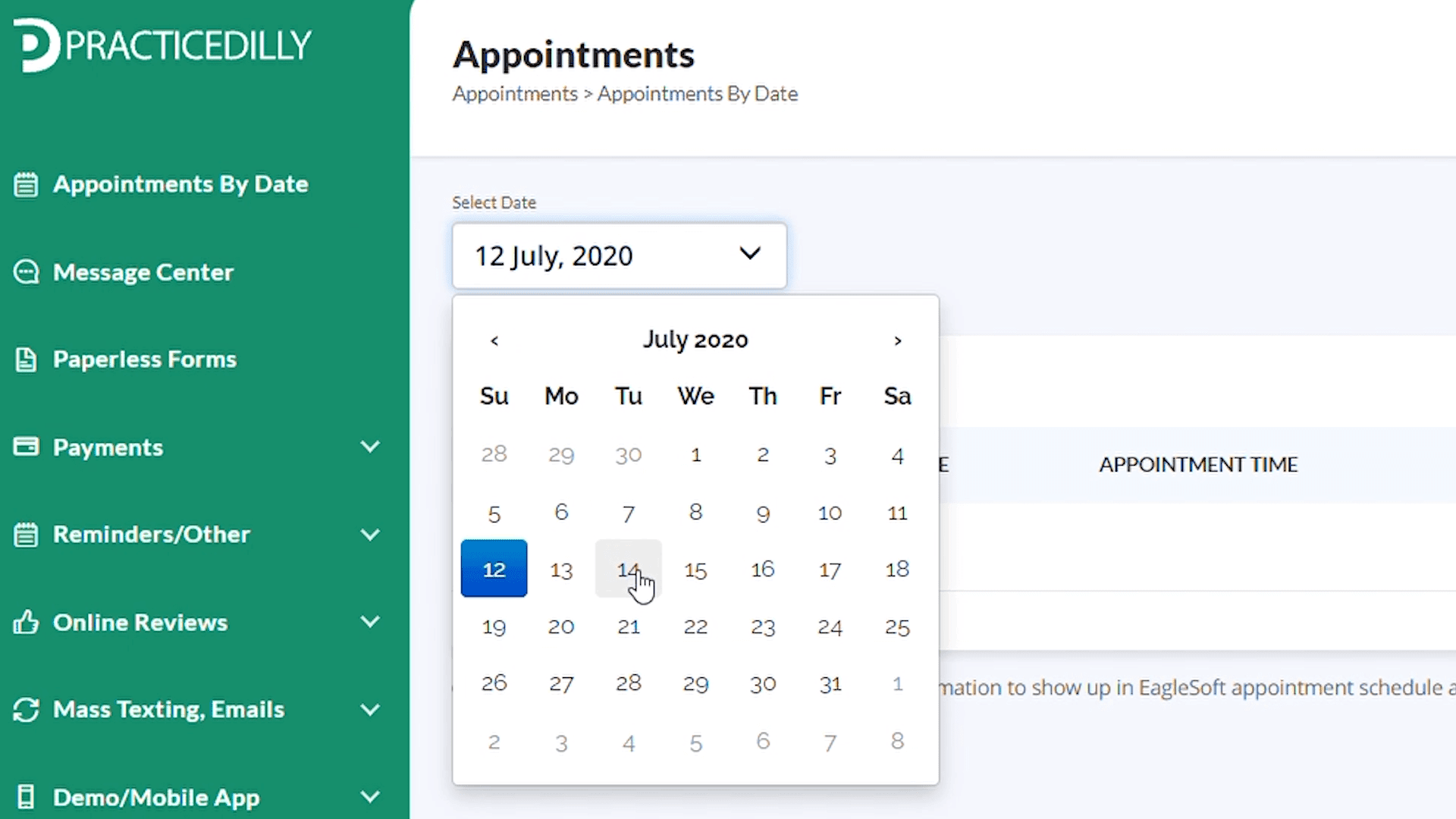
Once you log into PracticeDilly, select Appointments by Date in the left panel, and select the desired date.
Send digital forms and consent documents by text or email, then review and download completed forms from the patient’s appointment.
Once you log into PracticeDilly, select Appointments by Date in the left panel, and select the desired date.
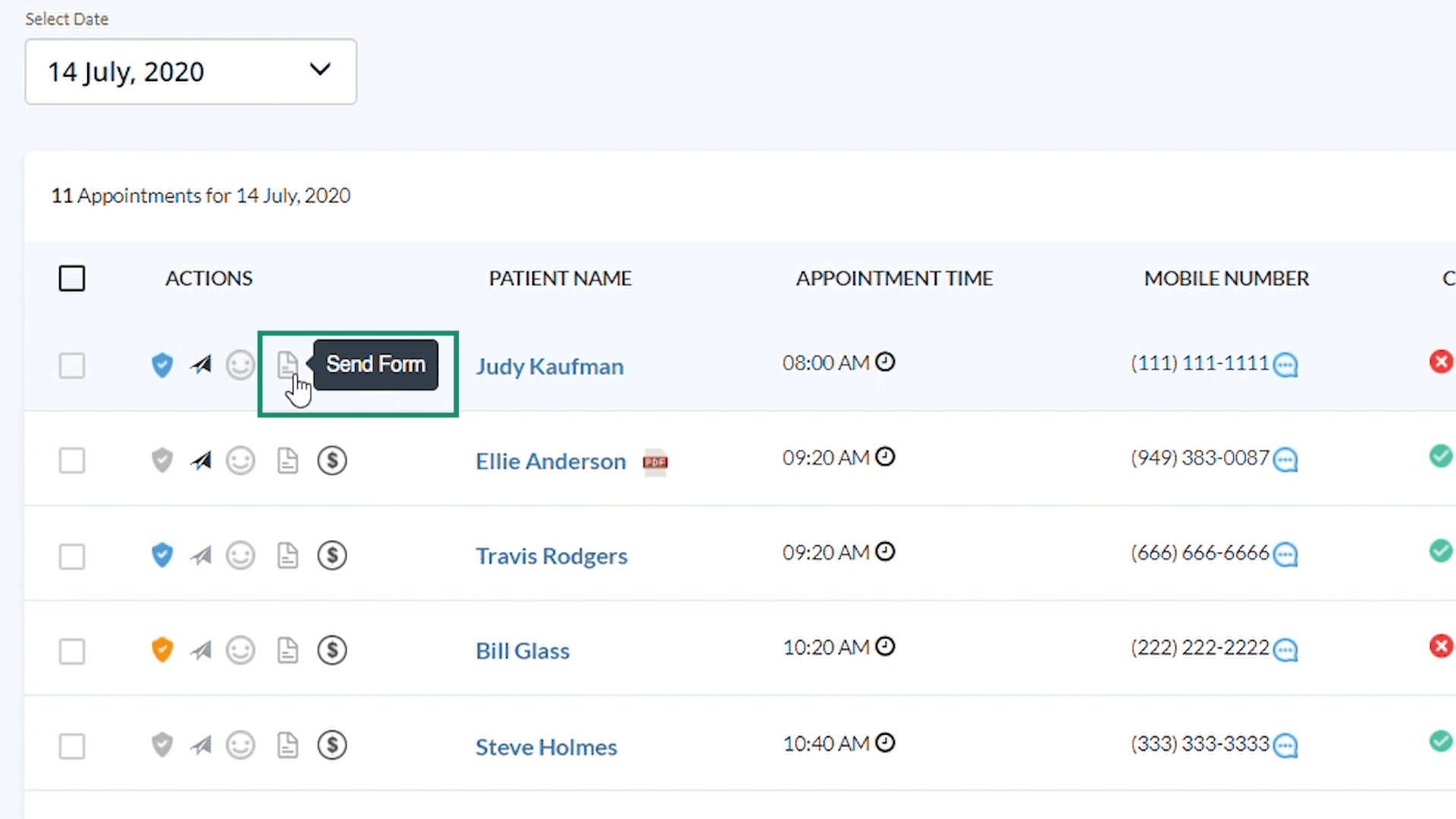
To send the forms to a particular patient, click on Send Forms corresponding to the patient.
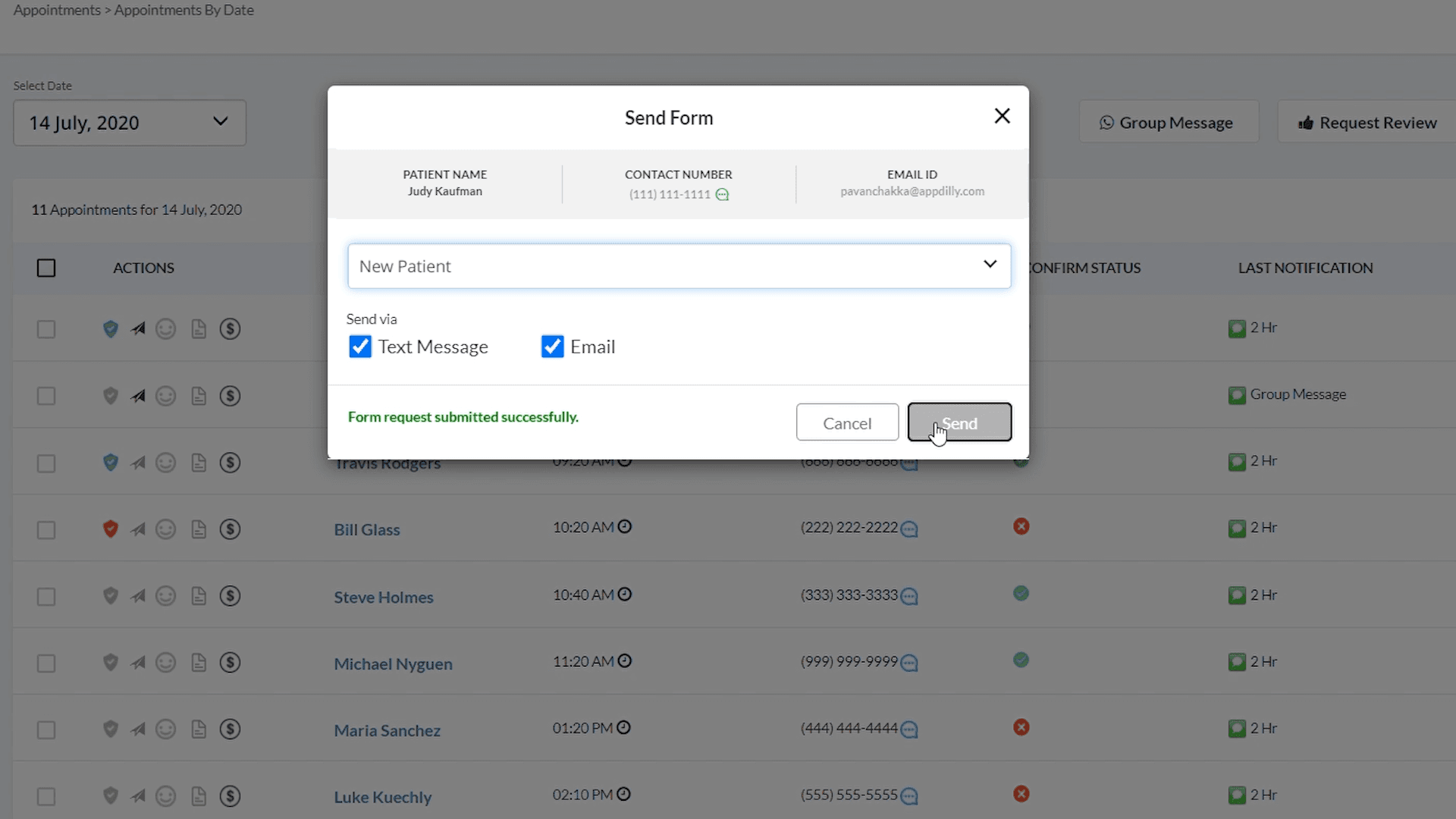
Select the form your wish to send, choose text and email, and click the Send button.
In addition, you can send post-op instructions to your patients.

Similarly, you can also send the Treatment Consent forms right to the patients' mobile and get their signature.
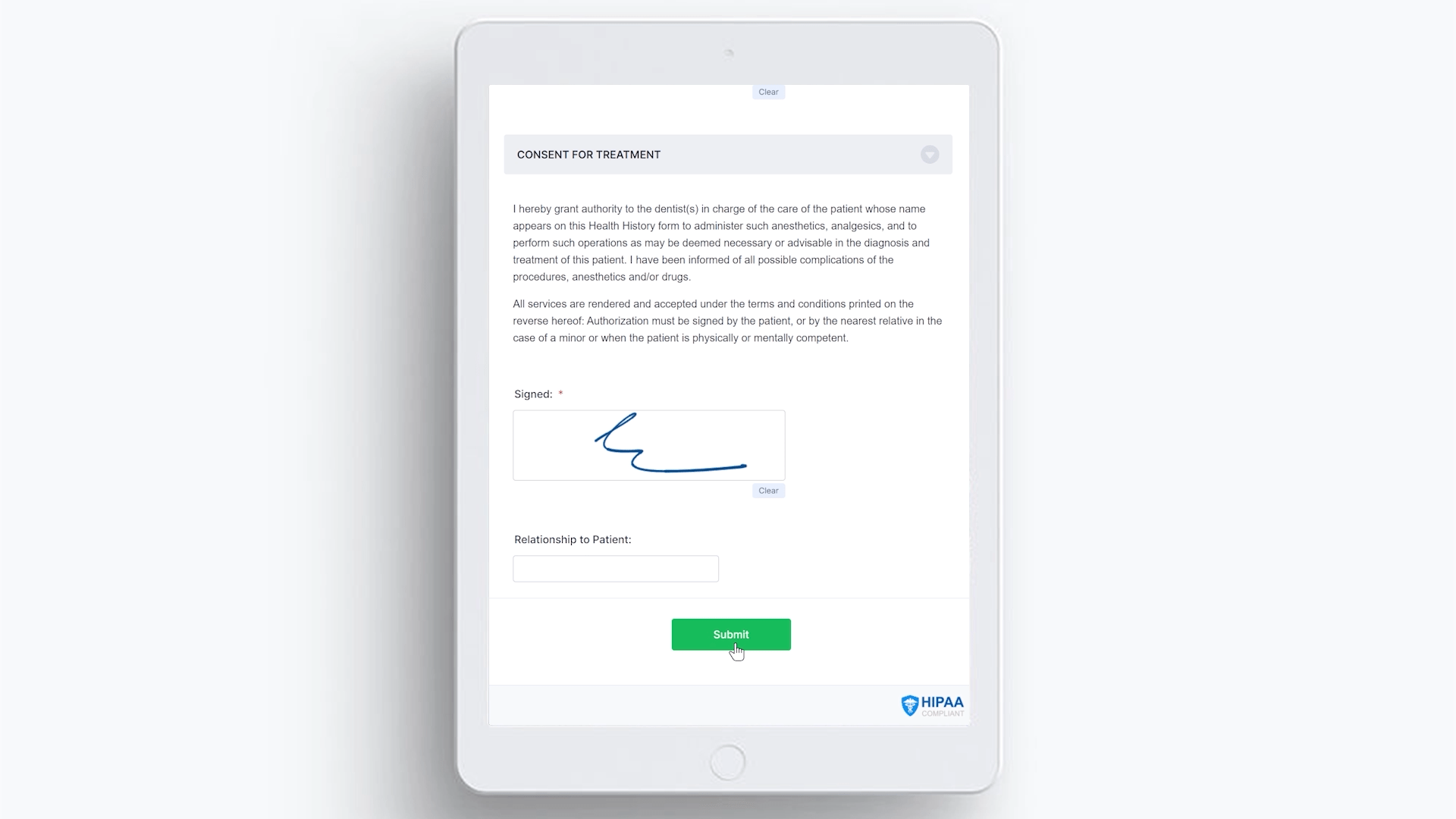
On the patient's end, they will click on the link in the message or email and fill out the form and submit it.
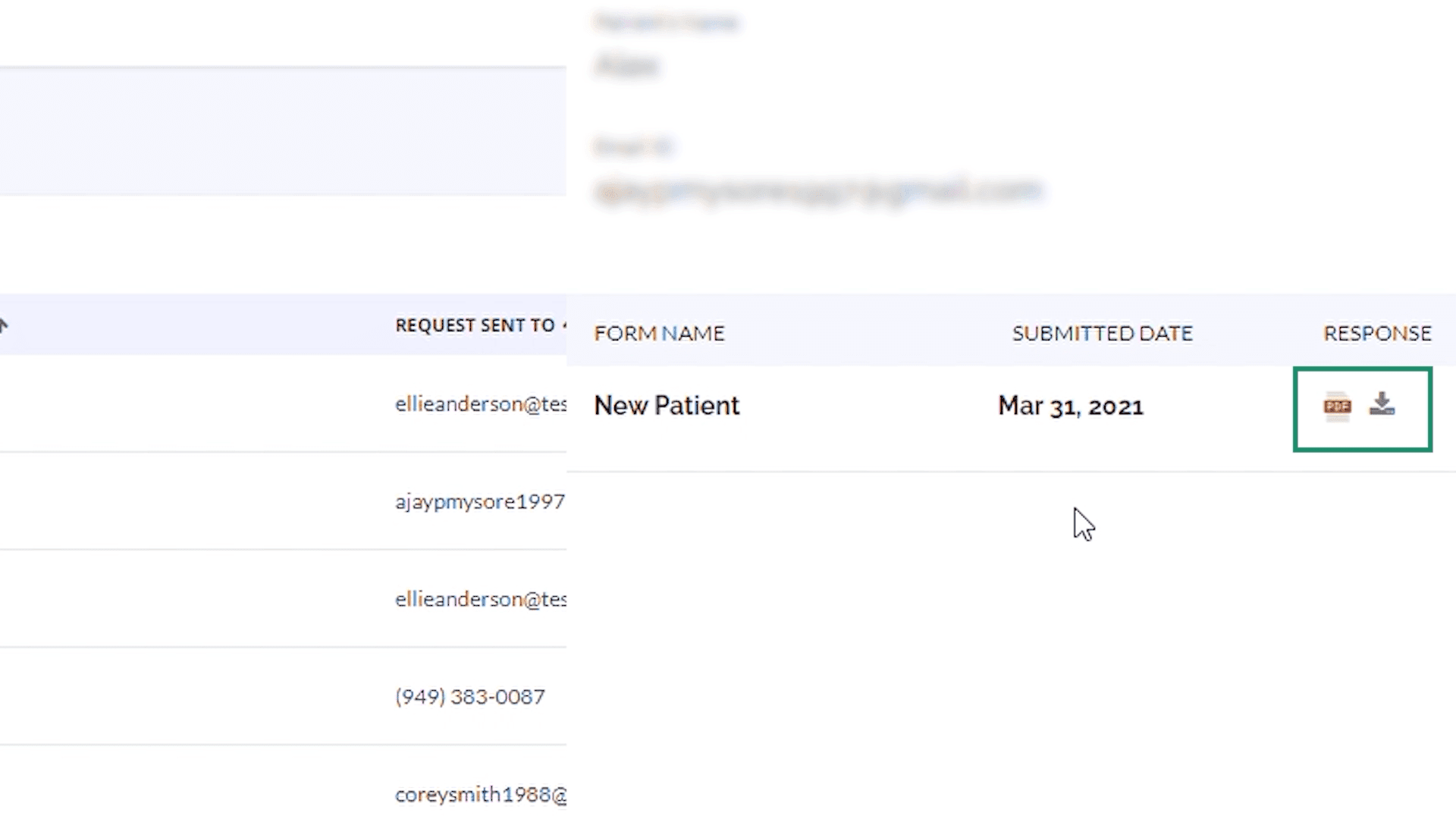
Once the patient submits the form, the icon shown besides View Details changes to green indicating the form ready for viewing and downloading.
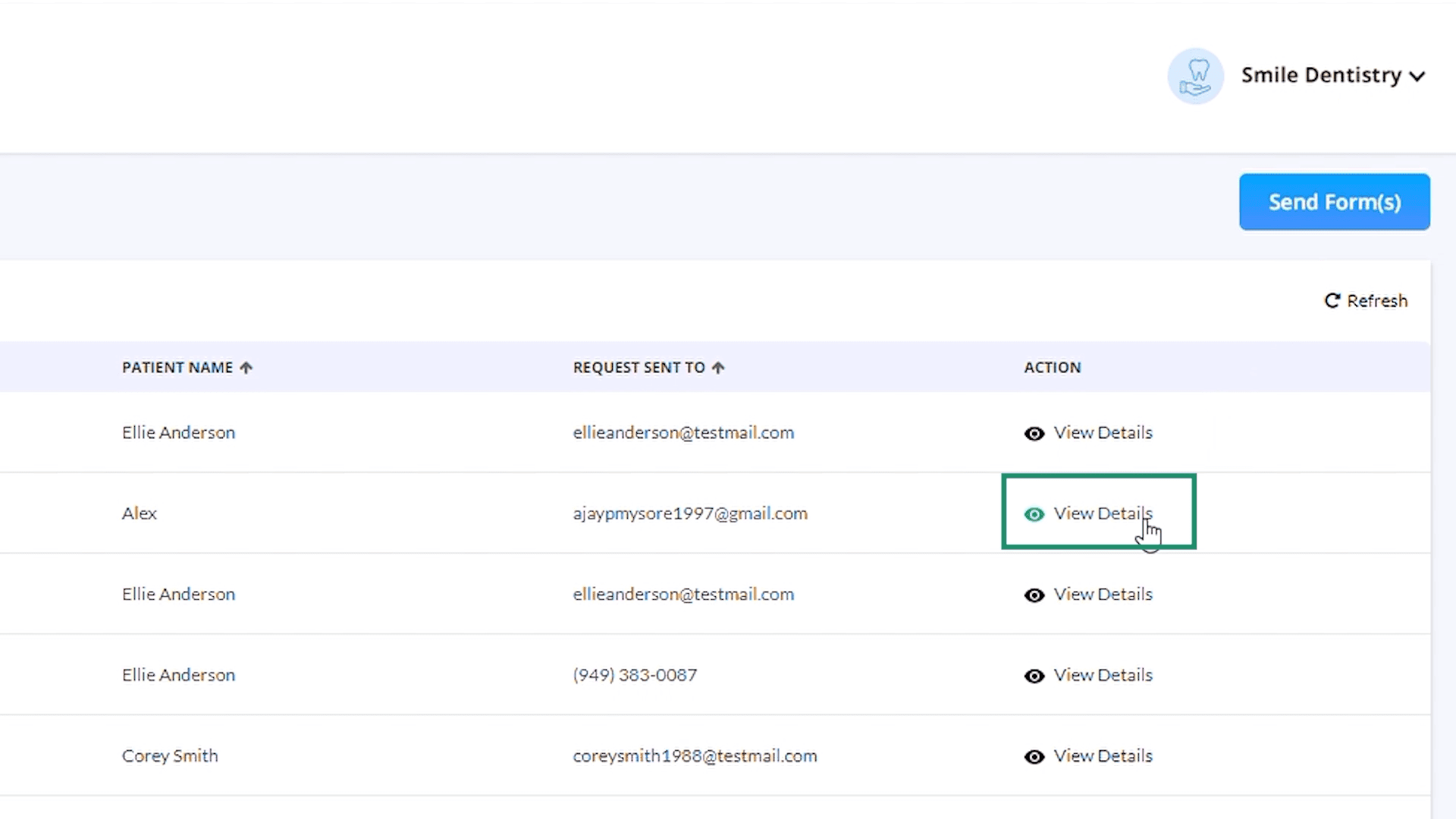
You can also download the pdf and it will get saved on your computer with the patient's name.