1
Click Appointment By Date in the left panel and select the desired date.
0:19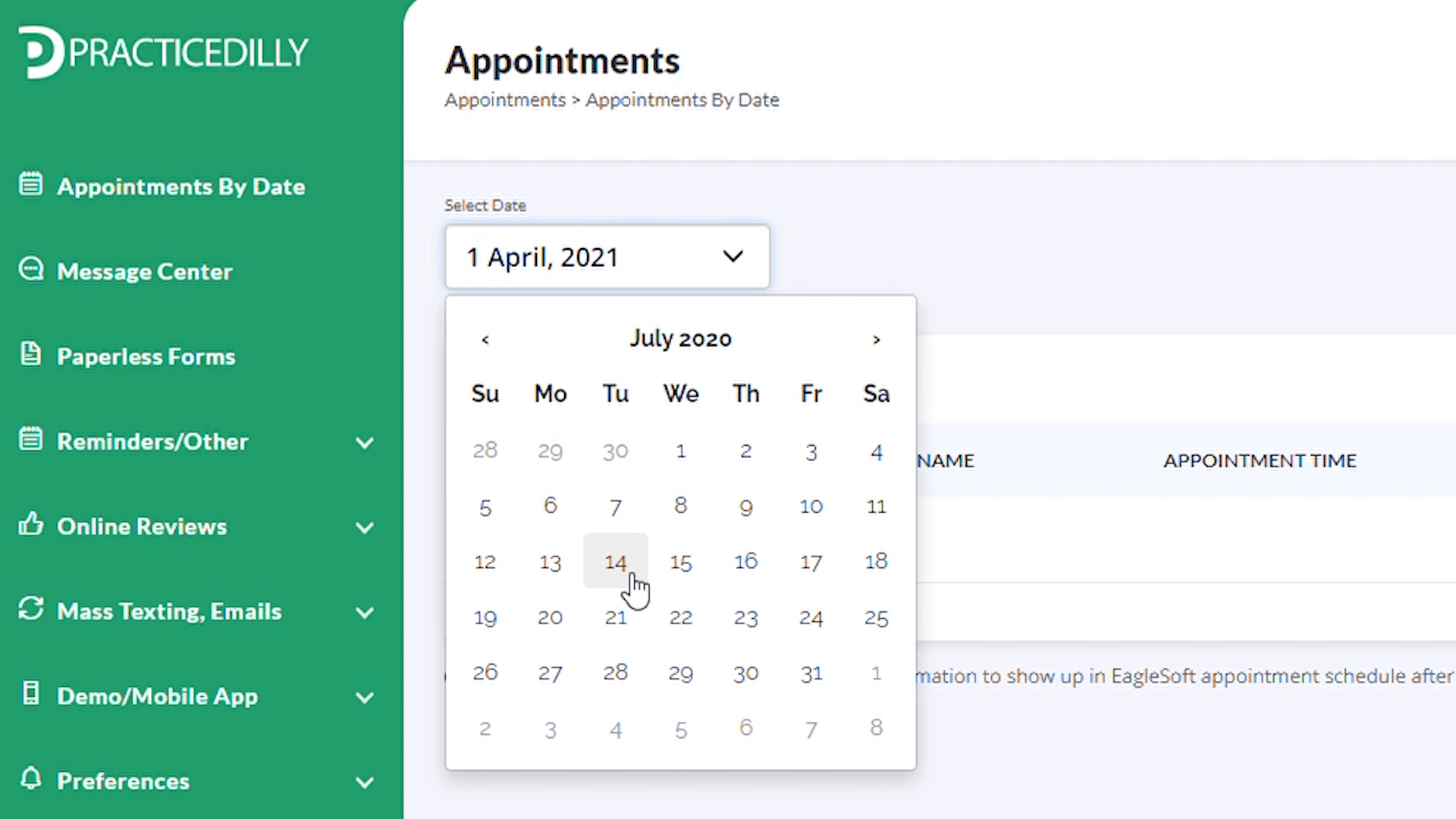
Send COVID-19 pre-screening forms to selected patients, review completed forms, or automate delivery before upcoming appointments.
Click Appointment By Date in the left panel and select the desired date.
0:19Here you will be able to see the list of all the patients who have appointments on that particular date. Click in the checkbox to select all the patients.
0:29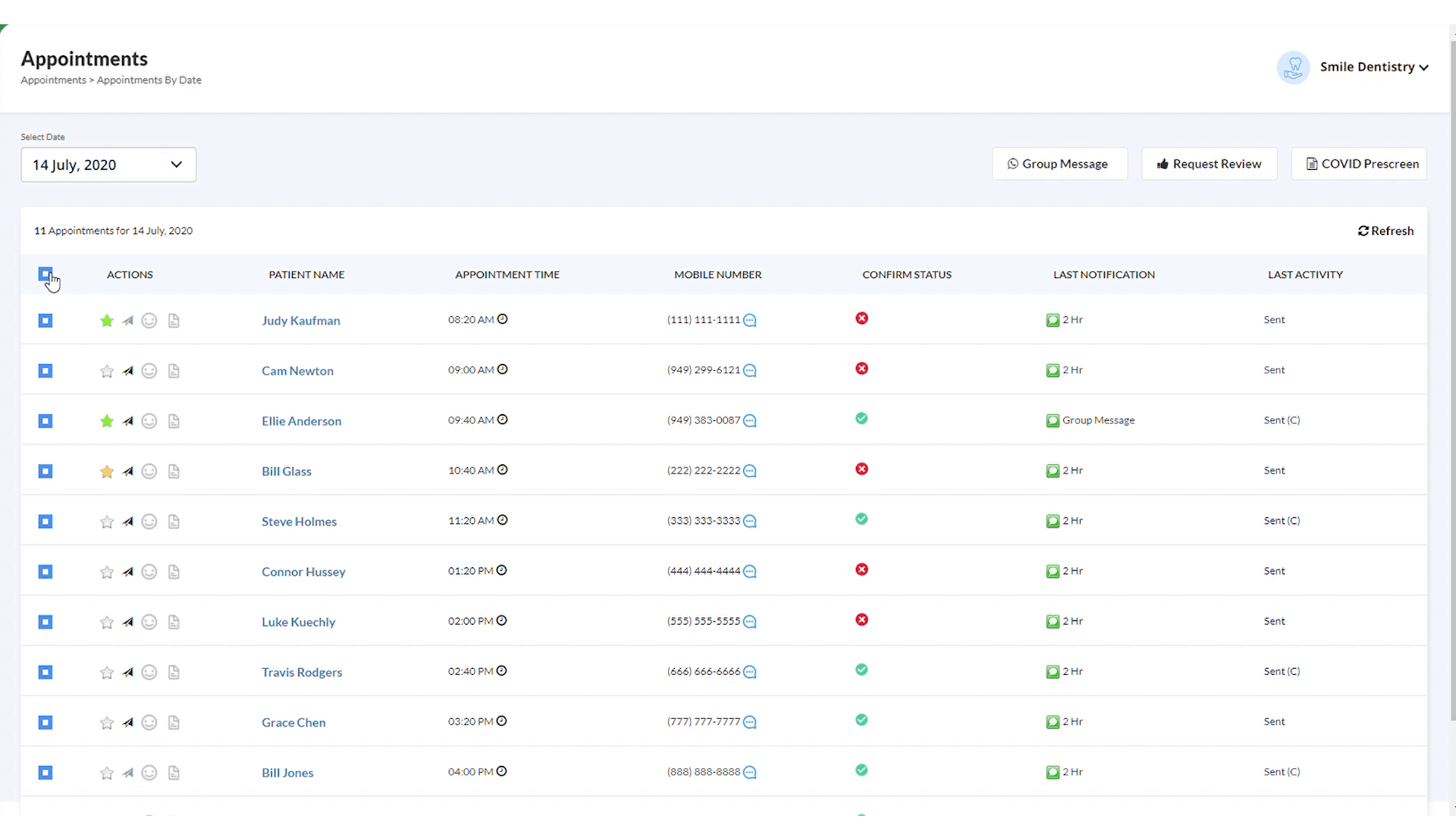
If you don't wish to send the form to all the patients, you can uncheck the boxes for those patients.
0:36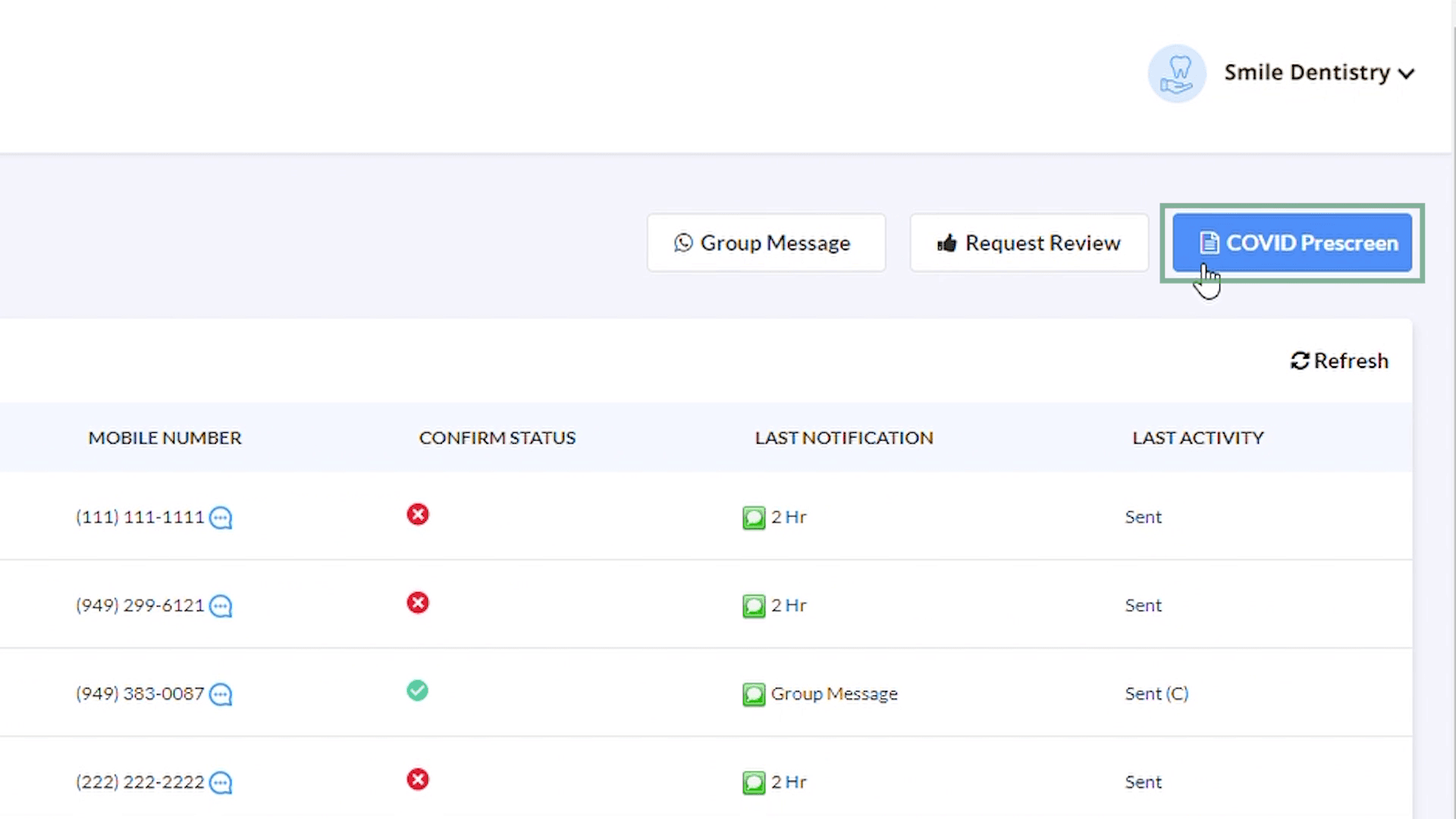
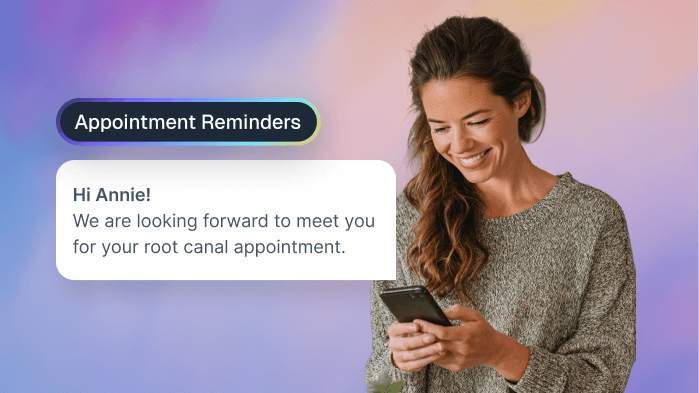
Click on the Covid Pre Screen button on the top right side of the screen. The patient will receive the text message with the link to the prescreen form. Clicking on it will direct them to a page where they can answer some pre screening questions.
0:39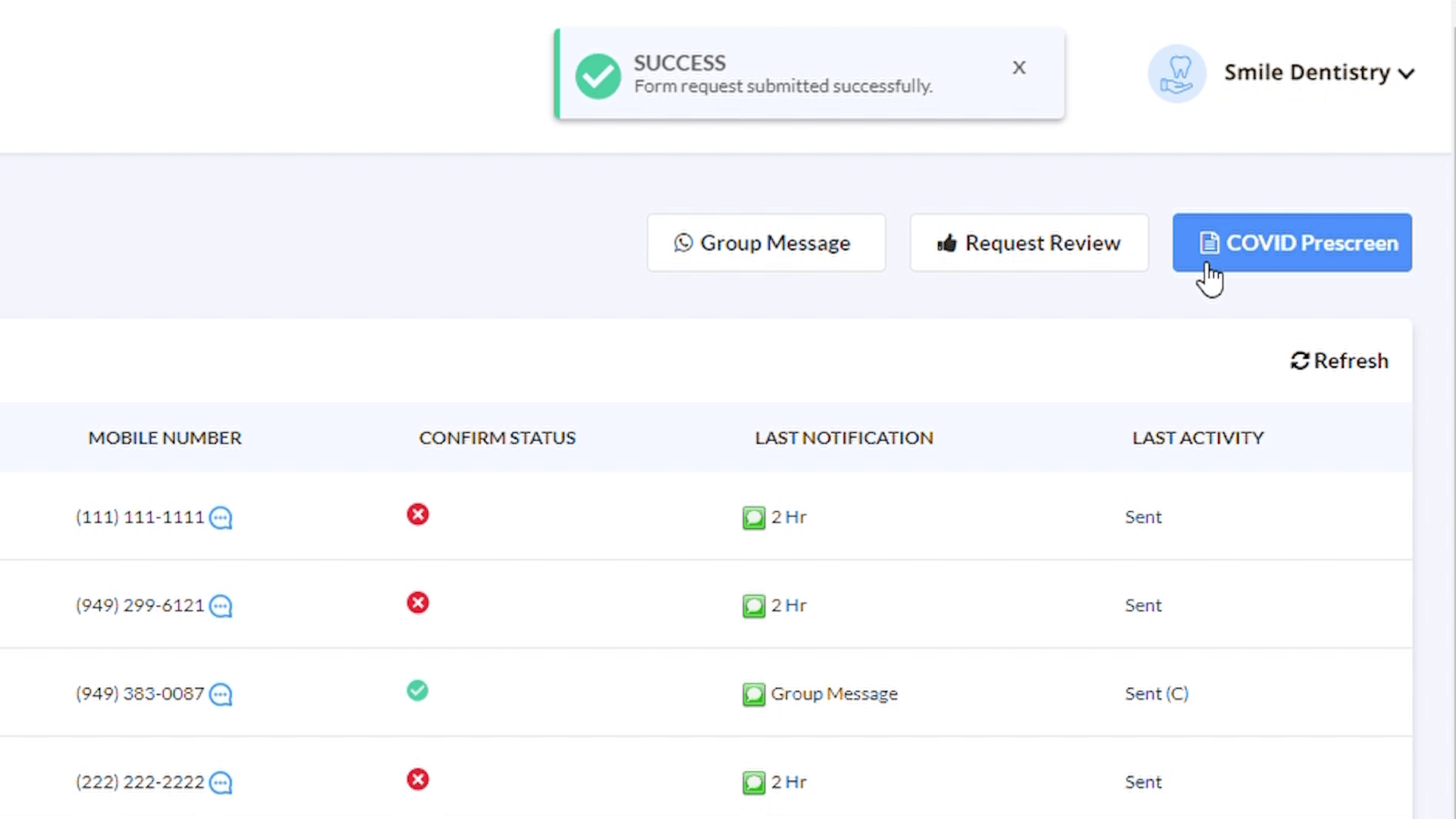
As the patient submits the form, your office will receive the email and a pdf will appear next to the patient's name indicating that the document is available for review.
1:18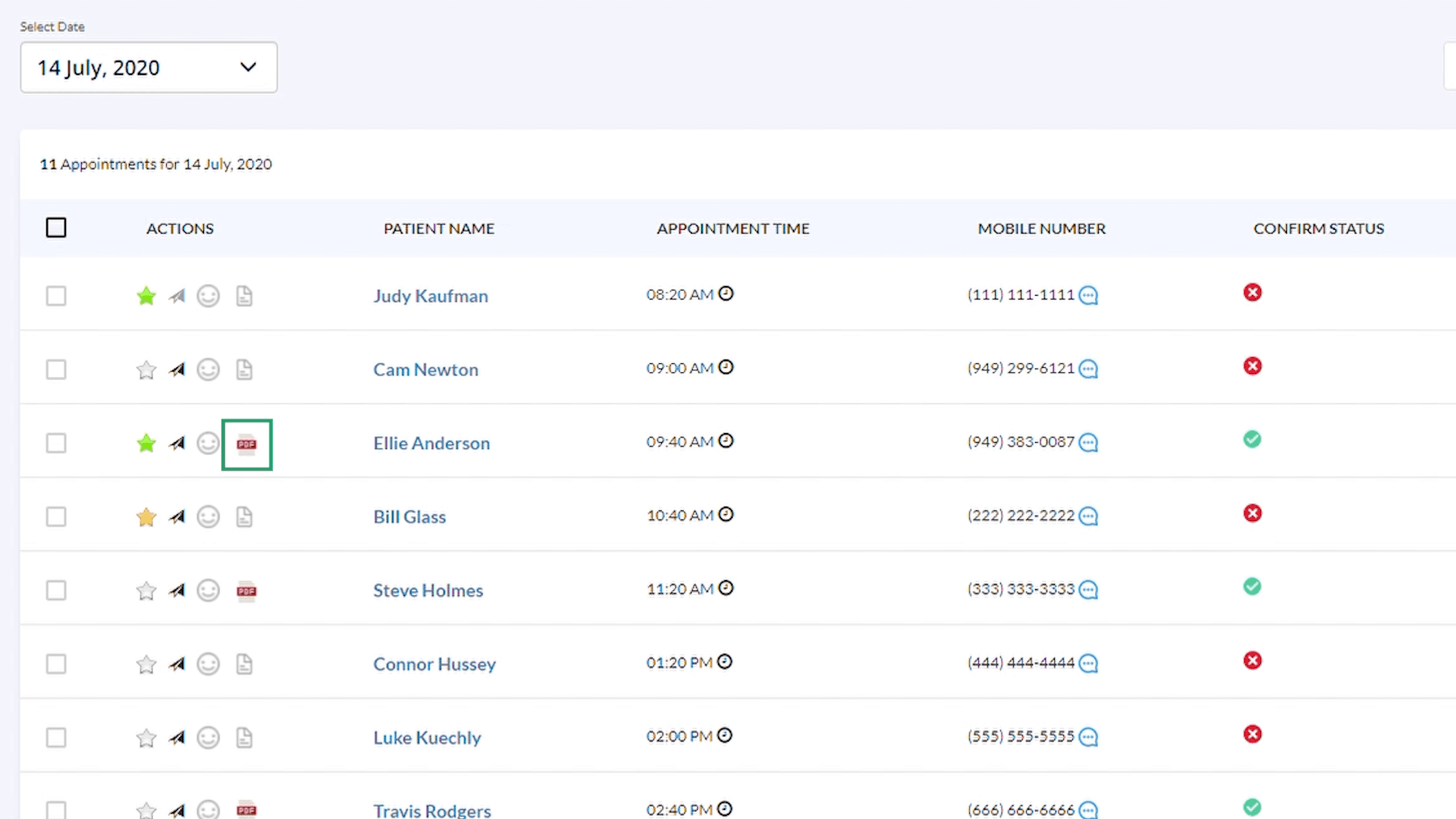
You can click on the pdf button and preview the answers submitted by the patients. You can also download the document
1:34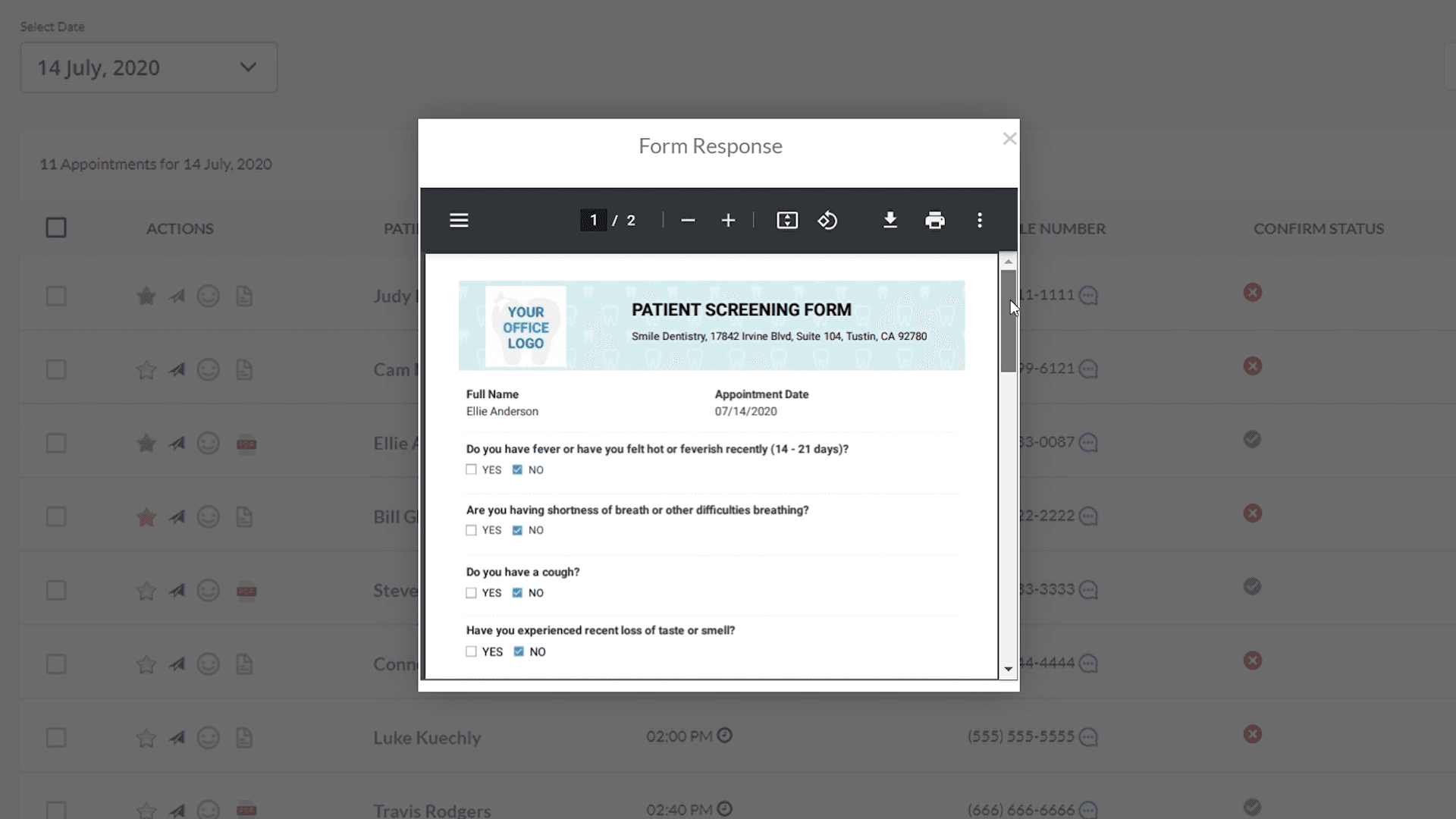
Alternatively you can click on Reminder Settings under the Preferences tab to send this pre-screening form link automatically to the patients.
1:43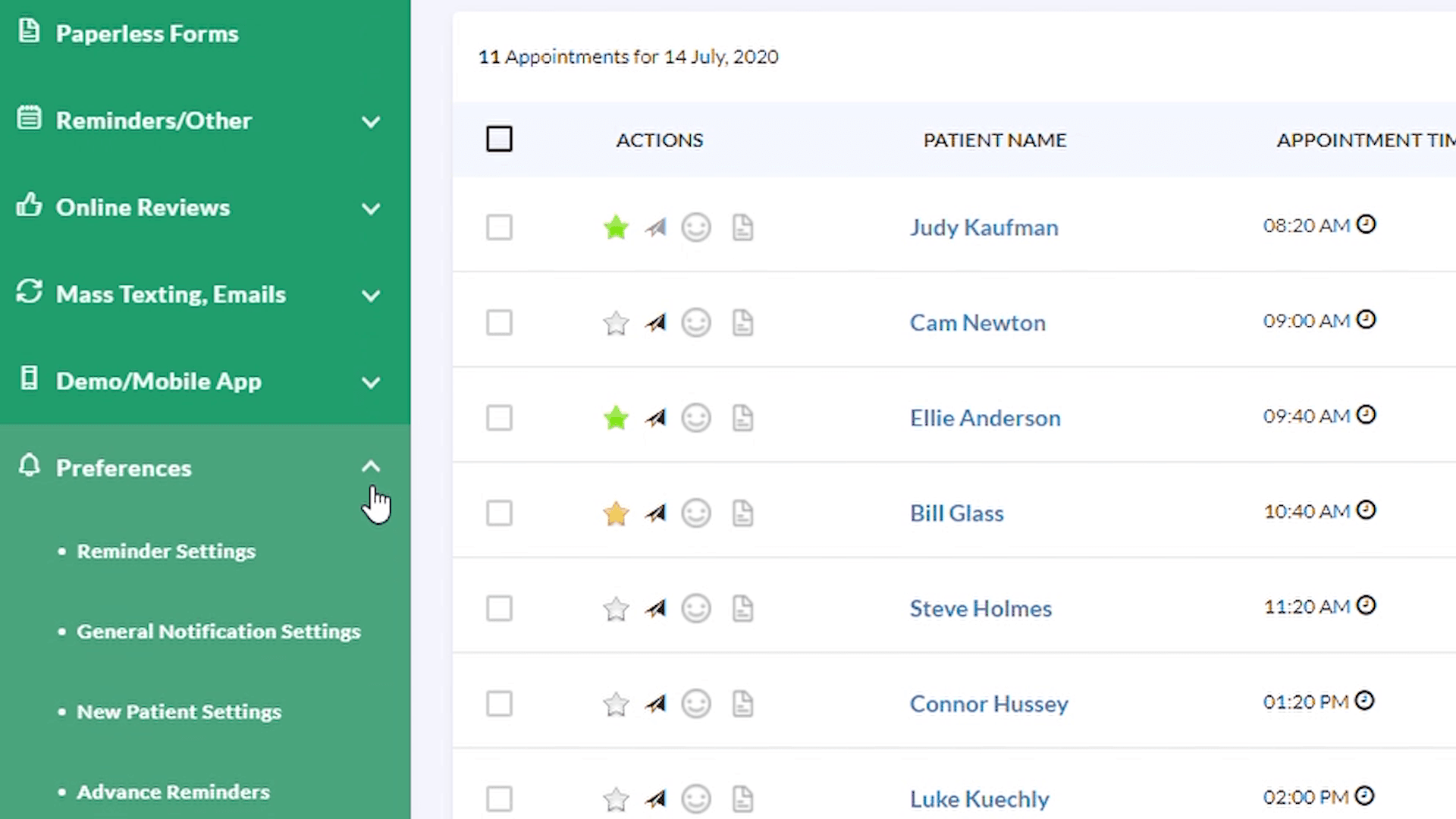
Click on the Text Customization and leave the link to covid pre-screening form in the message.
1:56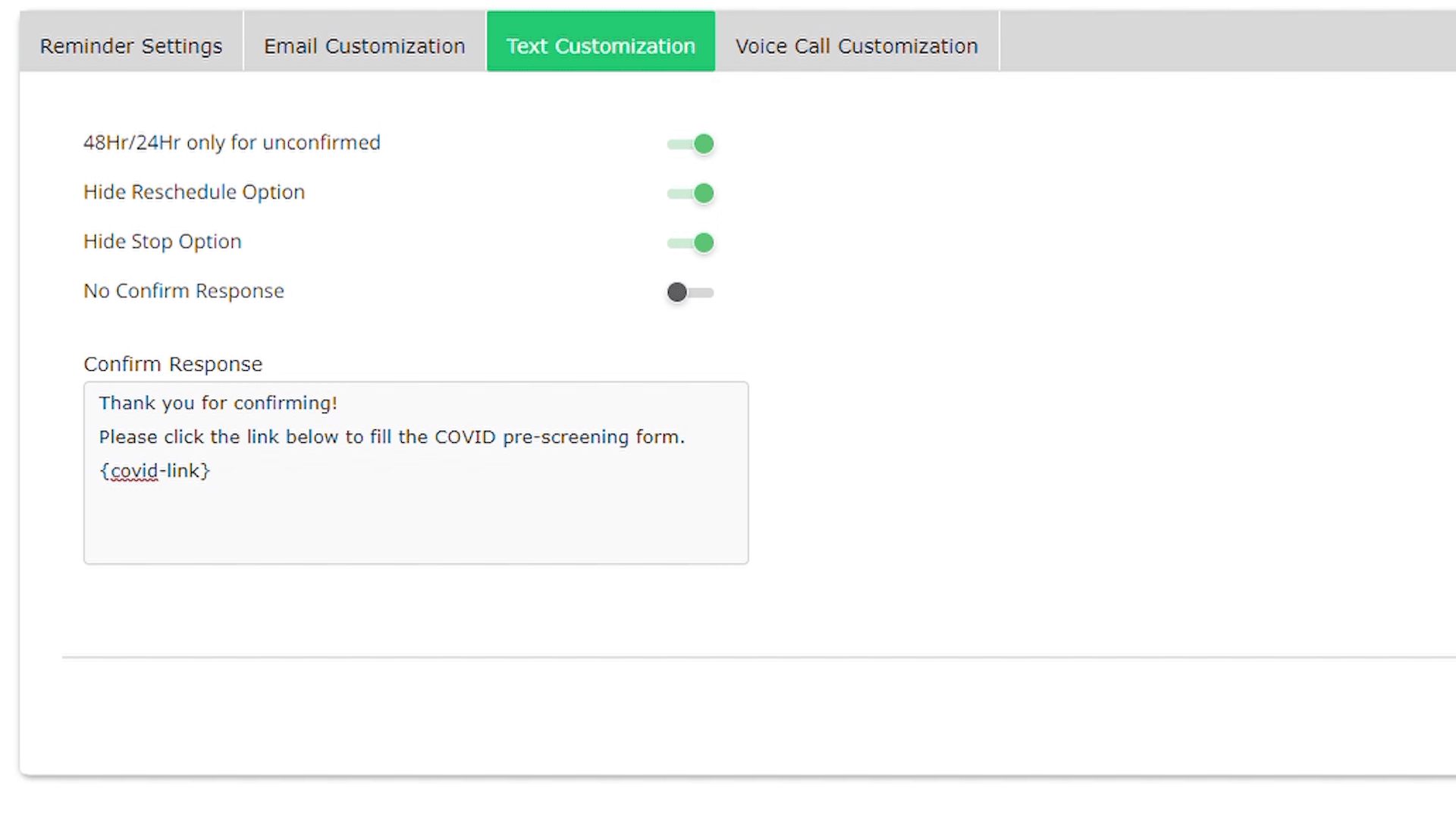
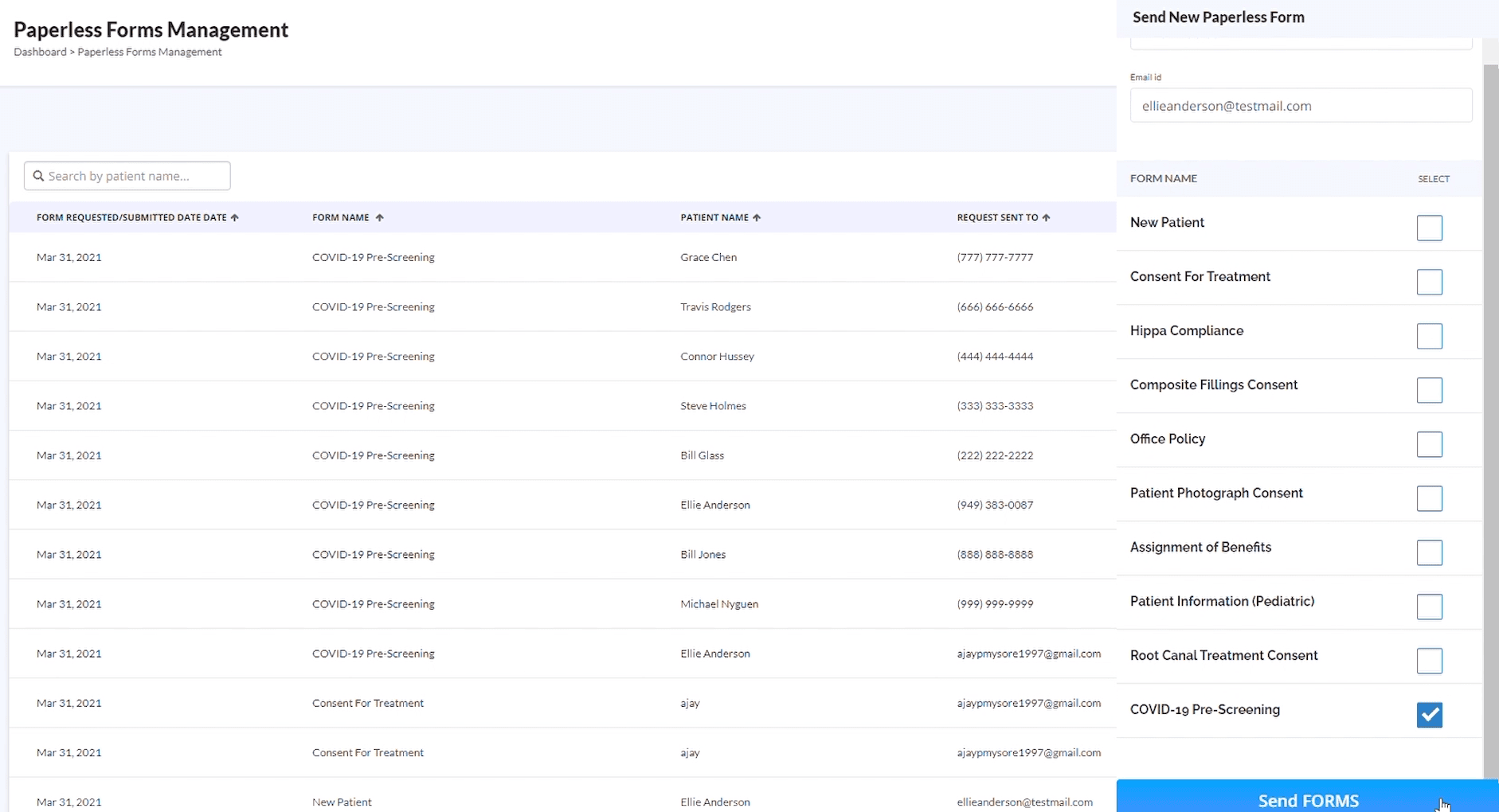
You can also send the pre-screening forms through the Paperless Forms tab.
2:12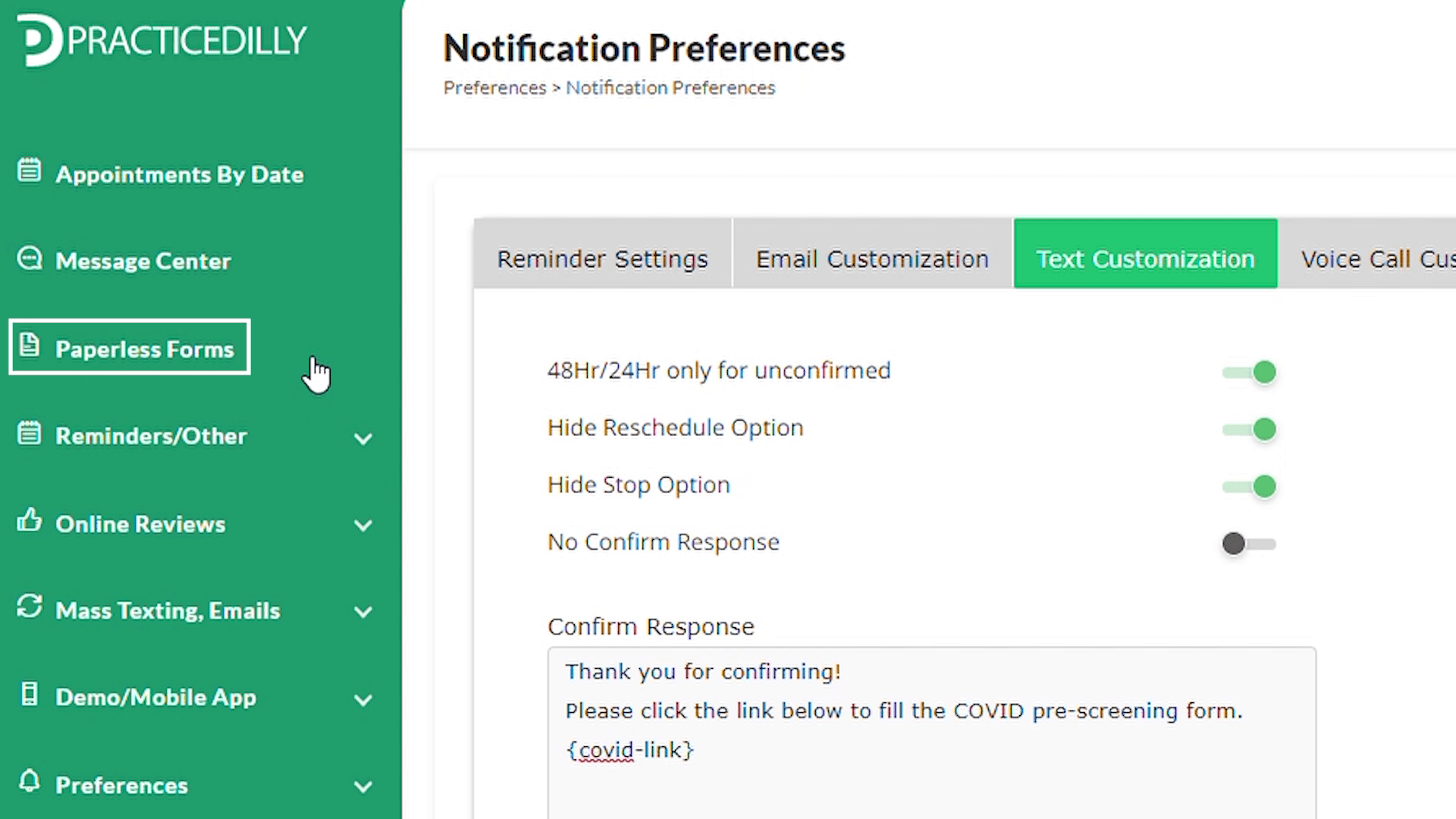
Click on the Send Forms button. Enter the patient's name, email id and select the Covid-19 pre-screening check box.
2:17, 2:28